Voice Consistency
Create a character image and choose a voice, then reuse them across clips. Check both the appearance and voice in each result.
Before you start
Have a short description of the character ready: age, build, hair, clothing, one distinctive detail. Decide on one line of dialogue for the first clip. The character image, the voice, and each video clip cost credits.
Create your character
To create your character, use the chat box on the bottom-right.
- Briefly describe the character you want to create.
- Tell the agent which image model to use.
Flick will generate a character based on your description.
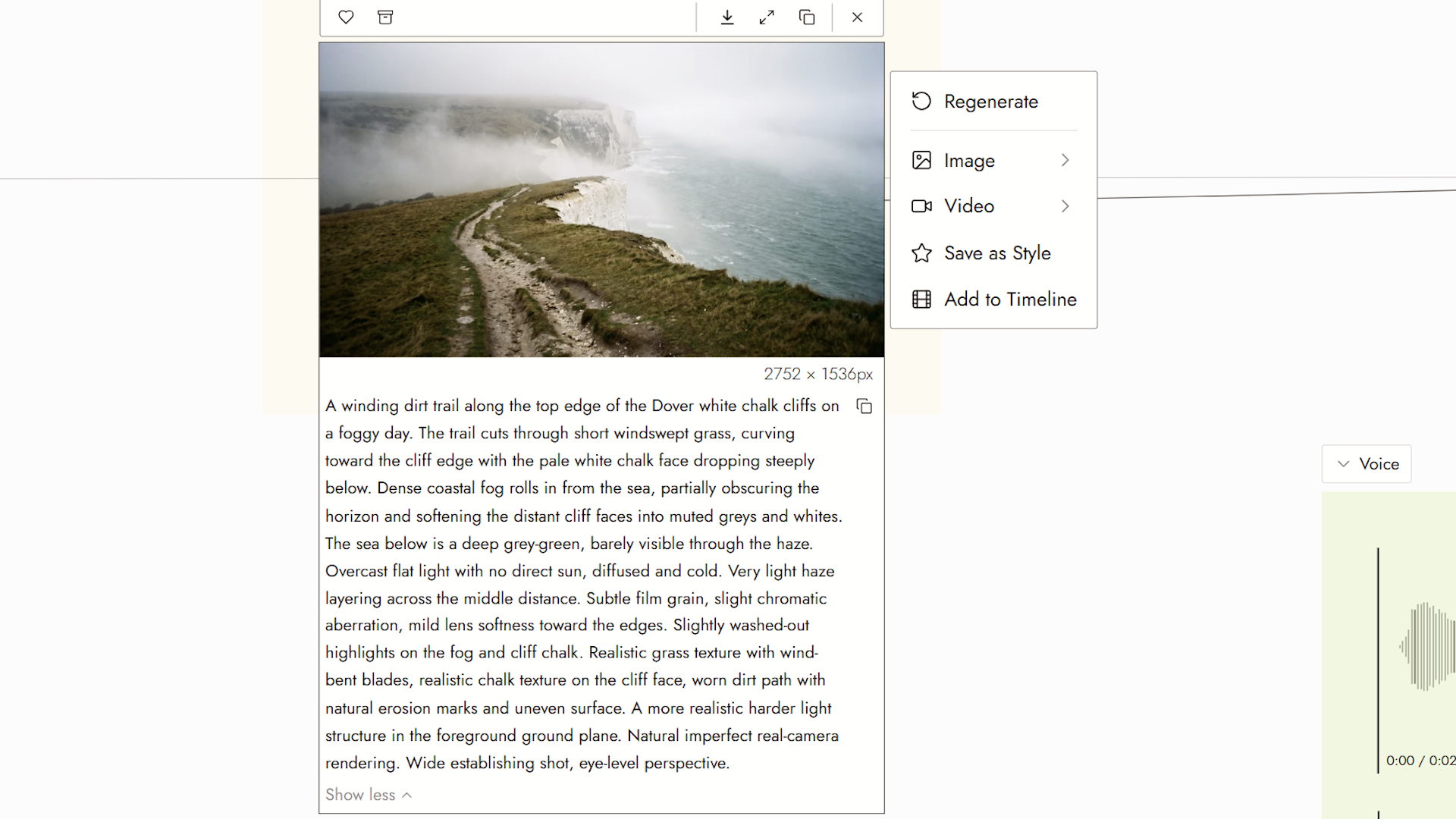
Place your character in a scene
- Click the generated three-view character image.
- Tell Chat what kind of scene you want to place the character in.
Flick will use the selected character image as the character reference.
Create your character's voice
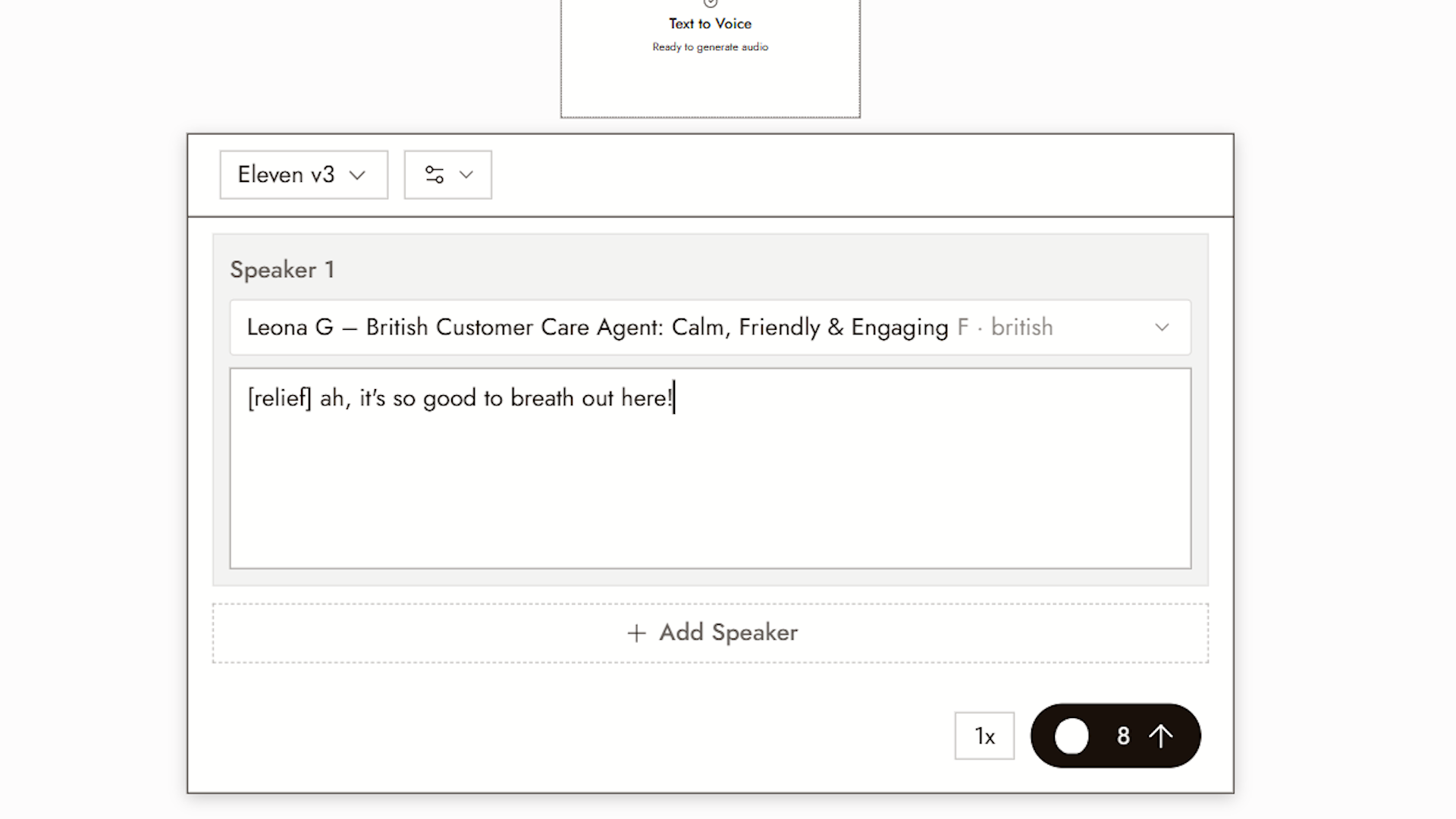
- Click the + button on the left, then Generate Voice.
- Under Speaker 1, click Select voice.
- Choose a voice you like. Hover a voice to preview it.
- Click Use.
- Enter the dialogue you want the character to say.
- Generate.
Flick will generate the character’s voice based on your selected voice and dialogue.
Generate your video
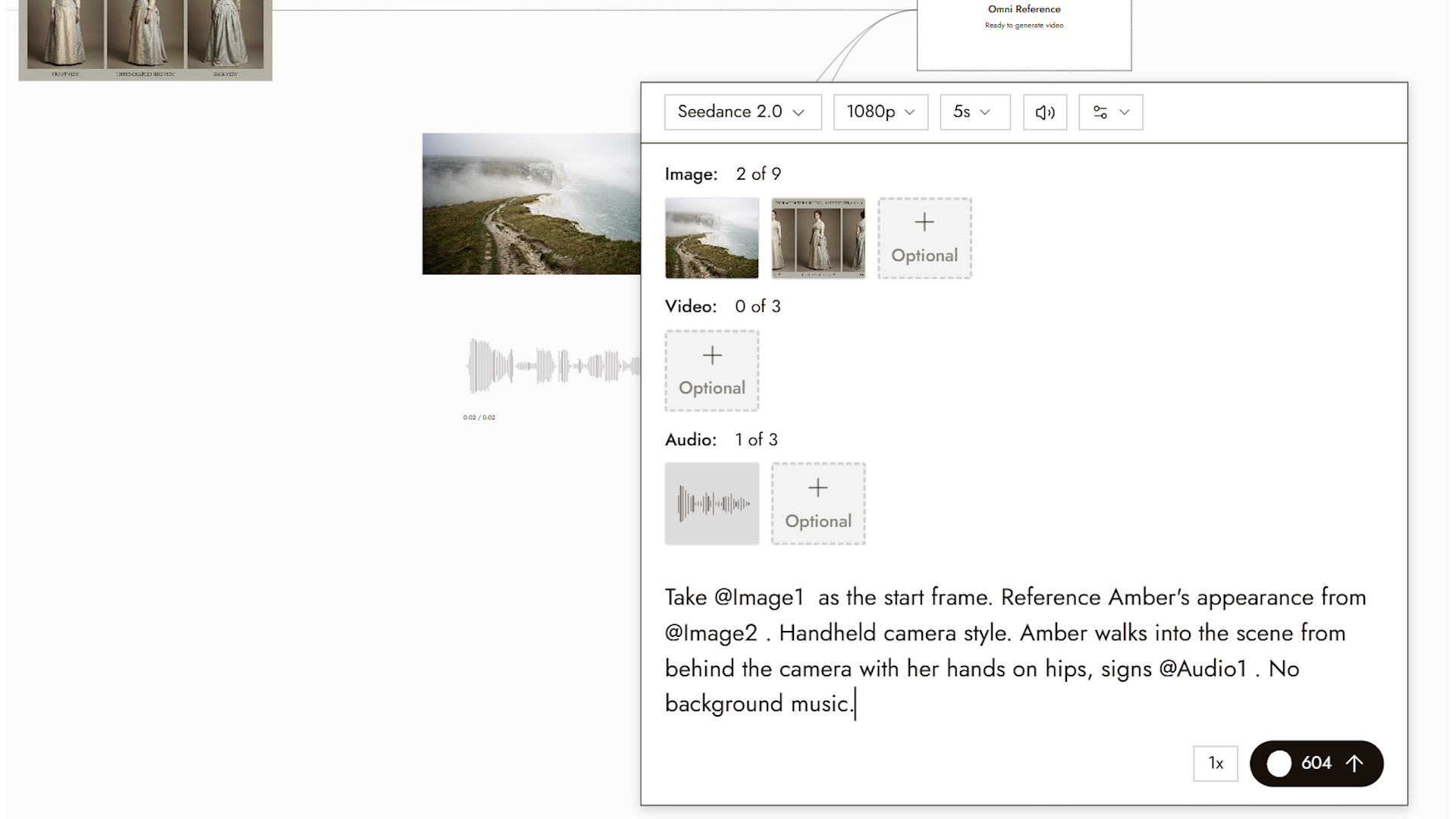
- Click the character scene image.
- Select Video.
- Select Omni Reference.
- Select Seedance.
- Under Audio, click the + button.
- Click Select from Canvas.
- Select the audio you generated earlier.
- Enter your video prompt.
- Generate.
Flick will use the selected scene image and audio to generate your video.
Create a second video
- Click the existing head-and-shoulders three-view image.
- Ask Chat to generate a full-body three-view image of the same character.
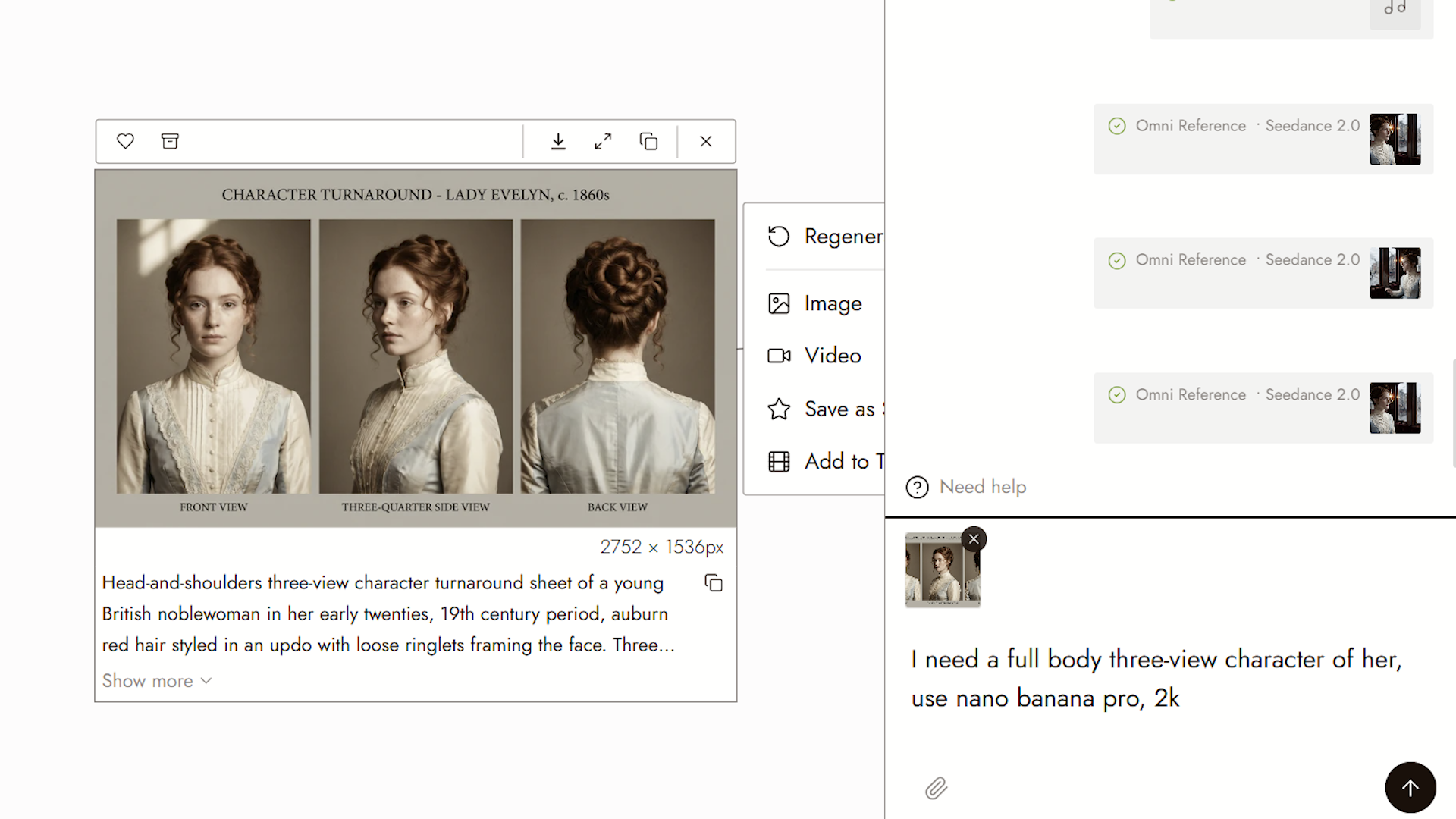
- Generate the scene image you want for the new clip.
- Generate a new audio clip using the same voice as before.
- In your prompt, use the full-body three-view image as the character reference, the new scene image as the start frame, and the new audio clip as the dialogue.
- Generate.
Outcome
You now have a video clip with your custom look and voice.
To keep the same character across every clip, see AI character consistency: 5 methods compared.
Best practices
Pick the voice once and reuse it. A new voice per clip breaks the character even when the face holds.
Write dialogue as it would be spoken. Short lines. Punctuation for pauses. Long sentences flatten the delivery.
Keep character references together. Save the three-view image and voice selection. For new dialogue, generate new lines with that voice; an old audio file still contains the old words.
Review the result
- The voice is the same voice across clips.
- The mouth movement follows the dialogue.
- The character in the new scene still matches the three-view image.
If something looks wrong
The voice differs between clips. Use the same voice selection for new lines, or a supported voice reference. Reuse an existing audio file only when you want the same recorded line.
The previewed voice does not match the generated clip. Regenerate once and compare. If it happens again, report it with both files.
The character drifted in the new scene. Use the full-body three-view image as the character reference, as in "Create a second video" above.
Next
- Generate Video for the video settings used in this workflow.
- Character Dialogue when you have a voice track and a still and want a talking clip.
- Edit Image to adjust the scene image before generating.