3D Stage cameras
Set the camera's lens and framing, then choose how it moves: stay still, follow a path, follow an object, or move between keyframes.
Before you start
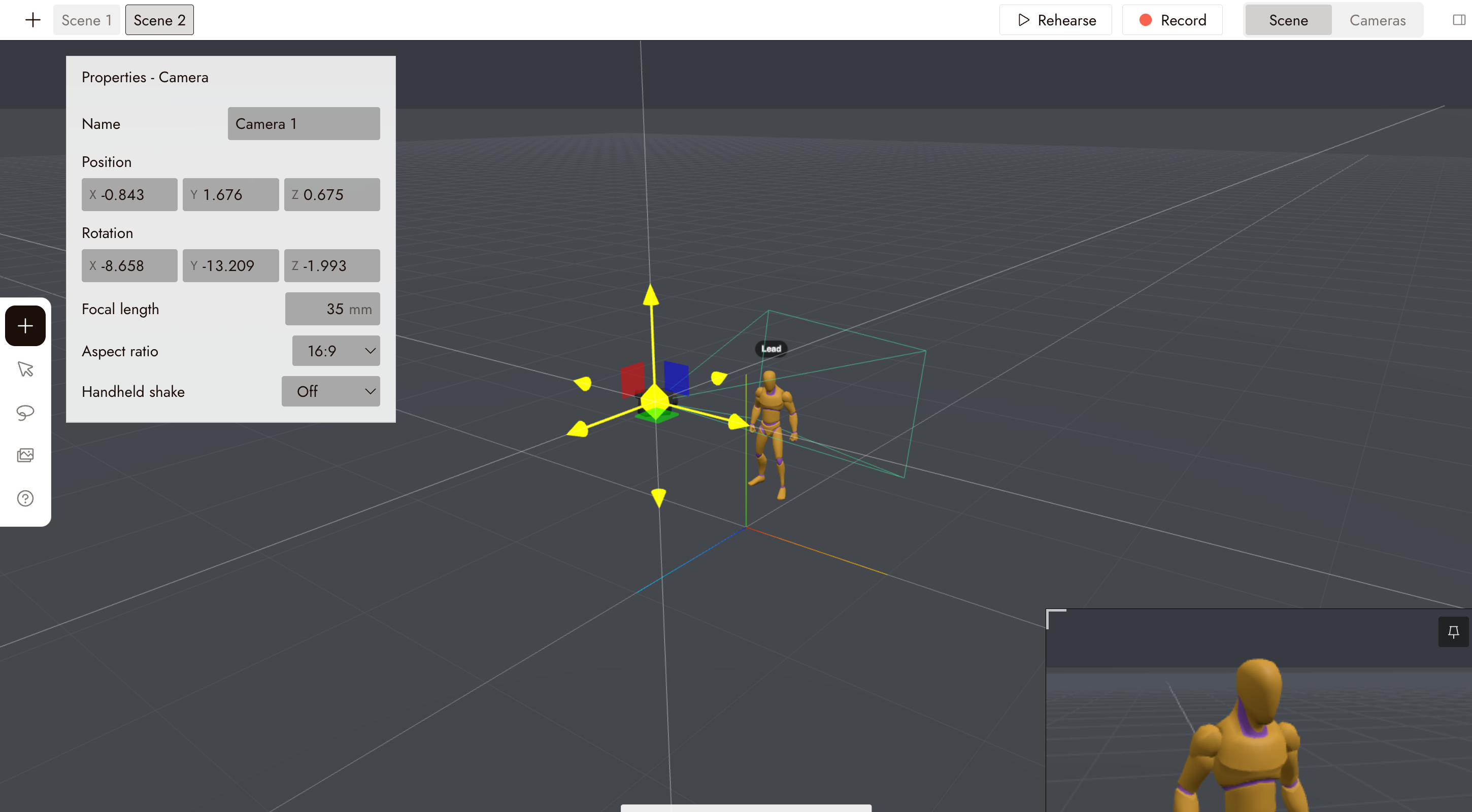
Add a camera from the component library first; see 3D stage basic. When the camera is selected, its view appears in a preview window in the lower-right corner, so you can judge the shot from the camera instead of from the editor.
Adjust camera properties
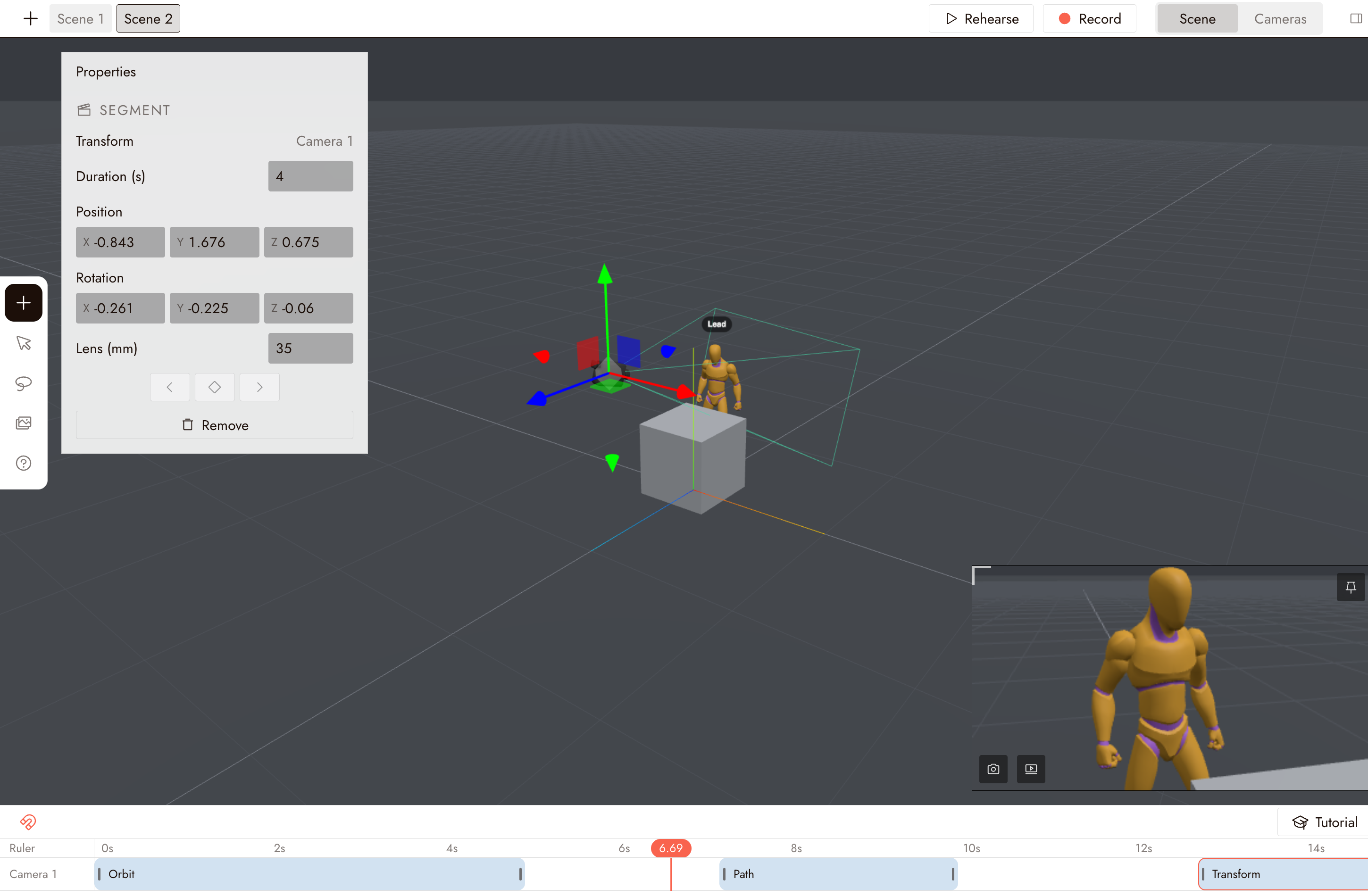
When you select the camera, its Properties panel appears in the upper-left corner.
Use it to rename the camera and set its position, rotation, focal length, aspect ratio, and handheld shake.
A shorter focal length shows more of the scene. A longer focal length gives a tighter view. Add subtle handheld shake if the shot needs it.
Give the camera a move
Camera moves live on the camera's track in the timeline at the bottom of the stage. Click Add action on the track to open the Actions panel, then open the Camera tab. It holds Still, Path, Follow, Transform, and Manual, plus presets such as Orbit, Dolly in, Dolly out, Dolly zoom, Crane up, Crane down, and Spiral. A new camera starts with one preset segment already on its track.
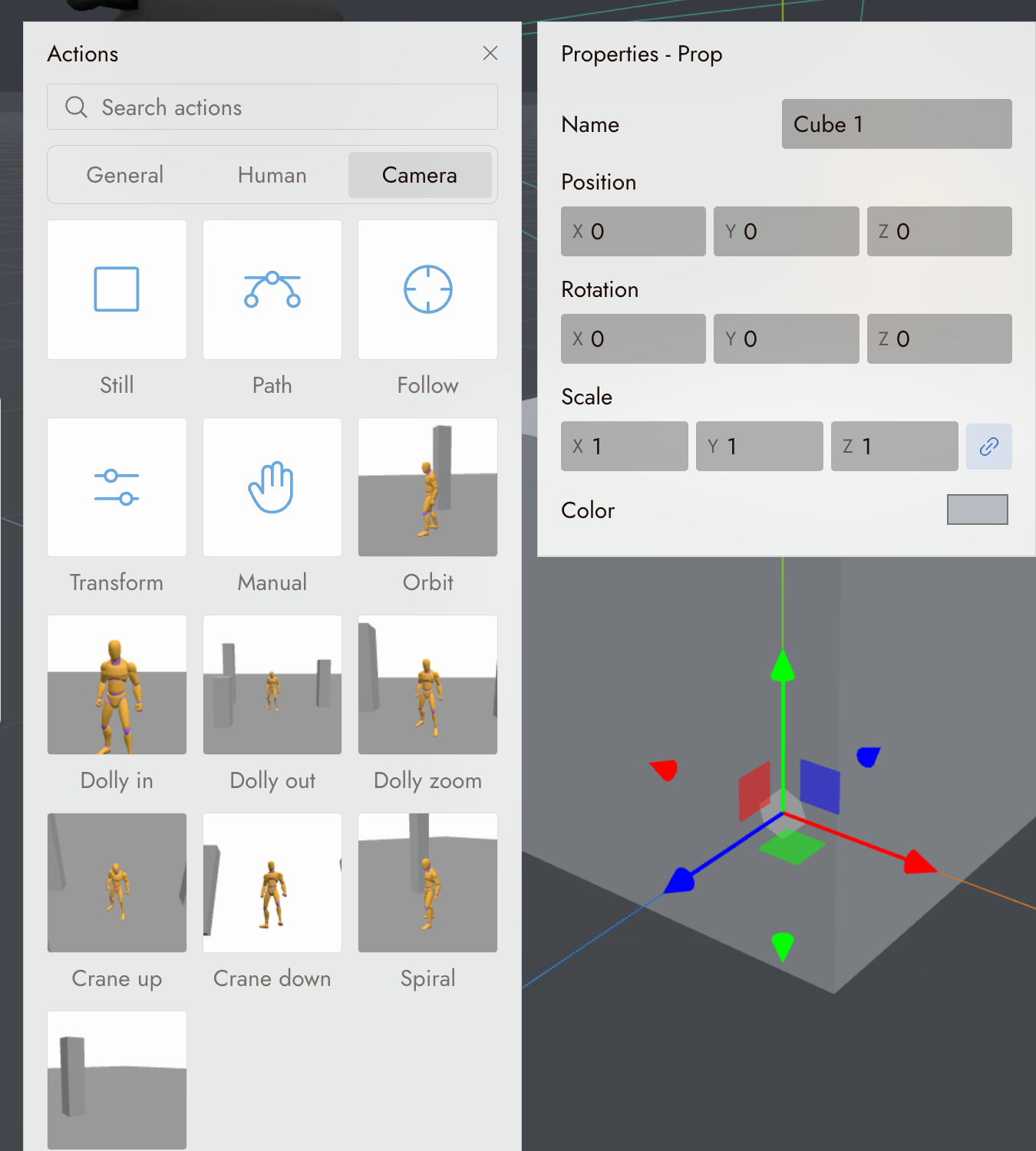
Drag an action from the panel onto the camera's track. It becomes a segment, and the segment's settings appear in Properties.
Path
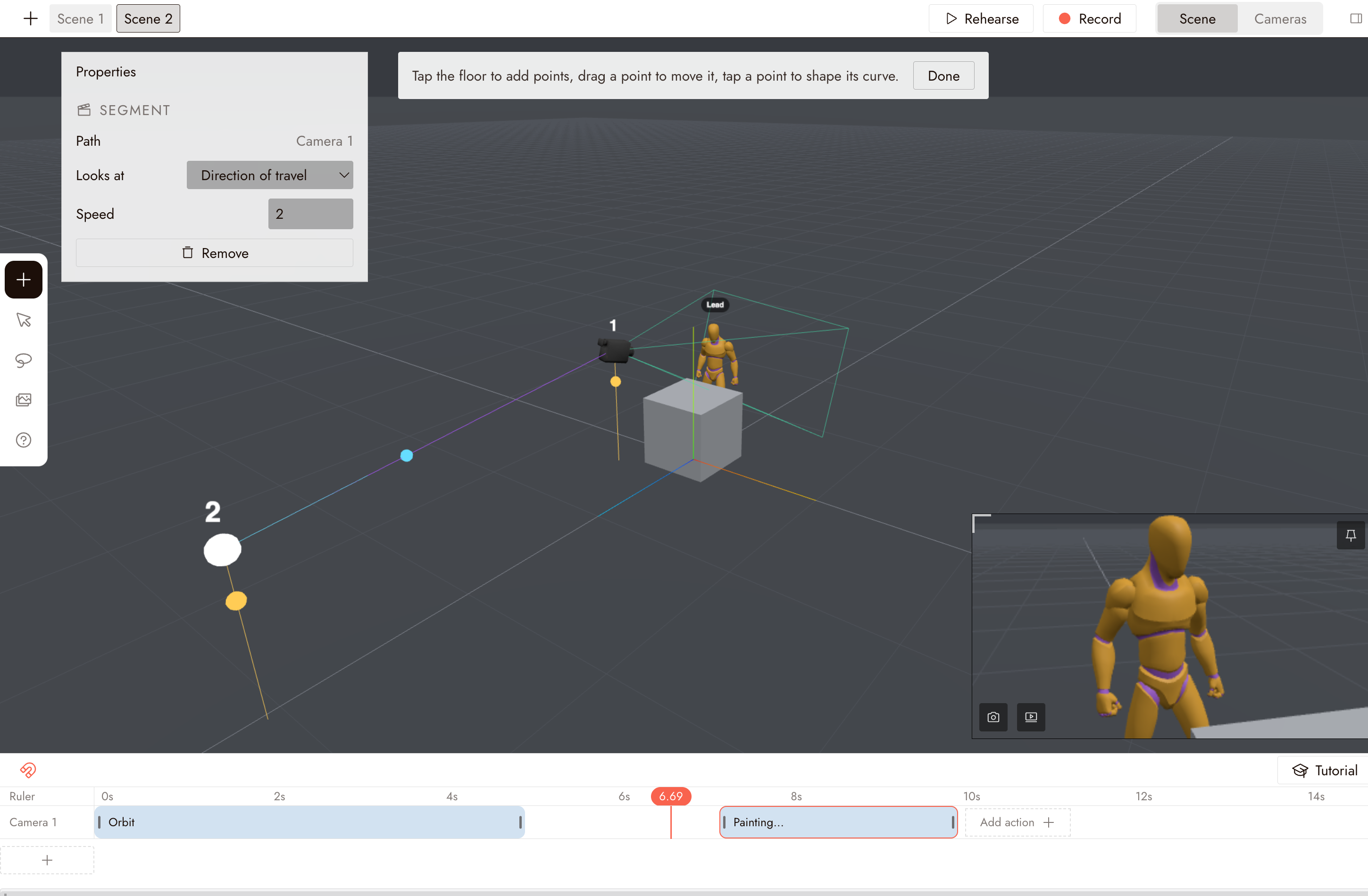
Drag Path onto the camera's track. The stage switches to drawing mode: tap the floor to add points, drag a point to move it, and tap a point to shape its curve. Click Done when the route is drawn.
In Properties, set the travel Speed and choose what the camera Looks at: the direction of travel, or a target in the scene. Use Edit path later to change the route.
Follow
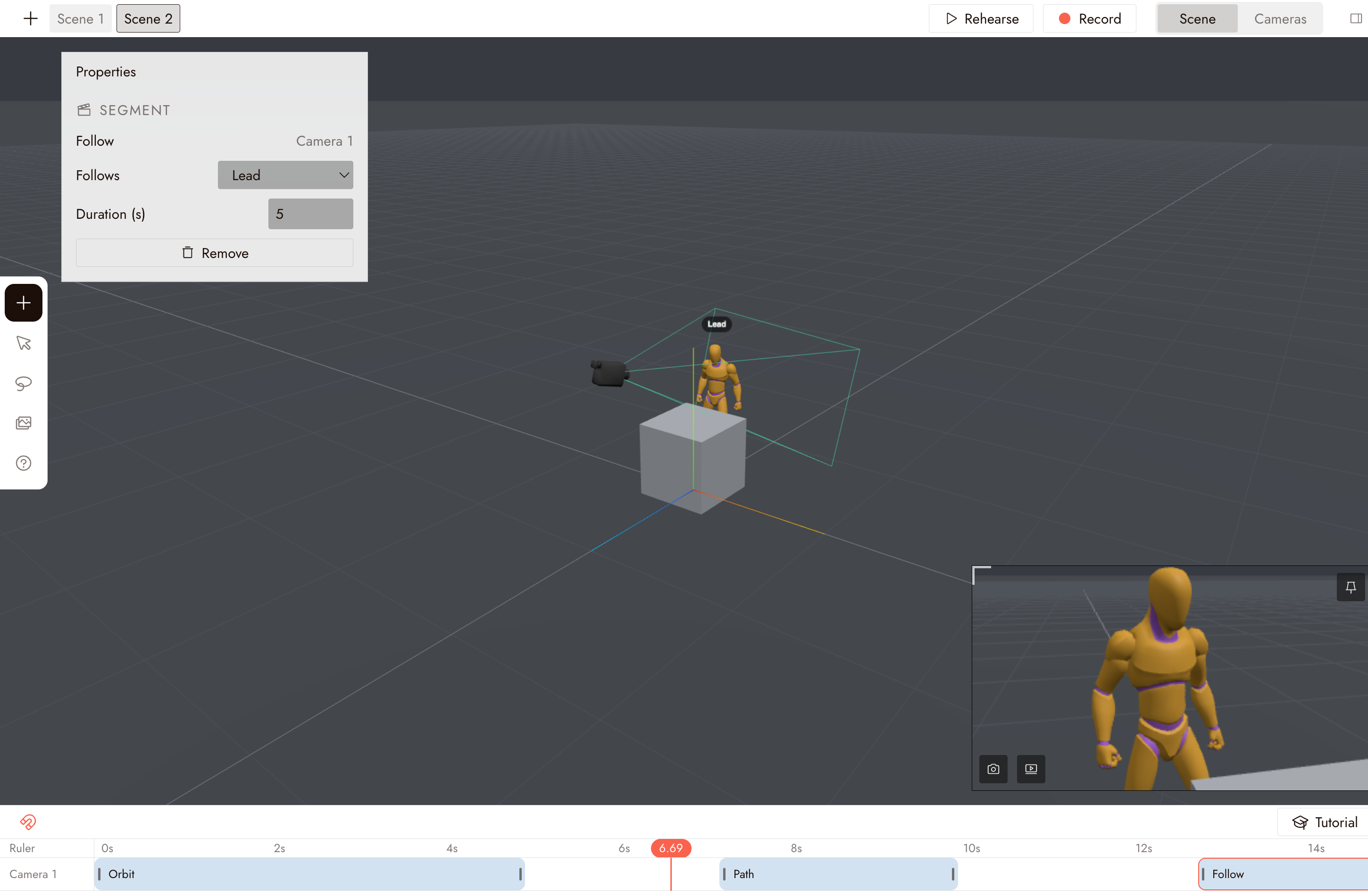
Drag Follow onto the camera's track, then choose the object it Follows and set the Duration.
The camera follows the target while keeping the same relative position. Use this for a shot that tracks a moving character or object.
Transform
Transform works like traditional keyframe animation. Drag it onto the camera's track.
Move the playhead to the time you want, position the camera, and add a keyframe in Properties. Each keyframe stores the camera's position, rotation, and lens. Add keyframes at other times, and the camera moves between them.
Best practices
Give the camera one job per shot. A push in, or a follow, or a pan. Combining them in one take is hard to read and hard to match with a generated clip.
Decide the lens before the move. Focal length changes how much a move is felt. Set it first, then draw the path.
Rehearse from the camera view, not the editor view. What the editor shows is not what gets recorded. Click Rehearse at the top, or switch to Cameras.
If something looks wrong
The camera moves but does not look at the subject. In the path segment's Properties, set Looks at to the subject instead of the direction of travel.
The move is too fast or too slow. Adjust Speed in the path segment's Properties rather than redrawing the path.
The keyframed camera jumps. Check that each keyframe recorded both position and rotation, and that the keyframes are spaced along the timeline.
I want to remove a move. Select the segment on the track and click Remove in Properties.
Next
- 3D stage animation to give the character something to do in front of this camera.
- 3D stage export to record the take.