Choosing a model
Choose a model for the task and the shot you need. There is no single best model for every result.
Start with the task
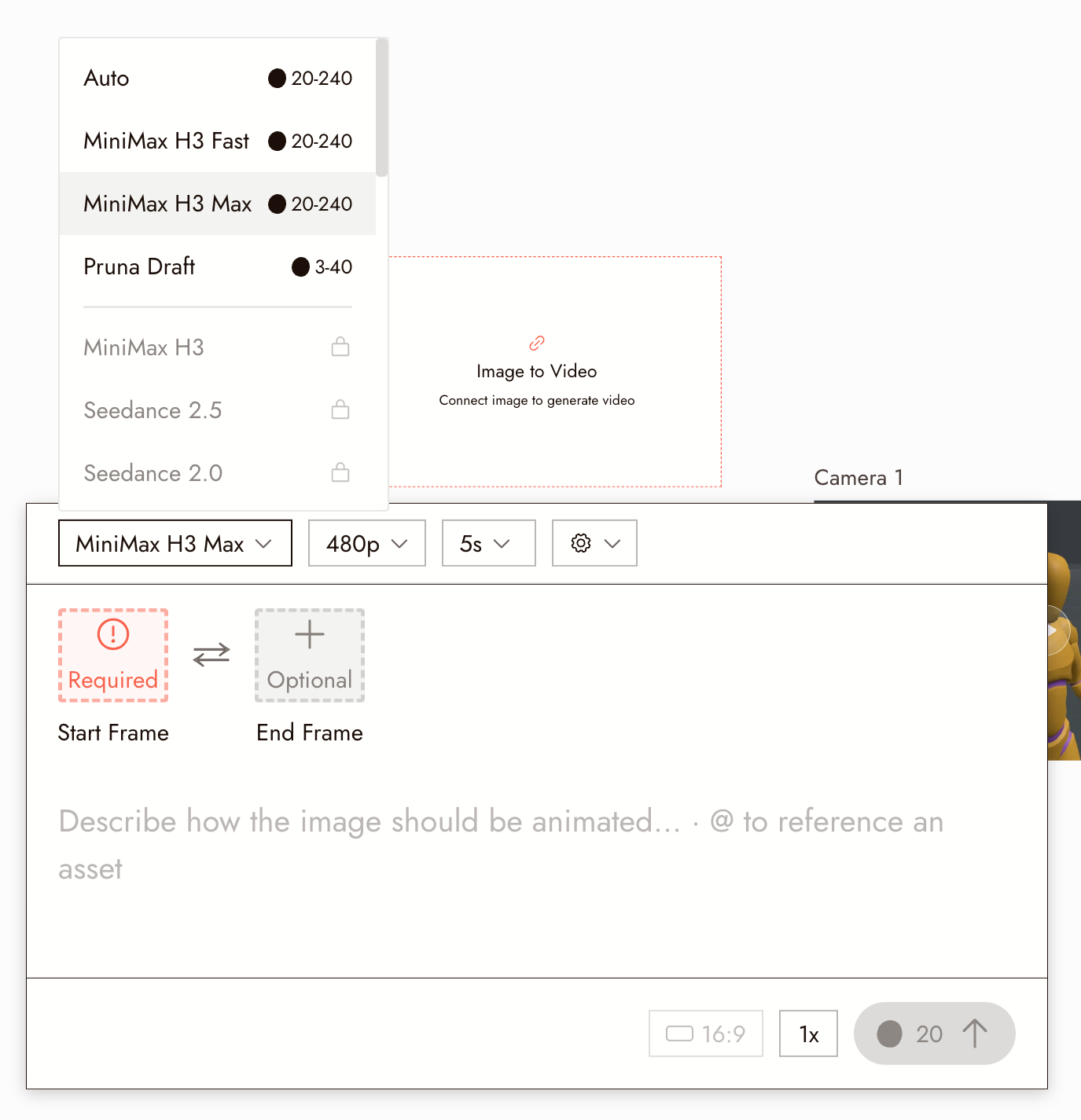
Open a node's menu and choose Image, Video, or Audio, then an action. The Model dropdown lists available models and their credit ranges. If a model is missing, check that you selected the right action.
Try Auto first
For video, try Auto for an initial test. It selects a model for speed and value. Choose a named model when you need a specific capability.
Read the description
Every model in the picker has a description. Read it for:
- Maximum length per generation.
- Audio: whether the clip comes with synchronized sound.
- Start and end frames: whether you can set where the clip ends.
- Resolution options.
- Speed and cost: the credit range next to each model in the dropdown, and the exact cost on the Run button once duration and resolution are set.
Draft, then finish
Use a draft model or smaller variant while testing the shot and prompt, such as Seedance 2.5 Draft or the Pruna draft model. Once the approach works, choose the model for your final take. A new generation can change the result, so review it before replacing the draft.
Compare fairly
Compare models with the same reference, prompt, and duration. Check what matters for the shot: character consistency, the intended action, and motion speed.
Note which model works for each type of shot so you can reuse that choice.
What your plan includes
Some video models require a paid plan. Models outside your plan appear in the dropdown with a lock. A model that is temporarily unavailable, such as Midjourney right now, shows greyed out. On the free plan that leaves Auto, the two MiniMax H3 models, and the Pruna draft model for video. For prices per model and setting, see Model Credit Costs.
Model guides
For prompting a specific model well: Image Generation Prompts Guide for images and edits, Seedance Performance Guide for acting and dialogue.
If something looks wrong
The model I want is locked or missing. A lock means it needs a different plan. If it is missing, check the selected action and its available models.
Two models gave different characters. Models interpret references differently. Use one model across a scene and check each result for consistency.
My request was flagged by one model. Fix the prompt or the reference first; see Why a generation was flagged. Switching models is not a way around moderation.
Next
- Generate Video for the settings around the model.
- Model Credit Costs before a batch.
- What Flick can do and its limits for the full capability list.