Add and reorder clips
Add clips to the timeline, then drag them into story order.
Before you start
Name the clips you plan to use, or put them in one section, so you can find them on the canvas while the timeline is open. Decide the story order before you start dragging; see Tell a small story in three shots.
Add a clip
- Open the Video Editor; see Timeline basics.
- In the Assets panel on the left, find the shot and click Add to timeline, or drag it onto the track. From the canvas, a selected node's menu also has Add to Timeline.
- Repeat for each clip. Or, on an empty timeline, click Let Agent build my timeline and describe the order you want.
You can also ask the agent: "add the three clips in the Station section to the timeline in order."
A dropped clip can leave a gap, even on the main track. Its position depends on the track, magnet, snapping, and available space. Check that the first clip starts at zero, then preview the sequence.
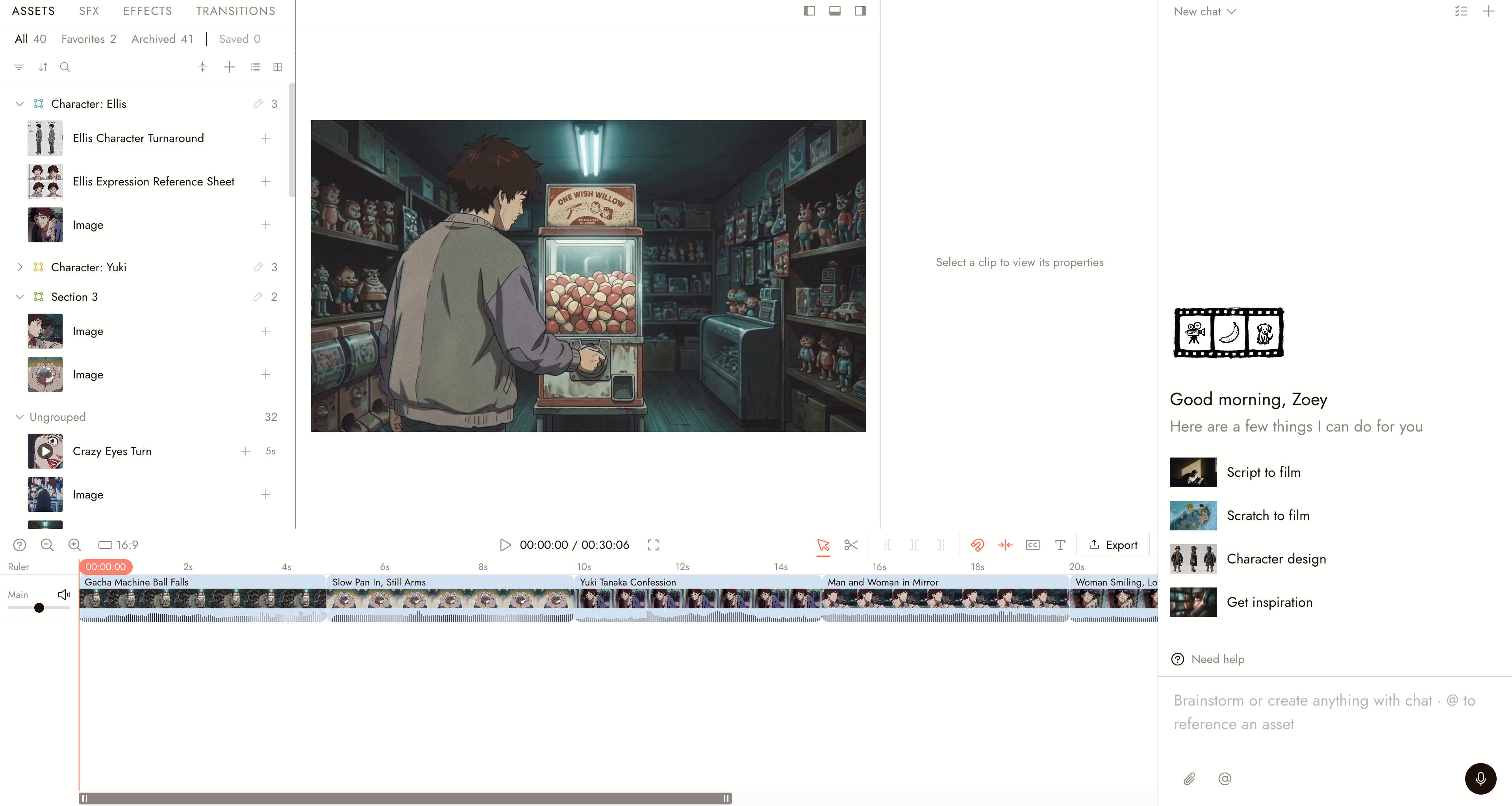
The Video Editor with clips on the Main track. Each row in the Assets panel has a plus button, Add to timeline.
An image on the timeline holds for a set duration; you can change it later by trimming. A video clip brings its audio with it.
Reorder clips
- With the Select tool (V), drag a clip left or right along the track.
- Drop the clip in its new position. The main-track magnet closes gaps when reordering on that track. Other tracks, or the main track with the magnet off, can keep gaps.
Snapping (N) aligns clips with nearby edges; it does not close gaps. Hold Alt to pause snapping while dragging.
To put a clip first, drag it to the start of the track.
Remove a clip
Select the clip and press Delete or Backspace. ⌘Z undoes it, and ⌘D duplicates a selection. Removing a clip from the timeline does not remove the node from the canvas; you can add it back.
Detach audio
Select the video clip, then choose Detach Audio under Properties > Sound. This separates its sound onto an audio track, so you can move or replace the audio independently.
Review the result
- The clips play in story order.
- Each cut happens where you meant it to.
- No clip is on the timeline twice by accident.
If something looks wrong
I dragged a node and nothing happened. The Video Editor must be open. Add the shot from its Assets panel, or use Add to Timeline on the node.
The clip landed in the wrong place. With the Select tool (V), drag it along the track. With the main-track magnet on, reordering on the main track closes gaps. Check the new position and preview the result.
I want the same clip twice. Add it twice. Each copy can be trimmed independently.
Deleting a clip left a gap. Check the track and main-track magnet. Turn the magnet on for the main track or drag the next clip left, then preview.
Next
- Trim and split to set where each clip starts and ends.
- Import audio to add a voice track or music.
- Export and download your film when the sequence plays.