Export and download your film
Export your edited timeline as a video file to watch or share outside Flick.
Before you export
Play your timeline from beginning to end. Check that every shot appears in the right order and that the ending stops where you intend.
Listen as well as watch. Check for missing dialogue, music that overwhelms the scene, and unexpected silence. If you added text, leave enough time to read it.
Choose your export settings
Click Export at the right end of the timeline toolbar. The Export Video dialog opens.

Choose 720p, 1080p, or 4K for your delivery needs. A higher export resolution does not fix blur or distortion in the source clips.
The export uses your timeline's aspect ratio. To change it, return to the editor, adjust the ratio, and review the framing before exporting.
Review the Include watermark switch. On Free and Casual plans it stays on, and the dialog says so; on other plans you can turn it off.
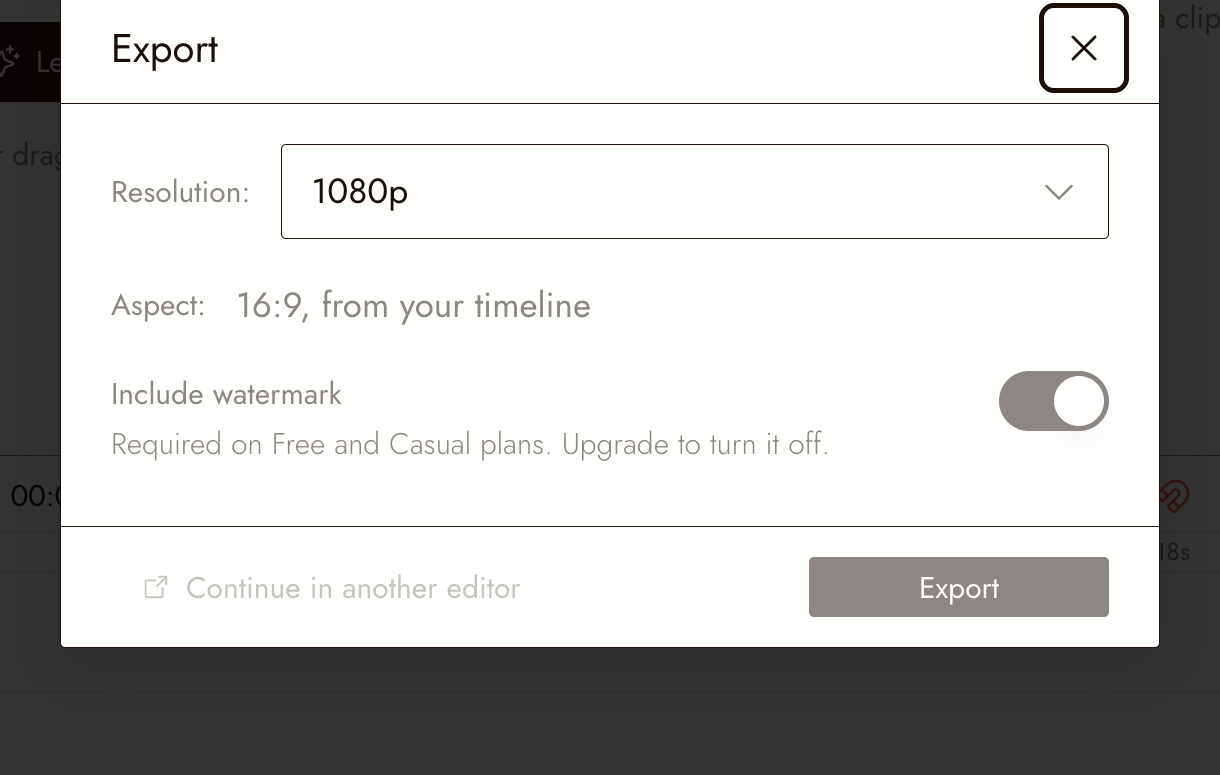
The Export Video dialog on a Free account, where the watermark switch cannot be turned off.
Export your video
- Click Export in the dialog. Flick shows Rendering while it prepares the video. Wait for it to finish; the browser starts the download automatically. If Flick can reuse an unchanged export, it starts downloading that file without rendering again.
- When Flick shows Downloaded to your computer, check your browser's Downloads list to locate the file. Complete a save prompt if your browser shows one. The completion label does not confirm that your computer successfully saved the file.
- If you need another download, click Download again. Check the browser's download status, then open the saved file and review it as described below.
If the dialog shows Recent exports, you can expand it to inspect earlier export jobs.
After you click Export, the next screen also lets you publish the film to Flick TV while it renders; see Publish your film. To keep editing in Premiere Pro, Final Cut Pro or DaVinci Resolve, click Continue in another editor instead; see Continue in another editor.
Check the downloaded file
Open the file in a video player and watch it all the way through. Check:
- The first and last frames are intentional.
- The film has the expected duration and framing.
- Every shot is present and plays correctly.
- Dialogue, music, and sound effects are audible at useful levels.
- Text is readable and stays inside the frame.
If you change your edit after this check, export the updated version before sharing it.
If something looks wrong
The framing is wrong. Compare the exported frame with your timeline preview. Check the timeline's aspect ratio and the way each clip fills the frame.
The picture is soft. Inspect the original clip. A higher export setting cannot reliably repair missing detail in the source.
The sound is missing or too quiet. Return to the timeline and listen to the affected section. Check the audio clips and their volume, then review the new export.
The export fails. Note the message shown in Flick and which step failed. Include that information when contacting support. Avoid repeatedly starting the same export without first checking the error.
Practice
Try exporting your own three-shot film. Watch it once without sound, then listen without watching. This helps you notice whether the images and sound each communicate what you intended.
Tell a small story in three shots walks through making that film.