Create Your First Project
Before you start
You need a Flick account with credits. Generating images, image edits, and video uses credits; see Model Credit Costs.
Steps
1. Create a New Project
Start from the projects home page: type what you want to make into the prompt box, or click Blank canvas below it. + CREATE in the top bar brings you to the same box.
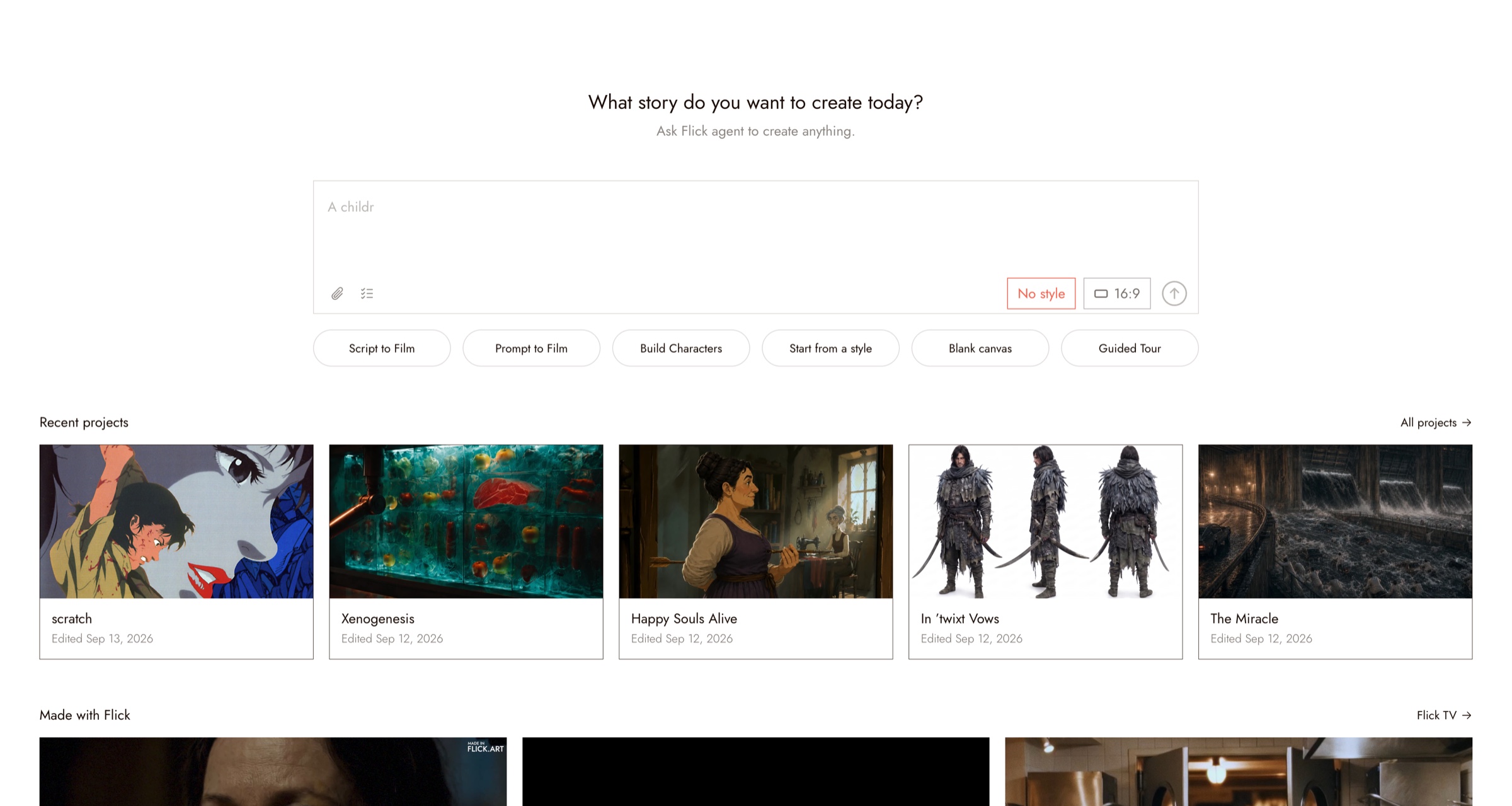
2. Choose Visual Styles & Aspect Ratio
You can either:
- Choose from 900+ curated visual styles: click No style in the prompt box to open Explore Styles
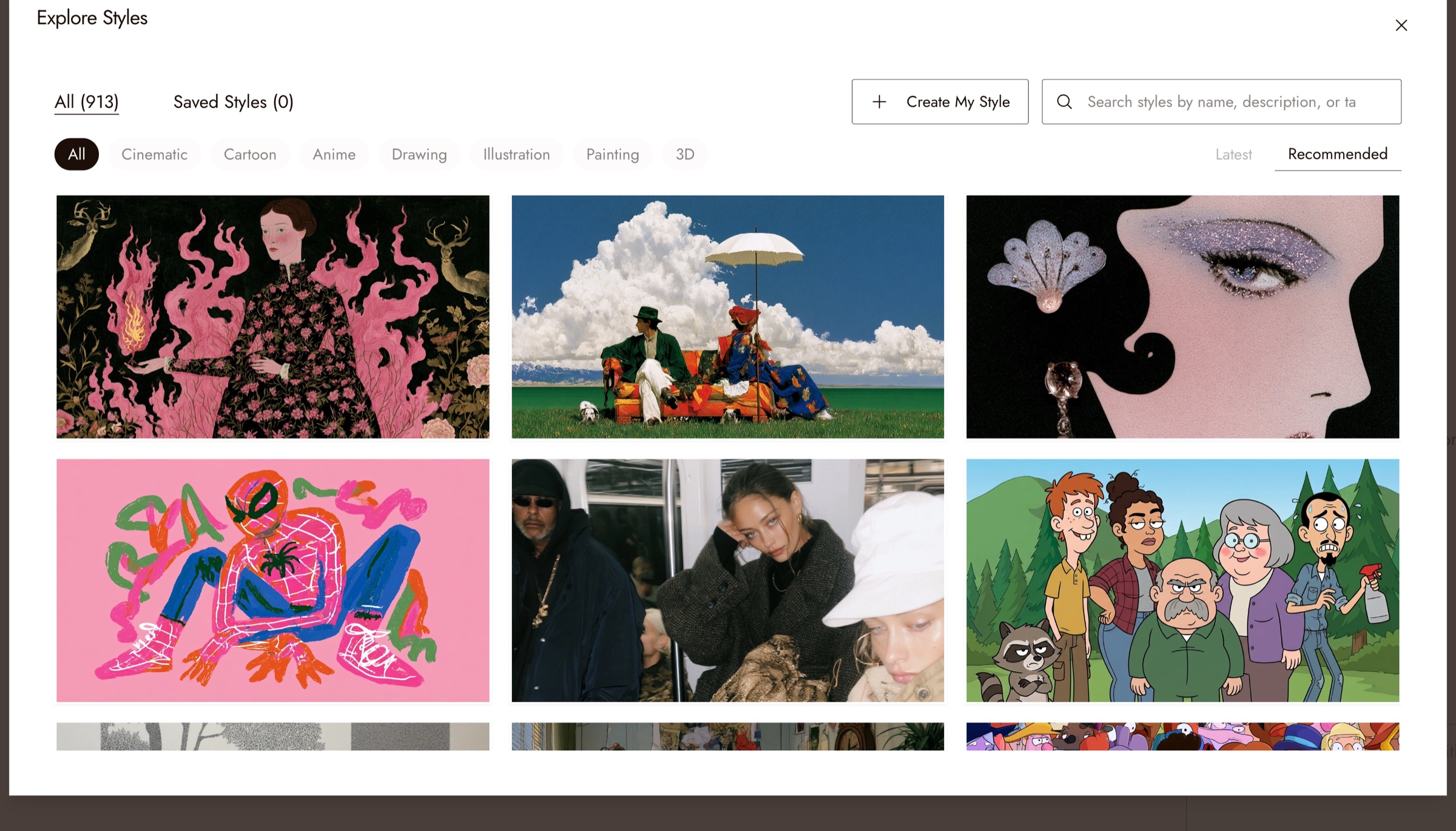
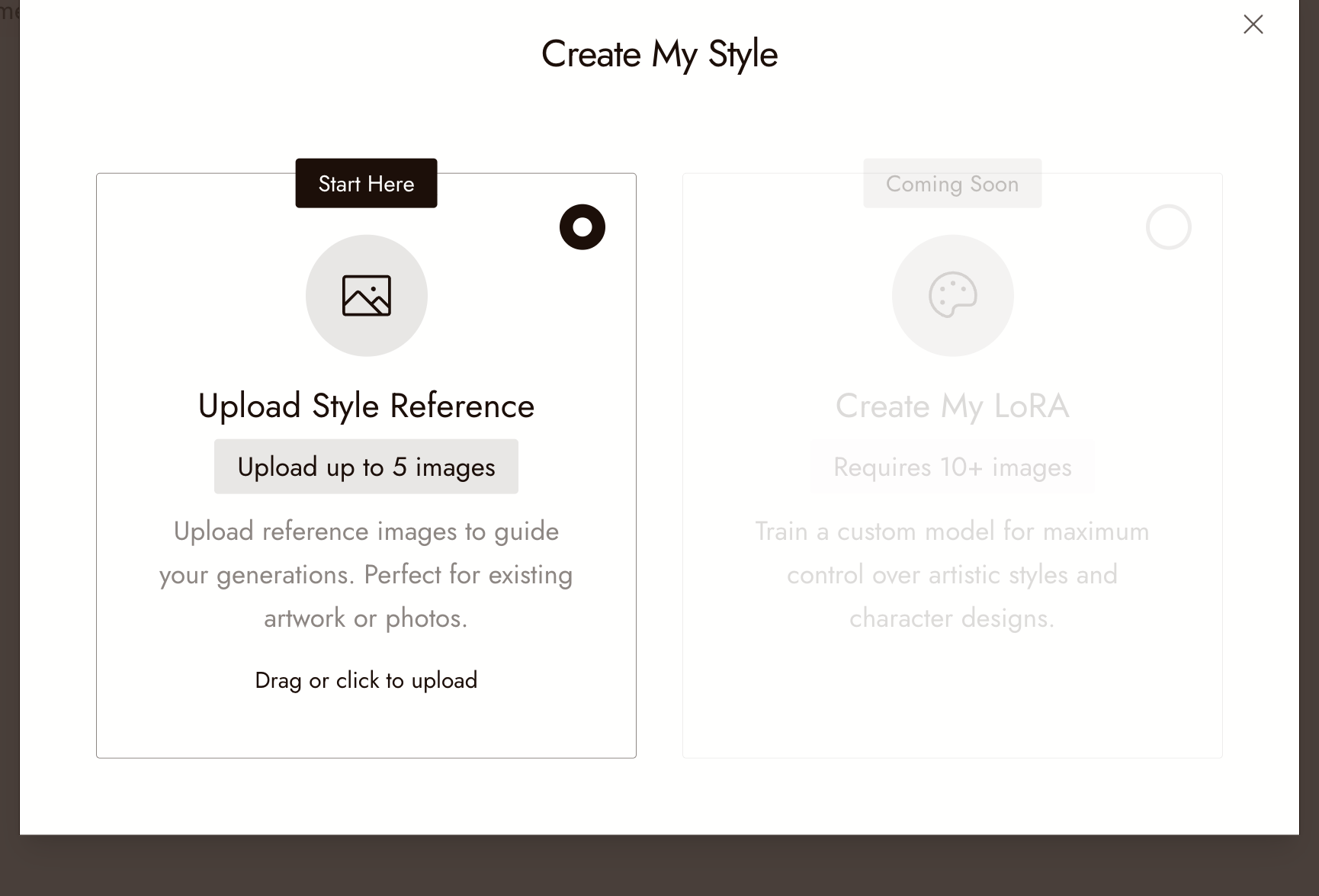
- OR build your own style from reference images: click Create My Style in Explore Styles, then Upload Style Reference and add up to 5 images that show the look
Next, select your aspect ratio from the control next to the style: 16:9, 9:16, 1:1, 21:9, 4:3, 3:4, or 5:4.
Your Aspect ratio and Visual style stay pinned at the top of the canvas. You can change them at any time. Check each result for consistent framing and style.

3. Generate Your First Image
To create an image, click the + button on the left toolbar, then Generate Image:
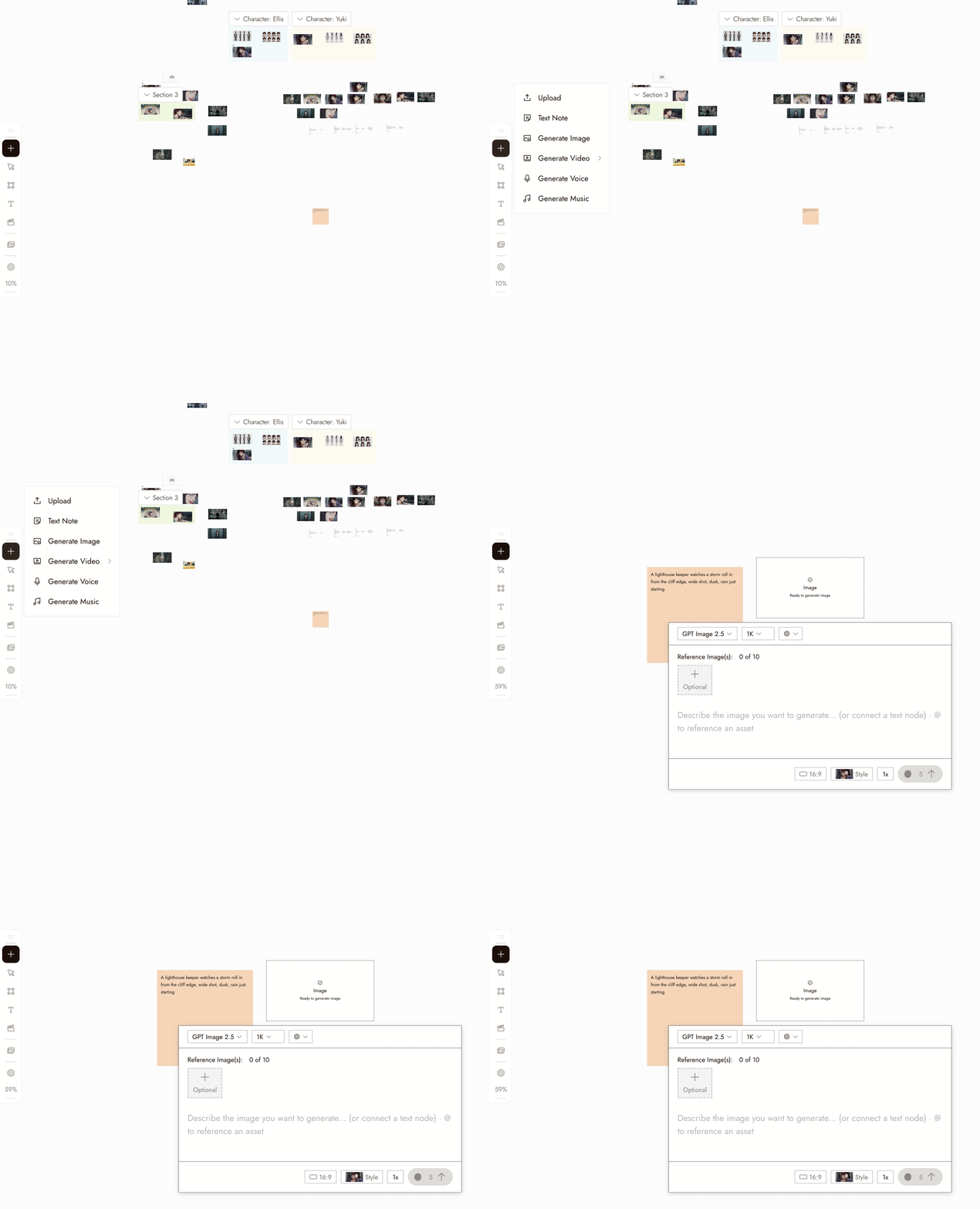
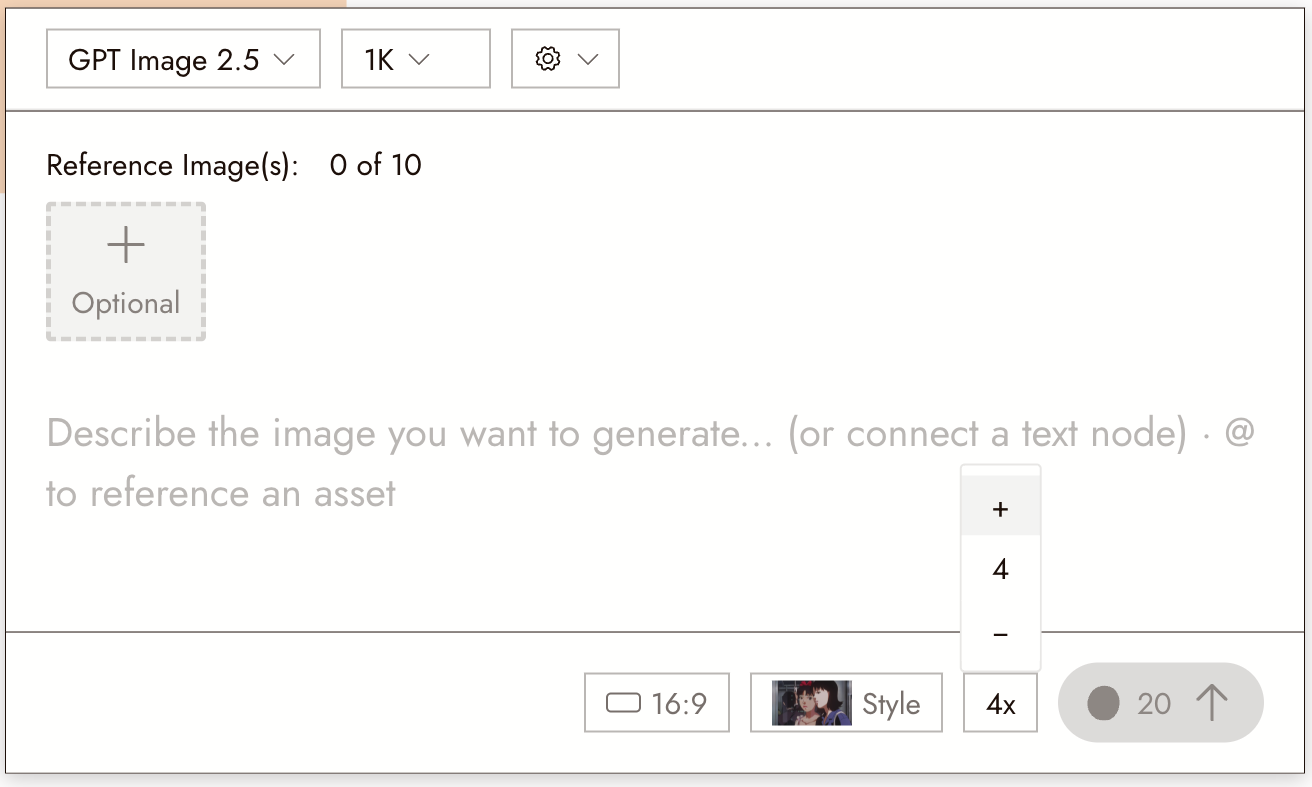
- Select the new image node. Its settings panel opens under it.
- Choose an image model in the dropdown, such as Midjourney or Nano Banana Pro.
- Write your prompt in the panel.
- Choose the number of images with the 1x control. Midjourney defaults to four. Start with a small batch.
- Check the credit cost on the Run button, then click it.
You can also describe the image in the chat box on the right and let the agent generate it.
4. Use Text Nodes for Prompts
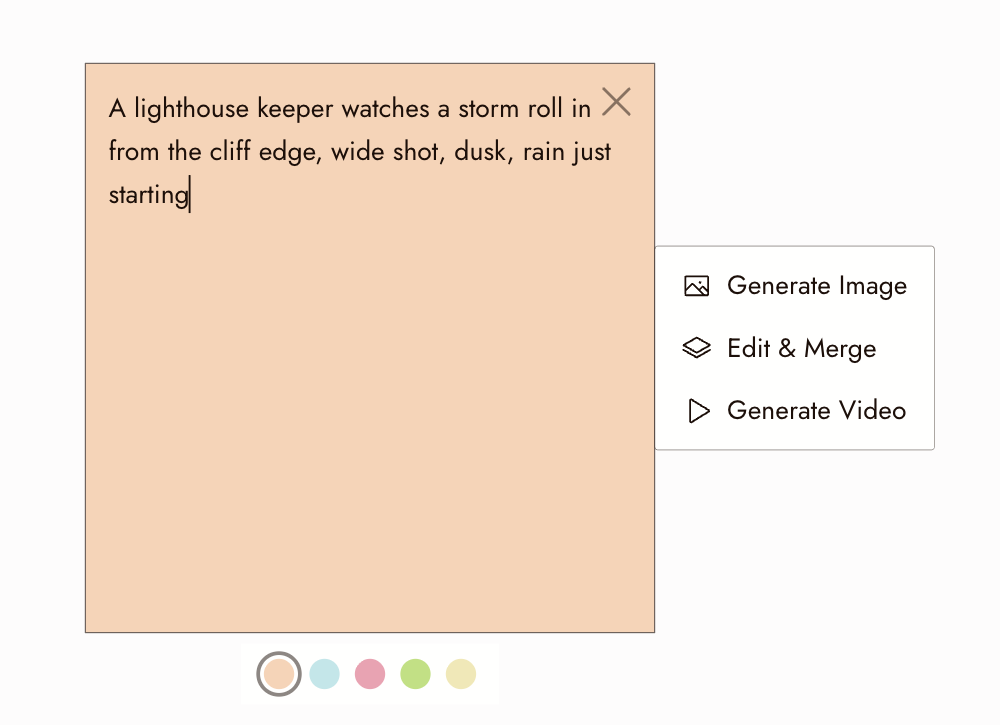
A Text Node is a note on the canvas that can supply a prompt:
- Add a text node
- Write your prompt
- Click Generate Image
Flick will automatically use the text content as the prompt.
Click Disconnect to remove the prompt connection.
Full guide: Text Nodes.
5. Review Image Variations
Set the batch count before you run: the 1x control next to Run goes up to several images per generation, and each Midjourney generation produces 4 variations. The credit cost updates with the count.
The results land side by side on the canvas. Compare the variations against your selected visual style.
Once you choose an image, you can:
- Generate a video
- Edit the image
- Change the style
- Remove the background
6. Edit Images
Select an image node and open Image in its menu. Flick supports several editing workflows.
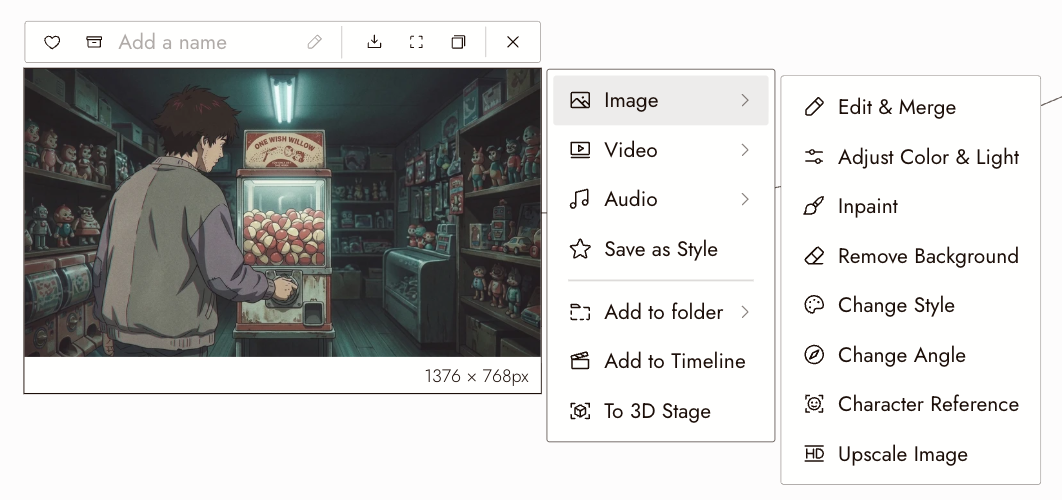
Common use cases include:
- Combining multiple images
- Maintaining character consistency
- Editing specific parts of an image
Change the girl's hair color to white.
Full guide: Edit Image.
7. Change Style
To modify visual style:
- Select the image node and open Image, then Change Style
- A style transfer node appears, connected to your image, with its settings panel
- Pick the model and the new visual style, then click Run
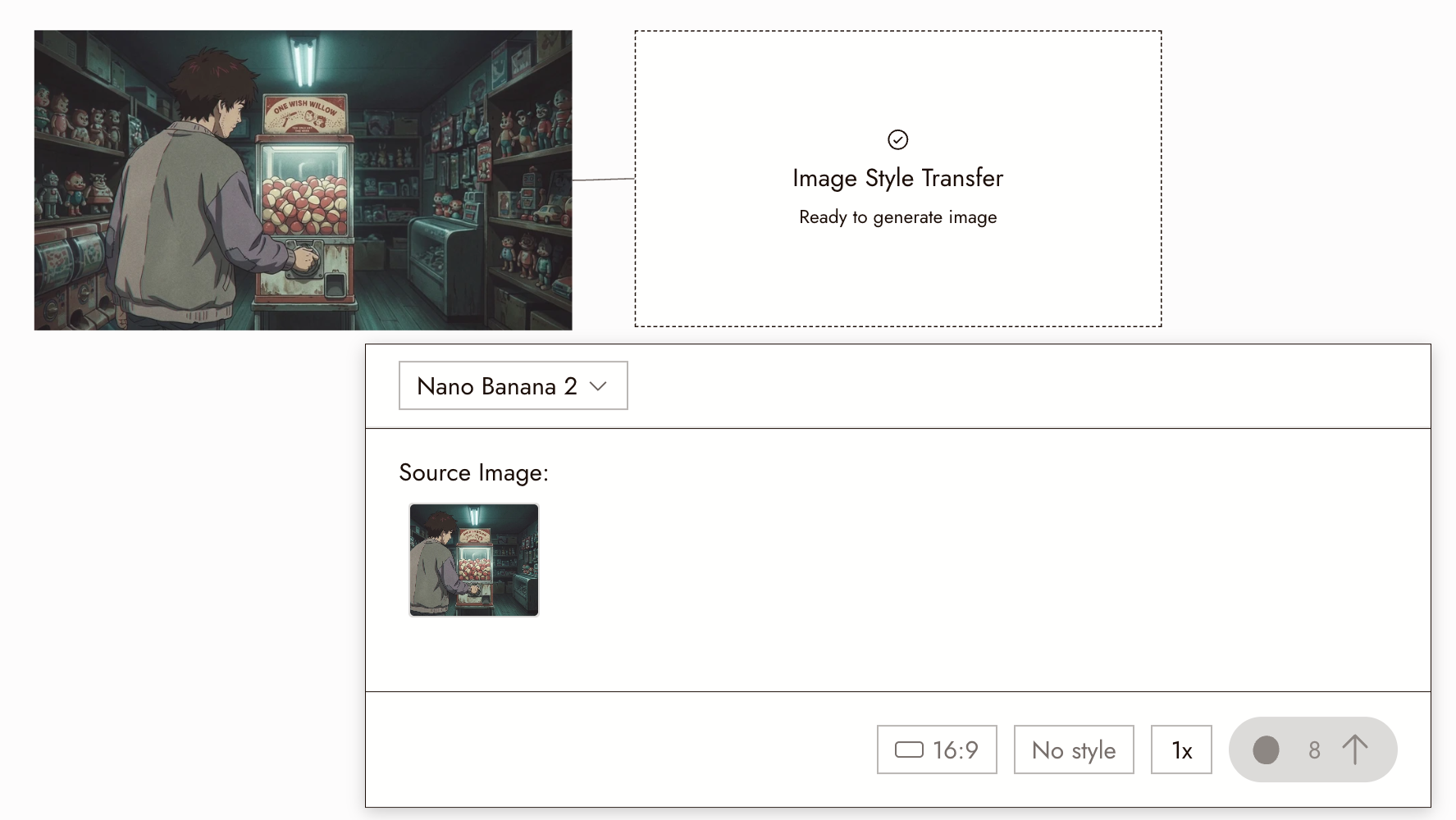
Check that the character and camera angle stay consistent after the style change.
Full guide: Visual Styles.
8. Generate a Video
To generate a video:
- Select the image node, open Video, then Generate Video. You can also start from +, then Generate Video, then Frame to Video.
- Choose a video model
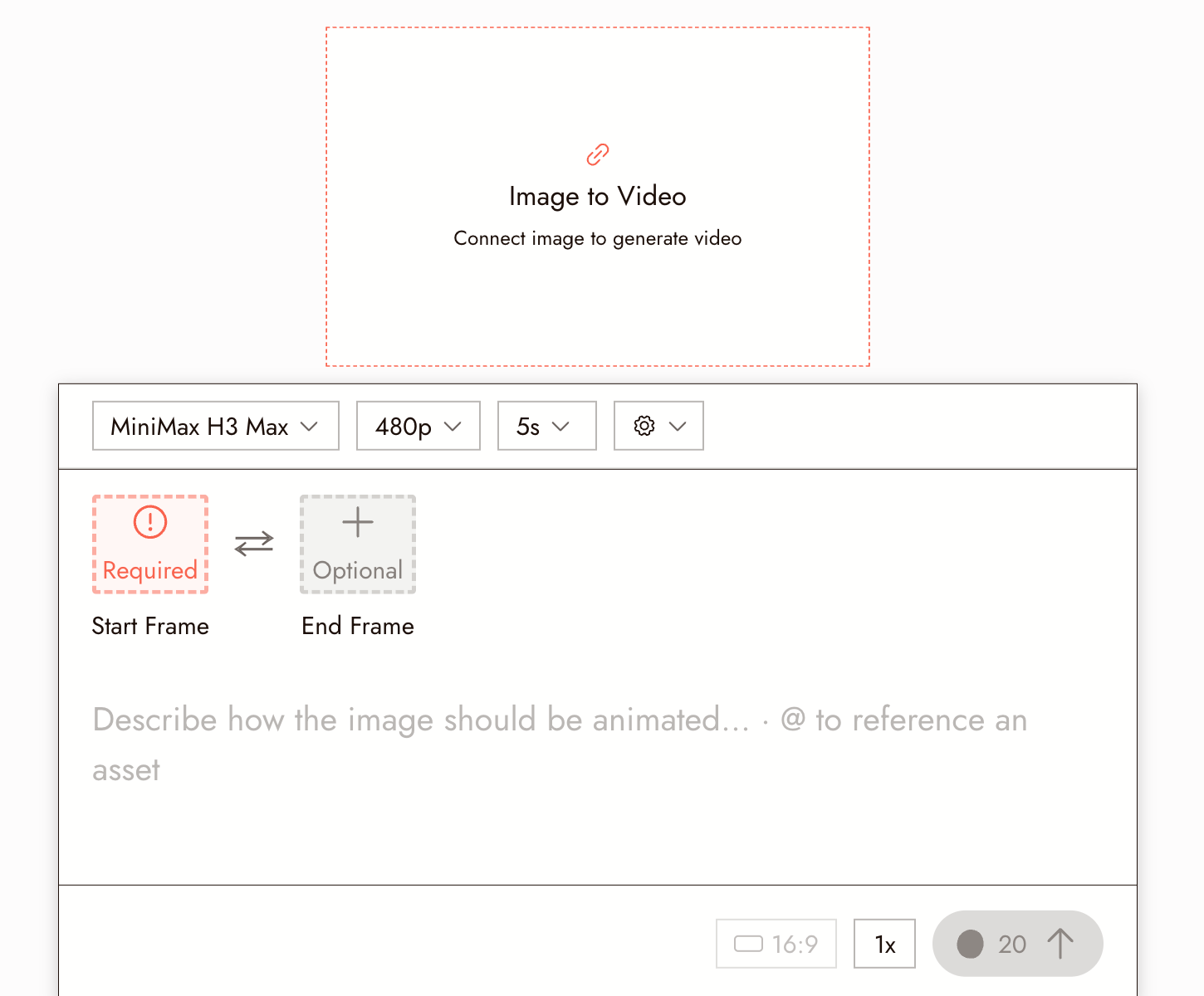
Read the model descriptions and choose one that fits your shot. Check visual quality and audio sync in the result.
You can also adjust:
- Video duration
- Resolution
Full guide: Generate Video.
9. Explore Classical Film Shots
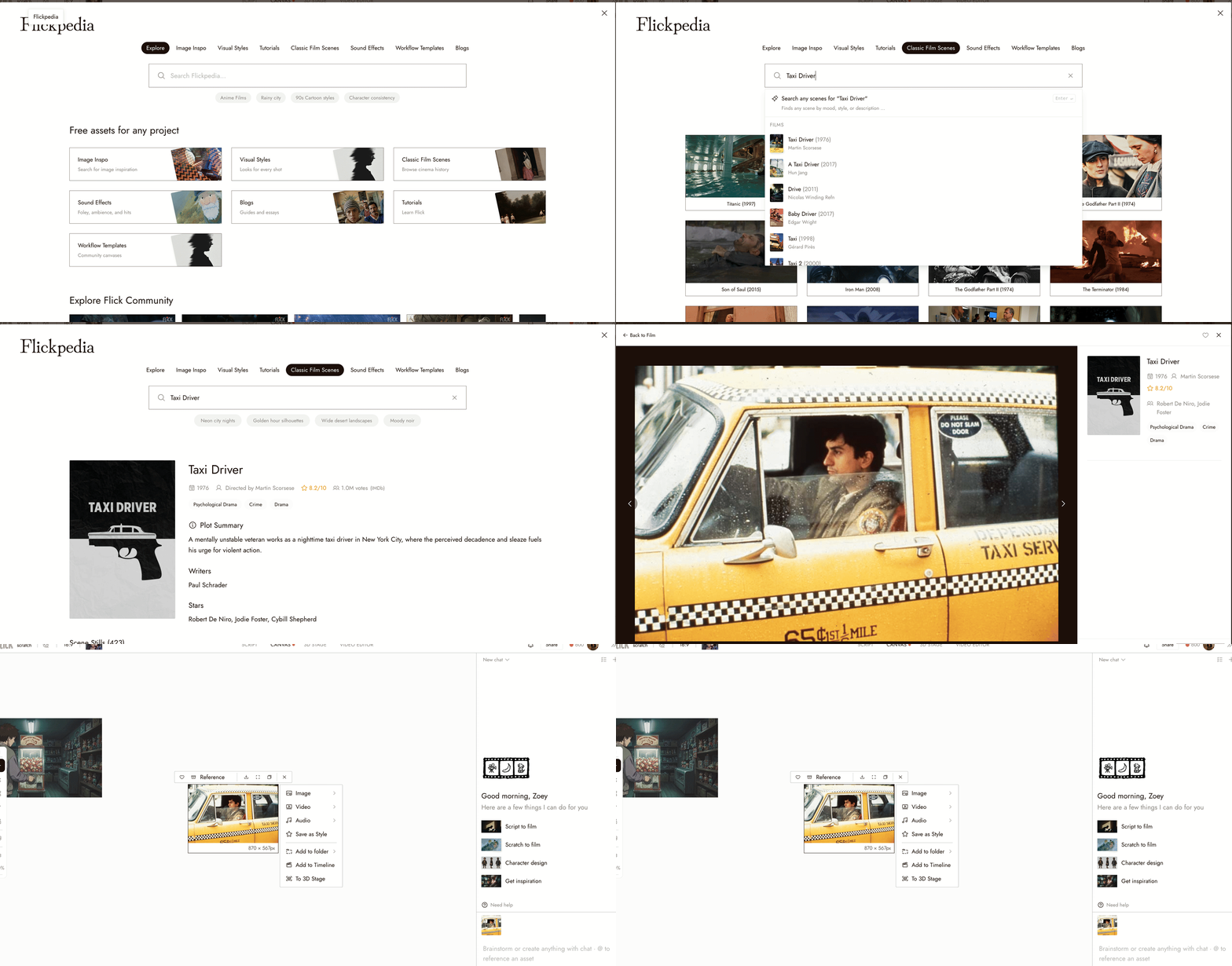
Flick includes a Classical Film Search feature. Open Flickpedia from the button next to the project name in the top bar, then Classic Film Scenes.
You can browse 1M+ classic film shots.
Example:
Search for a film like Taxi Driver, then:
- Open the film and select a shot
- Click Add to Canvas
To use the shot as a composition reference:
- Click the image
- Use it as a reference
- Ask the AI to analyze the shot
The AI chat can:
- Summarize the composition
- Generate a similar image
- Maintain your chosen style
Full guide: Classic Film Scenes.
10. Watch films on Flick TV
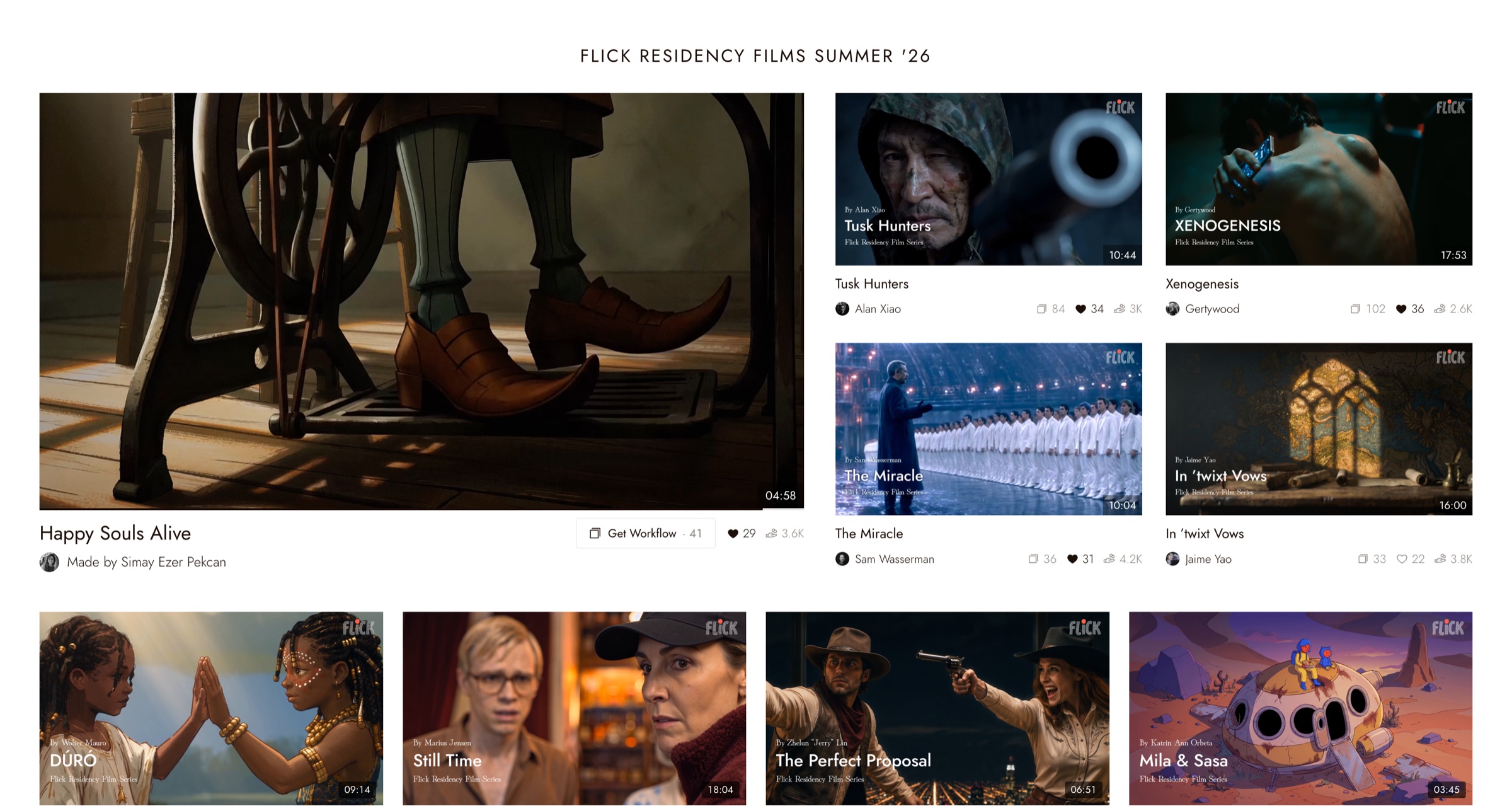
Flick TV shows films made with Flick.
You can:
- Watch finished films
- Open Get Workflow to see the exact canvas that produced a film
- Learn how each image and clip was generated
Review your first project
- The visual style and aspect ratio are pinned at the top of the canvas.
- You have at least one image you would keep.
- You know where the settings panel, the model picker, and the batch count are.
If something looks wrong
Nothing appeared after Run. Check the node's status on the canvas; it may still be generating or have landed off screen. Zoom out to see the whole canvas.
The images ignore the style. Confirm a style is pinned at the top of the canvas, and keep style words out of the prompt.
Every image is the same idea. Change one thing in the prompt, such as framing or lighting, and generate again.
Next
- Before you generate to plan a shot before spending credits on it.
- Tell a small story in three shots for a complete first film.
- Generate Image for the full generation guide.
- Navigation for canvas controls and shortcuts.