Canvas settings and appearance
Use Canvas settings to change the interface appearance, connection-line visibility, the minimap, and scrolling. These controls do not generate media.
Open Canvas settings
- Open a project and switch to the Canvas tab.
- Find the gear icon labeled Canvas settings in the canvas toolbar. The toolbar can move, so look for the label rather than a fixed screen corner.
- Click it to open the panel. Choose an option to apply it.
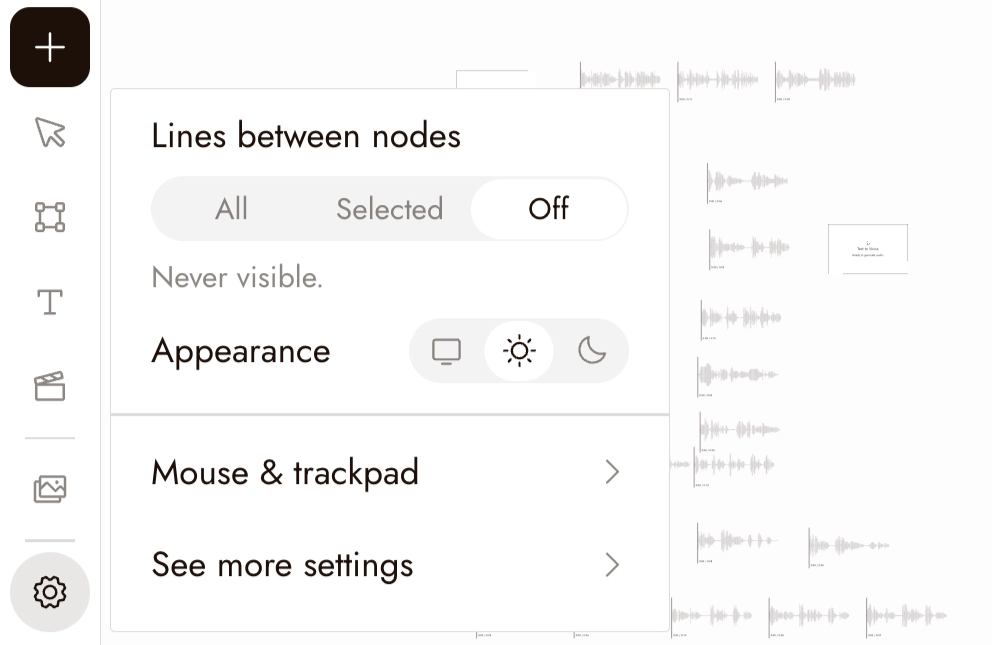
You can select nodes on the canvas while the panel stays open. Press Escape or click empty canvas to close it.
Choose an appearance
Under Appearance, choose one of the three icon buttons:
- Follow system (monitor): the default. Follows your device's light or dark appearance.
- Light (sun): uses a light app interface.
- Dark (moon): uses a dark app interface.
Choose Follow system to match your device, or Light or Dark for a fixed appearance.
Appearance changes the interface, not your images, videos, or canvas layout. Some specialized views use their own appearance.
Choose which lines to see
A connection line joins nodes in a workflow. Under Lines between nodes, choose:
- All: the default. Shows the connection lines in the visible canvas workflow. Use it to inspect how the workflow is connected.
- Selected: shows connections involving a selected node. Selecting a connection line itself also keeps that line visible. Use it to inspect the references around one part of a busy board.
- Off: hides existing connection lines. Use it to compare images or review a composition with less visual clutter.
These options show or hide lines; they do not change line styles, delete connections, or change generation inputs. Choose All to inspect or select connections again.
Try it on a reference board
Use an existing board with a reference image connected to another node. No generation is needed.
- Choose Selected, then select the reference image. Look at the connections involving it. Select a different node and compare which lines remain.
- Choose Off and compare the images as a sequence. Check framing and where your eye goes without the lines competing for attention.
- Return to All and inspect the workflow again. The connections are still there.
If Selected shows no lines, check that the node has a connection. Use All to see the wider workflow.
Show or hide the minimap
The Minimap switch turns the minimap in the canvas's bottom-right corner on or off. It is on by default. Hiding the minimap from its own corner button turns this switch off too. See Navigation for using it.
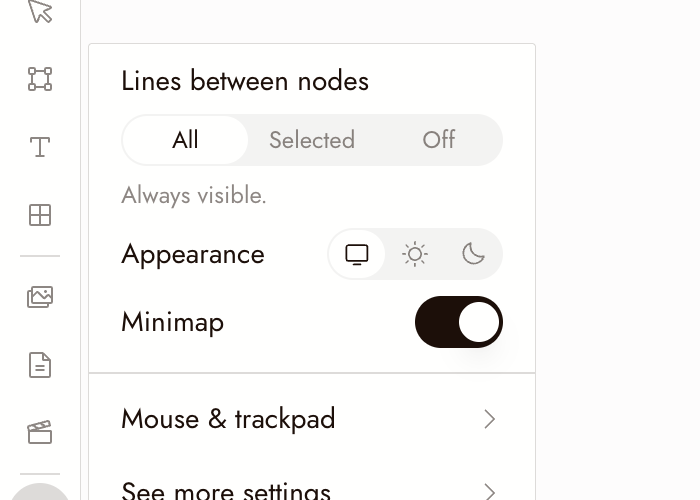
Mouse & trackpad
Point to Mouse & trackpad to open its submenu. On a touch device, tap the row.
The current toggle is Scroll to zoom, which is off by default:
- Off: ordinary scrolling pans the canvas; a trackpad pinch zooms.
- On: ordinary scrolling zooms. On a trackpad, two-finger scrolling also zooms, so use Space + drag when you want to pan.
You can also pan by dragging with the right or middle mouse button. These gestures do not have separate switches.
If scrolling suddenly zooms when you expected to pan, check Scroll to zoom in this menu.
Where your choices are saved
These viewing preferences are saved in this browser, not in a project's media. Clearing site storage can reset them. If storage is blocked, they may not be saved.
See more settings
When signed in, choose See more settings to open Account Center > Preferences. This page includes:
- Email, with Change email when available for your sign-in method.
- Appearance, with the same three choices.
- Language.
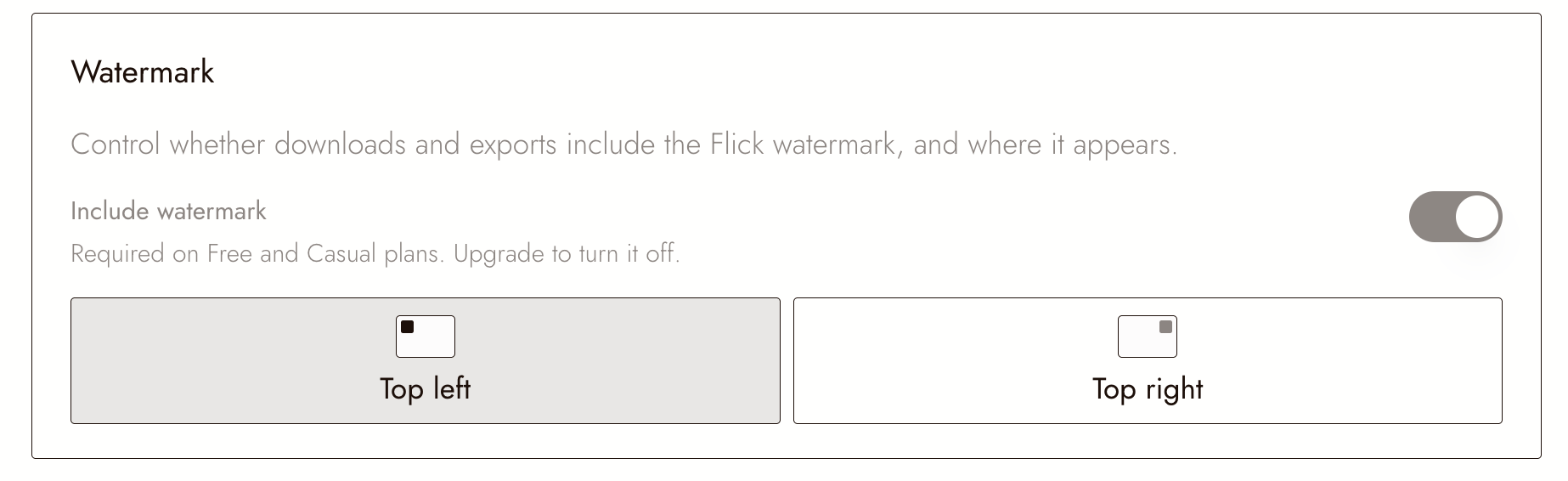
- Watermark controls for downloads and exports; read the available controls and any lock message for your account.
- Canvas navigation > Scroll to zoom.
Watermark controls affect output and are separate from Appearance.
Continue
- Navigation for selecting, panning, and zooming.
- Sections and folders for organizing nodes and media on a larger project.