Sections and folders
A section groups nodes inside a frame on the canvas, such as a character board or scene. A folder groups media in Assets so you can find it later.
Before you start
Give sections clear names. The agent and @ picker use those names to identify them.
Sections
Create a section
- Select several nodes, then choose Create section from the toolbar that appears above the selection (next to Download all, Add to folder, Duplicate, Archive, and Tidy up). Flick names the new section after what is in it.
- Or press S (the Add Section (S) tool on the left toolbar) and draw a rectangle on the canvas. This one gets a numbered name.
- Or drop several images at once; Flick groups them into a section named Reference Images.
- Or ask the agent: "put these three in a section called Station."
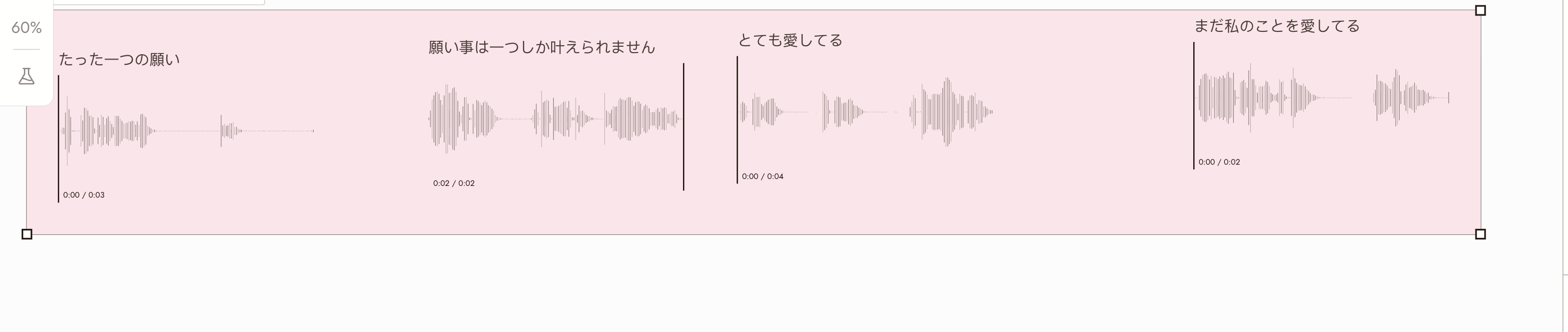
Four selected audio nodes turned into a section with Create section. The section header has a collapse chevron, the name, Lock section, and a delete button.
What a section does
- Nodes inside the frame are members. Dragging the section moves them together.
- A generation that lands inside a section becomes a member of it.
- Sections can be collapsed to save space when you are not working in them.
Lock a section
Locking prevents changes to a section's layout and membership. You cannot resize or delete it, move nodes within it, or add new members. You can still move the whole section, select its nodes, and use them as references.
Lock a finished reference board to stop new generations from joining it.
Hover over or select the section, then use Lock section beside its name. The lock remains visible when locked; use Unlock section there to unlock it.
Folders
Folders organize media, not canvas positions or projects.
Select or right-click a node, then choose Add to folder. Pick an existing folder or New folder.
Open Assets to browse folders. Media without a folder appears under Ungrouped. Use search, the Favorites, Archived, and Saved filters, or switch between list and gallery views.
The Video Editor uses the same asset list, so your folders are also available when you edit.
Which one
| You want to | Use |
|---|---|
| Keep a character's references together on the canvas | A section, locked once it is complete |
| Separate scene 1 from scene 2 on one canvas | One section per scene |
| Keep the takes and references you will reuse somewhere you can search | A folder in Assets |
| Point the agent at a set of images | A named section, then mention it |
If something looks wrong
My section swallowed unrelated images. Generations that land inside a frame join it. Lock the section, or move the new nodes out.
I cannot resize or delete a section. It is locked. Unlock it first.
The agent does not know which section I mean. Rename it to something specific and mention it by name.
The canvas is unreadable. Collapse sections you are not working in. If connection lines obscure the images, open Canvas settings and try Lines between nodes > Selected or Off. Return to All to inspect the workflow; see Canvas settings and appearance.
Next
- Navigation for box selection and moving groups.
- Text Nodes for one brief per shot inside a section.
- Find your generations for where new results land.
- Talking to the agent for how to point it at a section.