Character Reference
A character reference guides the same person's appearance across shots. Create a reference sheet and reuse it instead of rebuilding the character each time.
Before you start
Describe the character's age, build, hair, clothing, and one distinctive detail. Use an original character or a likeness you have permission to use. Decide which features should stay consistent.
Create a character
- In the chat box, describe the character and say which image model to use.
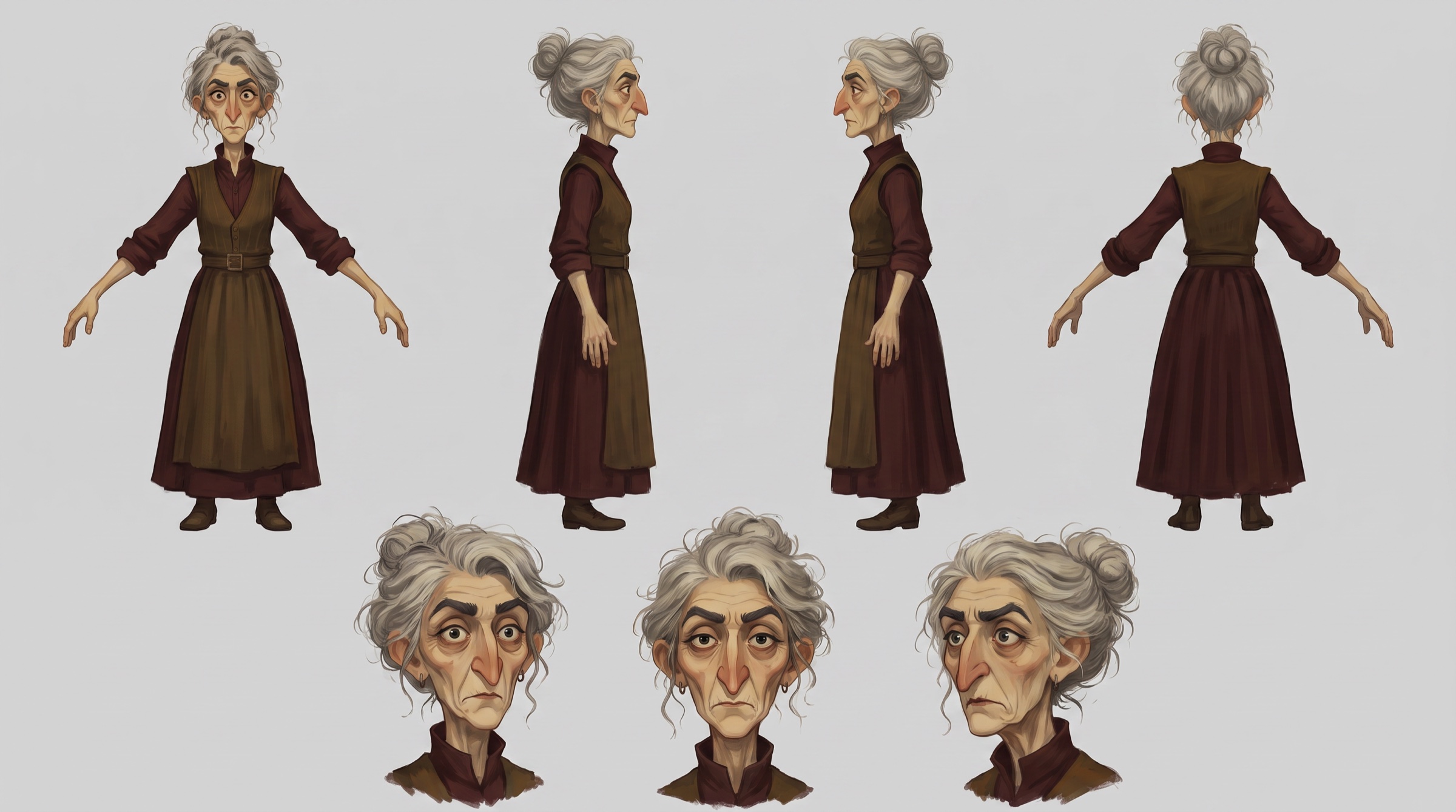
- Flick generates a three-view image: the same person from three angles on one sheet. This is the reference.
- Keep it. Put it in a section named after the character and lock the section; see Sections and folders.
A three-view sheet, or turnaround, shows front, side, and three-quarter views. An expression sheet shows different facial expressions. Start with a three-view sheet and add other views when needed.
Place the character in a scene
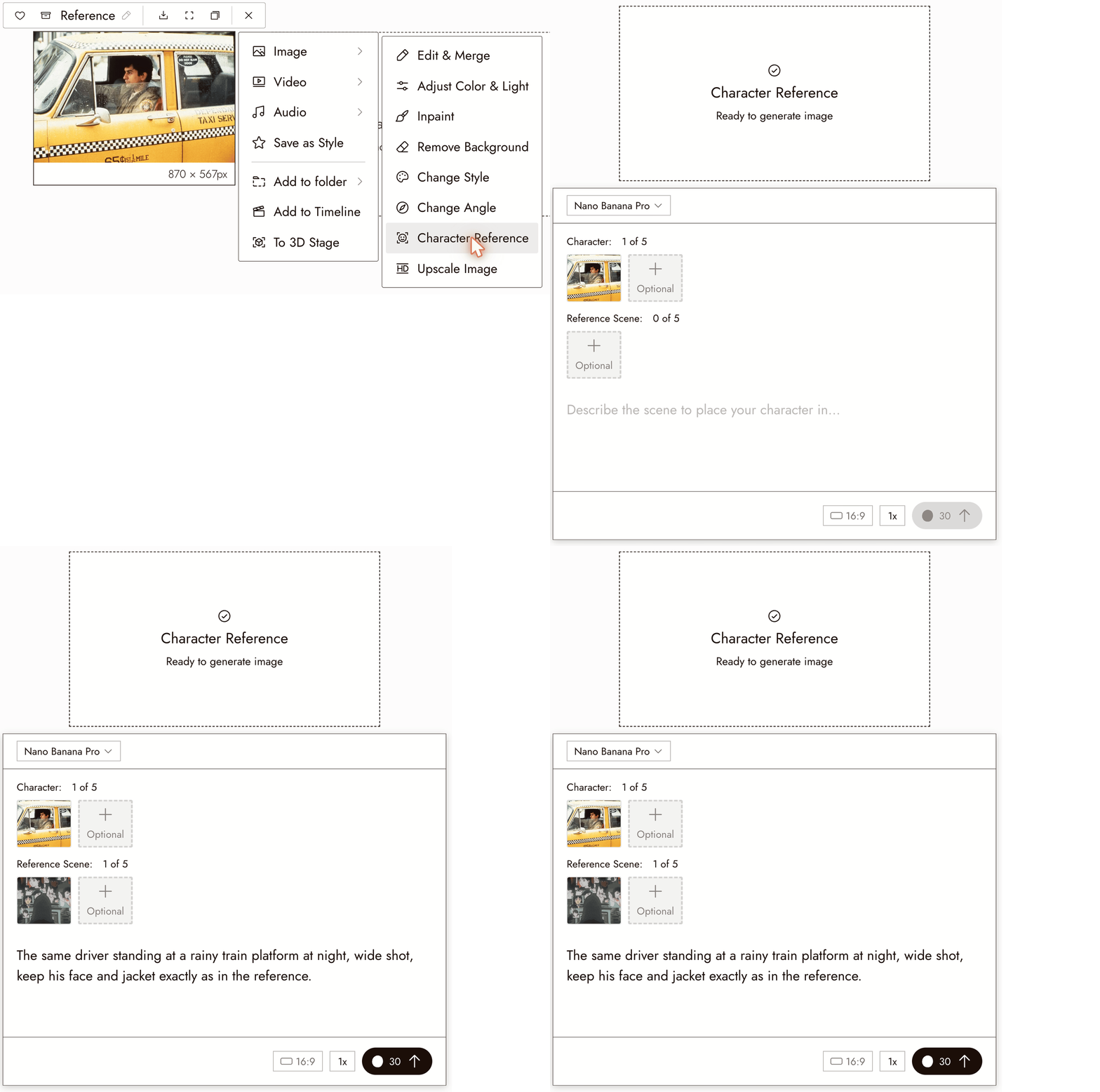
- Select the three-view image.
- Choose Image, then Character Reference or Simply Ask Chat Agent to build character sheet. A placeholder node with the settings panel appears.
- Optionally add a scene image under Reference Scene.
- Describe the scene in the prompt field: where the character is, what they are doing, the framing.
- Check the cost on the Run button and run.
You can attach up to five character images under Character, for example the three-view plus a close-up of the face, and up to five scene images under Reference Scene. The panel shows the count next to each label.
Reuse across shots
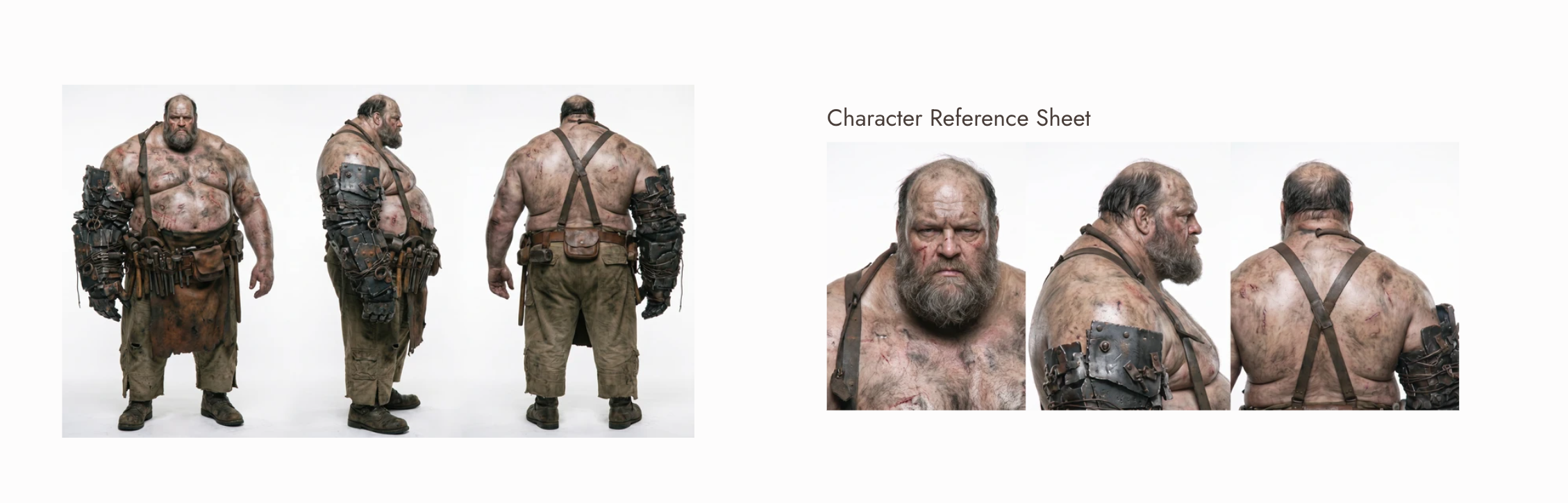
Use the same sheet for every shot. For a new angle or costume, ask the chat for a new sheet from the existing one, for example a full-body three-view, and keep both in the character's section.
For another character in the same visual style, create a separate reference sheet using the same style choices.
Best practices
Refer to the image instead of re-describing the face. Ask the model to preserve facial identity, then describe the change. Prompt wording guides the result but does not guarantee a match. See the Image Generation Prompts Guide.
Describe only the change. The scene, the pose, the light. The person is in the reference.
Reuse a stable reference. Starting from a different image each time can introduce unwanted changes.
Review the result
- A stranger would say it is the same person as the sheet.
- Hair, coat, and the distinctive detail survived.
- Only the scene and pose changed.
If something looks wrong
The face changed. Use a clear, well-lit reference and add a close-up if needed. Ask to preserve facial identity, then compare the result.
The outfit changed. Ask to keep the reference outfit and remove conflicting clothing descriptions.
The character looks pasted in. Describe the light in the scene so the character is lit the same way; see the lighting section of the Image Generation Prompts Guide.
It drifts once the shot becomes video. Motion adds drift. Keep clips short and see Keep a character consistent across three shots.
Next
- Keep a character consistent across three shots for the creative judgement.
- Voice Consistency to give the character a voice.
- Omni Reference to carry the character into video with references.