Camera Control
Use Camera Control to generate another angle of an image: rotate around the subject, tilt, or move closer. Compare the new result with the original for changes to the subject and scene.
Before you start
Start with a clear subject and visible depth. Choose a specific angle, such as higher, closer, or to the left. A flat graphic gives the model little spatial information.
Steps
- Select the image on the canvas.
- Choose Image, then Change Angle. A Camera Control node appears, connected to the image.
- Adjust Rotation (around the subject), Tilt (up or down), and Forward (closer or farther). Each slider shows a value and position label. The sphere previews the camera; Reset restores the starting settings.
- Optionally describe the angle in the prompt as well.
- Check the cost on the Run button and run. The new angle appears as a new image node.
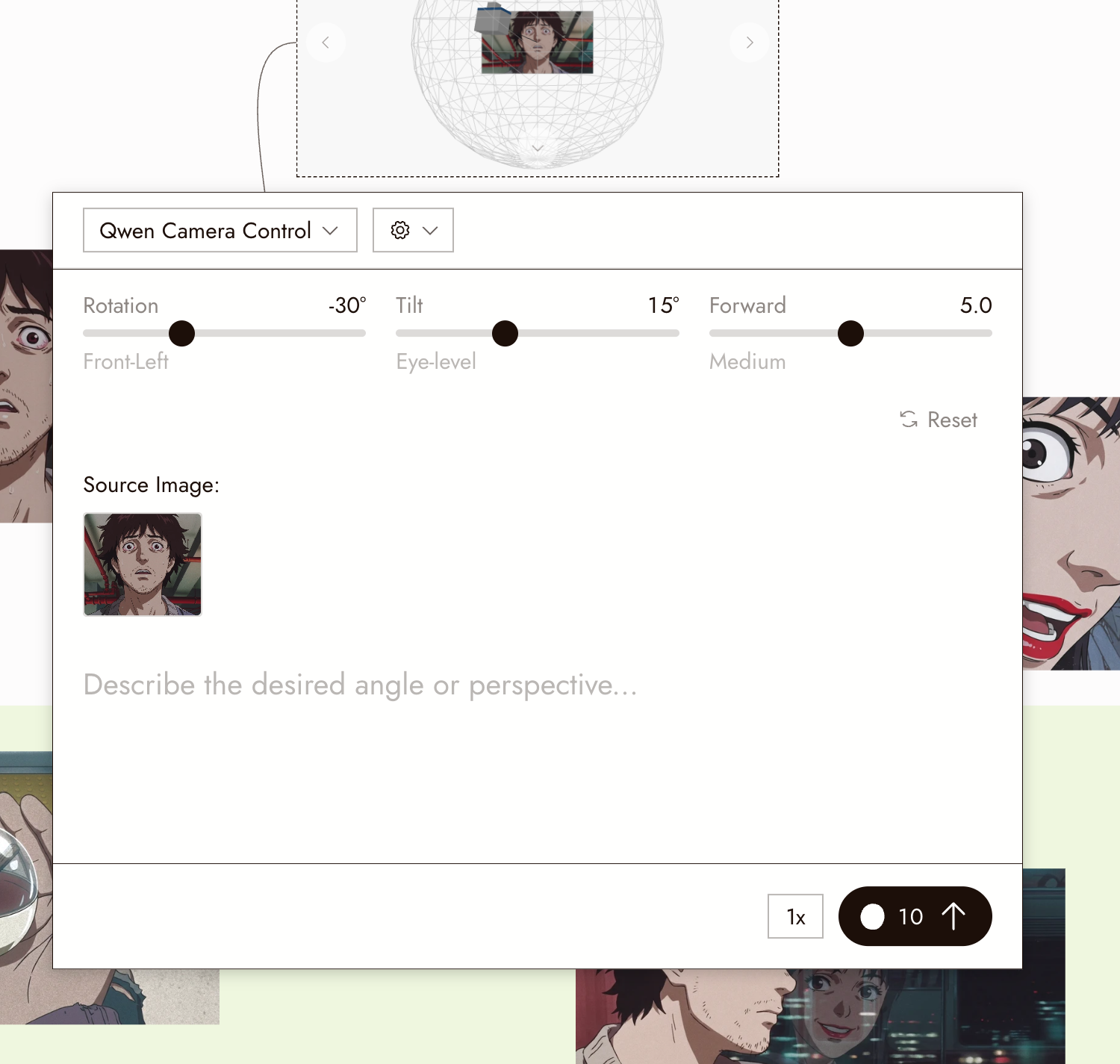
The Camera Control panel shows the model, angle sliders, source image, prompt, Reset, and the cost on Run.
Best practices
Start with a small angle change. Larger moves require the model to invent more of the unseen scene.
Say what the framing should be. Moving closer is not a crop. If you expect a medium shot, say so in the prompt.
Use it for coverage. A second angle on the same setup is how you get a reverse or a reaction shot that cuts with the first.
Review the result
- The subject is the same subject: same clothes, same light direction.
- The new angle is plausible; nothing invented behind the subject looks wrong.
- The framing matches what you asked for.
If something looks wrong
The subject changed. Reduce the angle change and compare again. Change Angle accepts one source image, so it has no separate character-reference input. If you need to repair identity first, use Character Reference, then use the resulting image as the source for another angle.
The background looks wrong. A new angle reveals areas missing from the source. Try a smaller move, or create the background separately and combine it with Edit Image.
Not Supported appears. The connected node is not a single image. Connect one image.
Next
- 3D stage camera for exact camera moves in a built scene.
- Omni Reference to carry the new angle into video.
- Edit Image for changes that are not camera moves.