Talking to the agent
Use the agent in chat to generate media, edit clips, and organize the canvas. Select the right nodes and say what you want to change or keep.
What it can do
- Generate: images, image edits, video from an image, voices and dialogue, music.
- Organize: create and name sections, name nodes, read the state of the canvas.
- Edit the film: add clips to the timeline, move and delete clips, trim, change speed and volume, add fades and transitions, edit text clips, detach audio, generate captions.
- Navigate: open the video editor, change project settings.
What it is not
It is not a general assistant. It will not write code, play a game, or browse the web. It cannot see your screen; it sees the canvas nodes you point it at and what you attach.
Give it context
- Select a node before you ask. A selected node shows its header bar and menu, and its thumbnail appears above the chat input: that is what the agent will look at. Select several to include all of them.
- Mention by name. Type @ or click Reference an asset to pick a node, section, or asset. Naming sections and nodes makes this work; see Sections and folders.
- Attach a file with the paperclip in the chat box when the reference is not on the canvas yet. Record voice lets you speak the request instead of typing it.
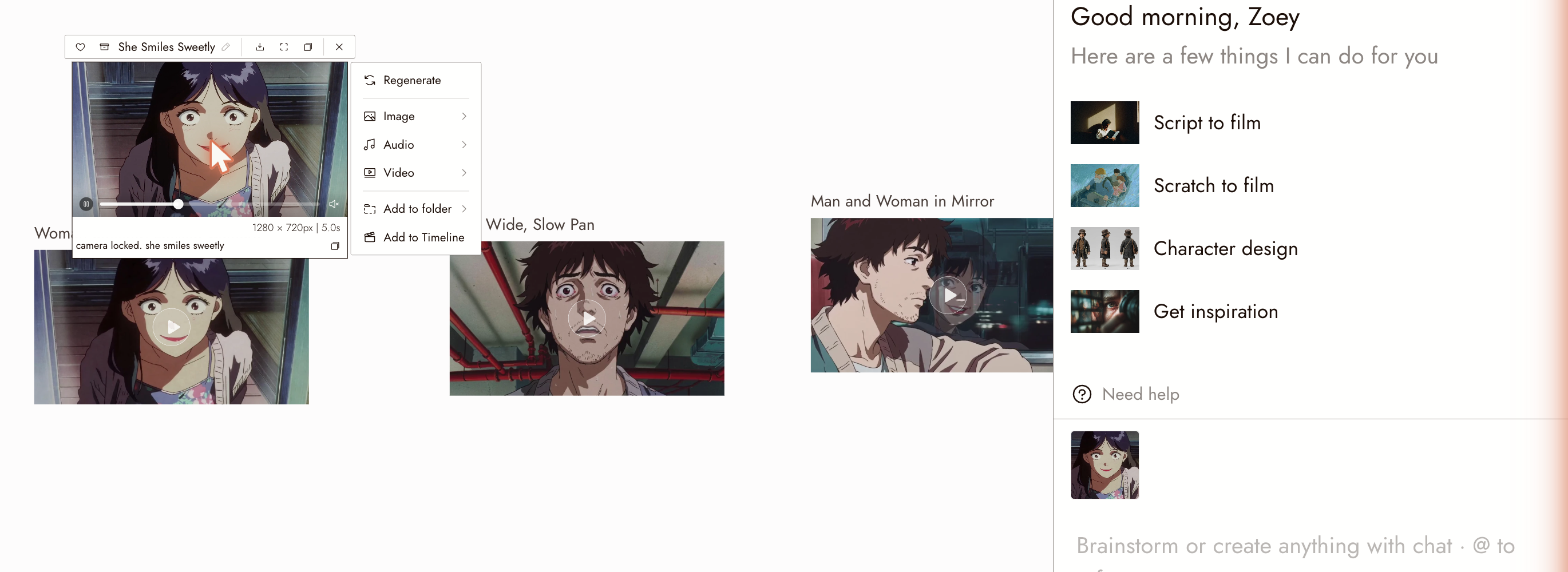
A selected video node with its menu open. The chat box at the bottom right shows the node's thumbnail: that is what the agent will look at.
Explore an idea before asking for a result
Ask the agent for ideas when you know what feels wrong but need help choosing a direction. You make the final creative choice.
Try a small planning request:
Help me explore a scene about a traveler finding a forgotten umbrella. I want it to feel quietly hopeful, not frightening or sentimental. Suggest three short written directions. Do not generate media or change the project yet.
Respond with keep, change, because rather than only "try again":
Keep the empty station and red umbrella. Change the storm to soft light after rain, because I want a small act of kindness rather than a rescue. Revise the written outline only; do not generate media or change the project.
Once you choose a direction, summarize the scene and review the proposed prompt before generating.
These are example requests, not a separate planning mode or a technical spending lock. Check the agent's response and any proposed actions. Review the available settings and displayed cost when you decide to generate.
Phrase the request
Change one main thing at a time. Ask for a red coat, review the result, then ask for a wider shot. This makes problems easier to trace.
Say what must stay. The agent does not know what you consider fixed. "Same character, same framing, replace the station with a cafe."
Name the target. "The wide shot in the Station section," not "that one."
Ask before you spend. Set the approval mode to Manual and the agent asks before anything that costs credits; see below.
Set standing rules. Agent memory and Personalize, in the chat header, let you tell the agent how you work once instead of in every message.
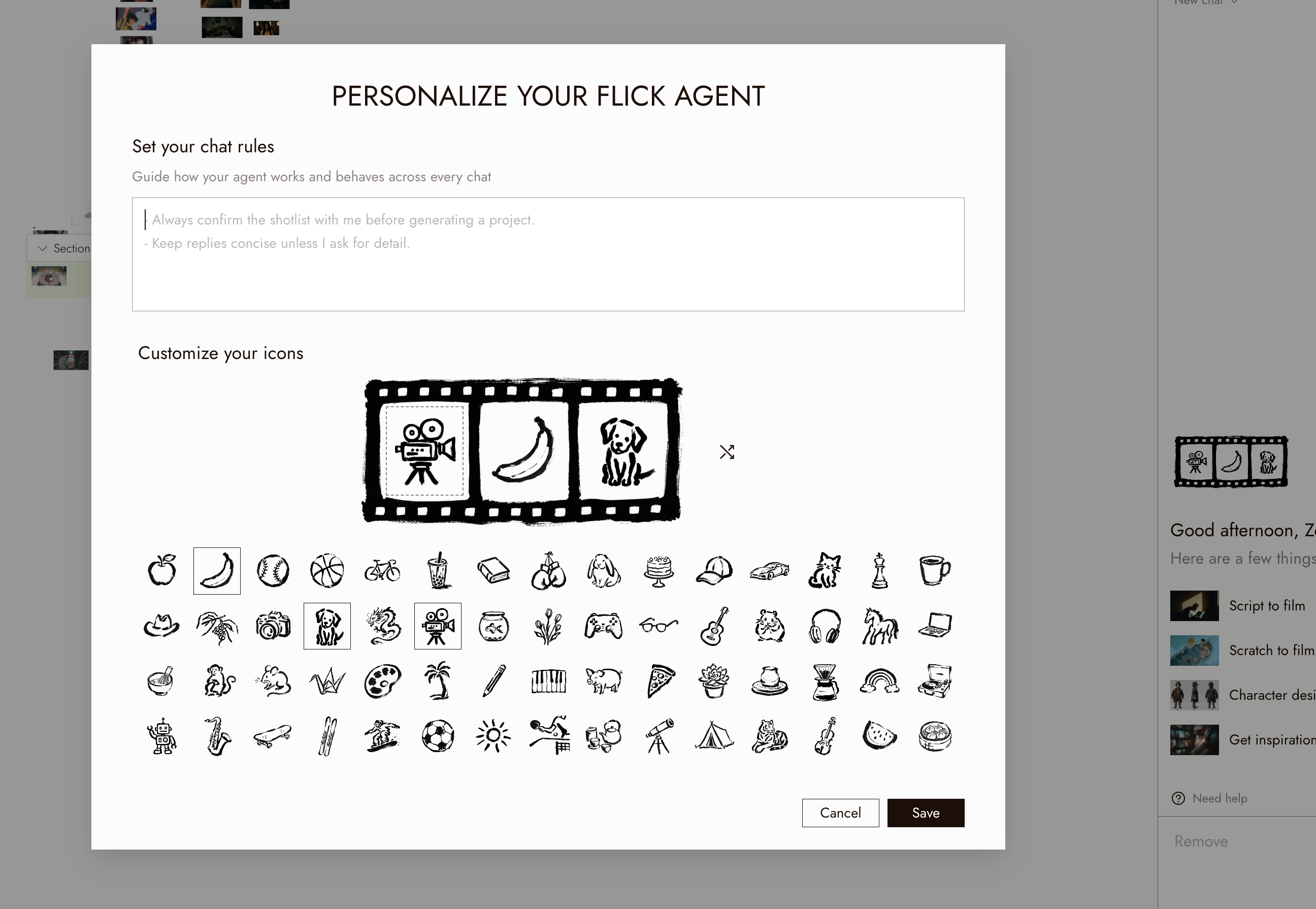
Review a keep/change brief
If references already define the shot, describe only the change. Check the draft prompt for:
- Reference roles: which image defines composition, which defines appearance, and which is the edit target? Name the actual assets.
- Keep: the layout, framing, subject placement, and identity you intend to retain.
- Change: one bounded revision, plus information the references do not show.
- Check: visible evidence of success, such as light arriving from the established doorway without moving the character.
Using the agent to draft prompt, then reviewing the prompts and results. You can also write prompts yourself. Check that the workflow supports your references. Resolve conflicting inputs before running; words such as "keep" and "unchanged" guide the model but do not lock the result.
Choose when the agent asks first
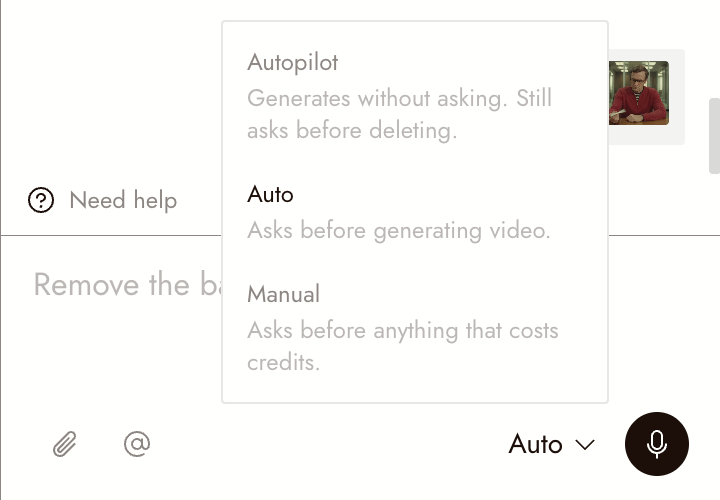
The approval mode, next to the microphone in the chat box, decides which actions wait for your yes:
- Autopilot: generates without asking. Still asks before deleting.
- Auto (the default): asks before generating video.
- Manual: asks before anything that costs credits.
In every mode, the agent asks before deleting anything, and actions that cost nothing never wait. When it asks, it shows what it wants to run and what that costs, and waits for your answer before it runs anything.
Tell the agent what to remember
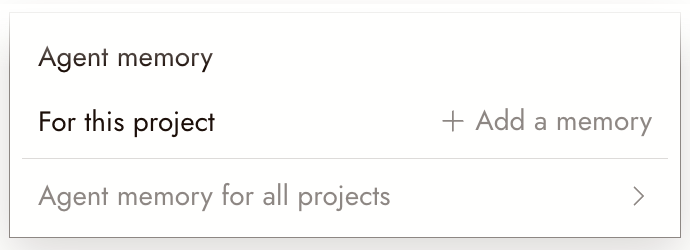
Click Agent memory in the chat header.
- For this project: Add a memory adds a Project memory card to the top of your Story. Write what should always hold for this film: a style recipe, character rules, "no music".
- Agent memory for all projects: rules that apply to everything you make.
The agent reads both on every turn, in every view, so you do not need to repeat them in chat.
Check what it did
Read the agent's action report and inspect the linked results. If an edit changed the wrong detail, select the original node and revise the request.
If something looks wrong
It changed her hair when I asked for a wider shot. Say what must stay. Regenerate from the original node with "keep the character exactly as in the reference."
It says it cannot see the image. Select the node, or attach the image in the chat box.
It generated something I did not ask for. Check the report for which node it used as the source. Select the right node and ask again.
I asked where something is and it does not know. Name the section or node. If it was never named, find it by zooming out; see Find your generations.
Next
- Create Your First Project for the first generation.
- Generate Image for what a good prompt looks like.
- Find your generations for where the results land.