Sound effects
Generate Sound Effects watches a clip and gives it footsteps, doors, wind and room tone, timed to what happens on screen. The result is a new copy of your video with the sound added.
Before you start
- The clip can be 1 to 60 seconds long, up to 100 MB, as MP4, MOV or WebM.
- It costs 3 credits per second of the source video, on any plan. A 10-second clip costs 30 credits; check the Run button.
- For ready-made sounds you place yourself, try the Sound Effects library in Flickpedia or the Video Editor's SFX tab first.
Add sound to a clip
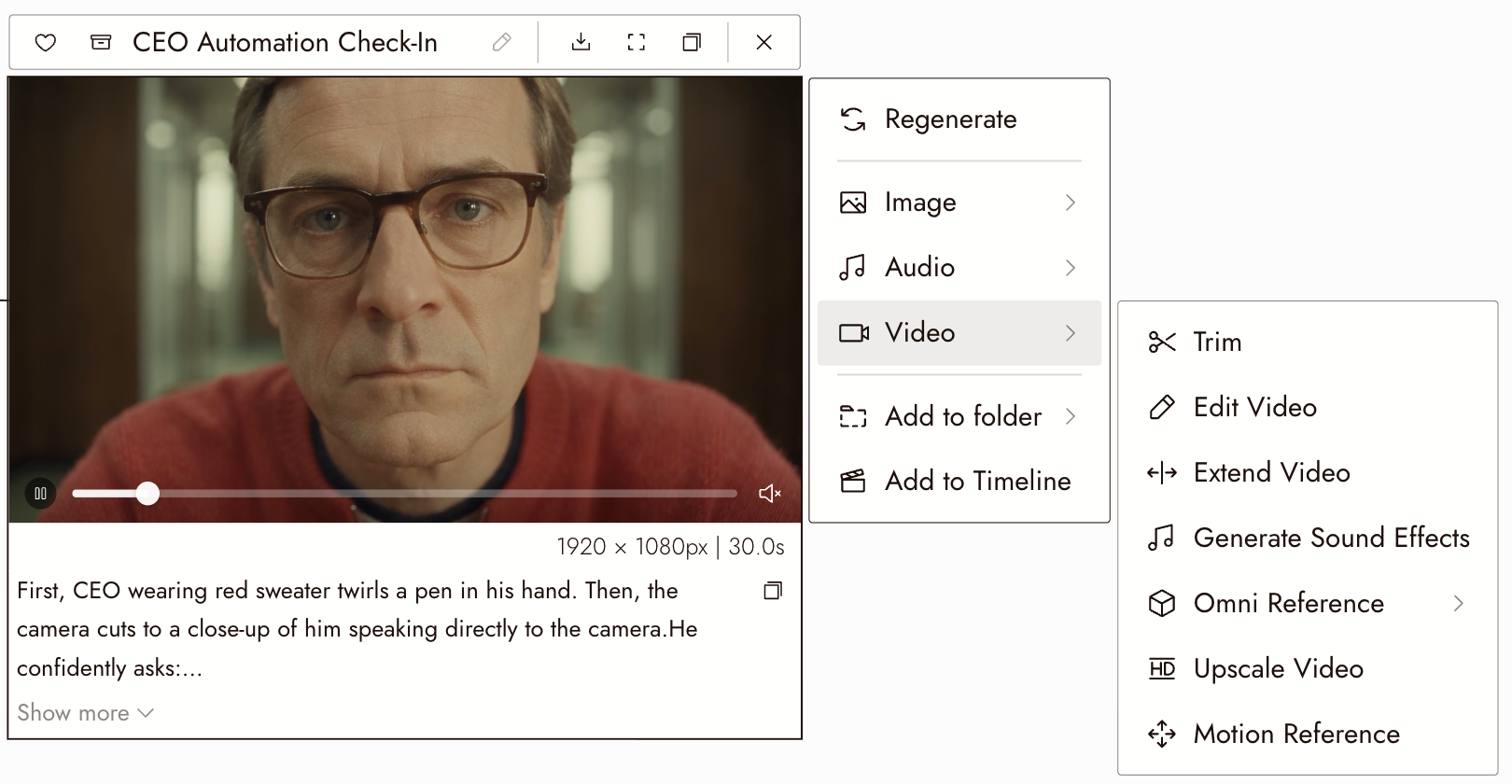
- Select the video on the canvas and choose Video, then Generate Sound Effects.
- Leave the prompt empty to let the model decide, or describe the sound you want: "rain on a tin roof, distant thunder".
- Keep Keep Dialogue on to keep the speech already in the clip. Turn it off for sound effects only.
- Under Negative Prompt, list sounds to leave out, separated by commas: "music, wind".
- Check the cost on Run and run. In about a minute, a new video node appears with the sound added. The original clip is not changed.
Review the result
- Each sound lands on the action that makes it: the door closes when the door closes.
- Any dialogue is still there and still clear.
- Nothing you listed in the negative prompt crept back in.
If something looks wrong
The clip was rejected. Check its length (1 to 60 seconds), size and format. Trim a long clip first; see Trim a clip on the canvas.
The dialogue disappeared. Turn Keep Dialogue on and run again.
There is music I did not want. Add "music" to the negative prompt.
Next
- Import audio to balance the new sound against music and voice.
- Timeline basics to put the clip in your film.
- 09. Build the sound for deciding what the audience should hear.