Text to Voice
Text to Voice creates spoken audio from written lines. Add the audio node to the timeline or use it in Character Dialogue to make a talking clip.
Before you start
Write the line as it should be spoken: short sentences, punctuation where you want a pause. Decide who is speaking. If several characters speak, write it as a script with a name before each line.
Each generation costs credits. Preview voices before you generate a long passage.
Generate a voice
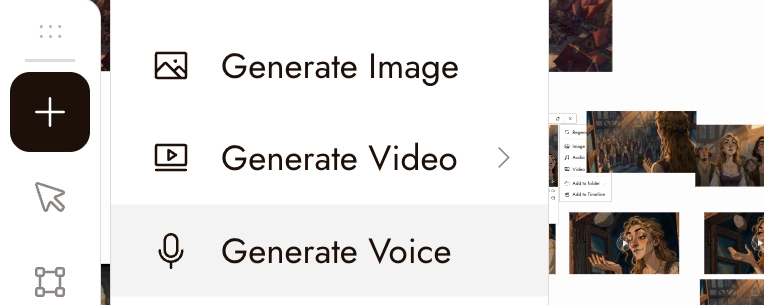
- Click the + button on the left toolbar, then Generate Voice. With a character image selected you can also choose Audio, then Generate Voice from its menu, which keeps the voice connected to that character.
- Under Speaker 1, click Select voice. The Select Voice dialog opens with an Explore tab, a search box, and filters for language, age, gender, and use. Hover a voice to preview it.
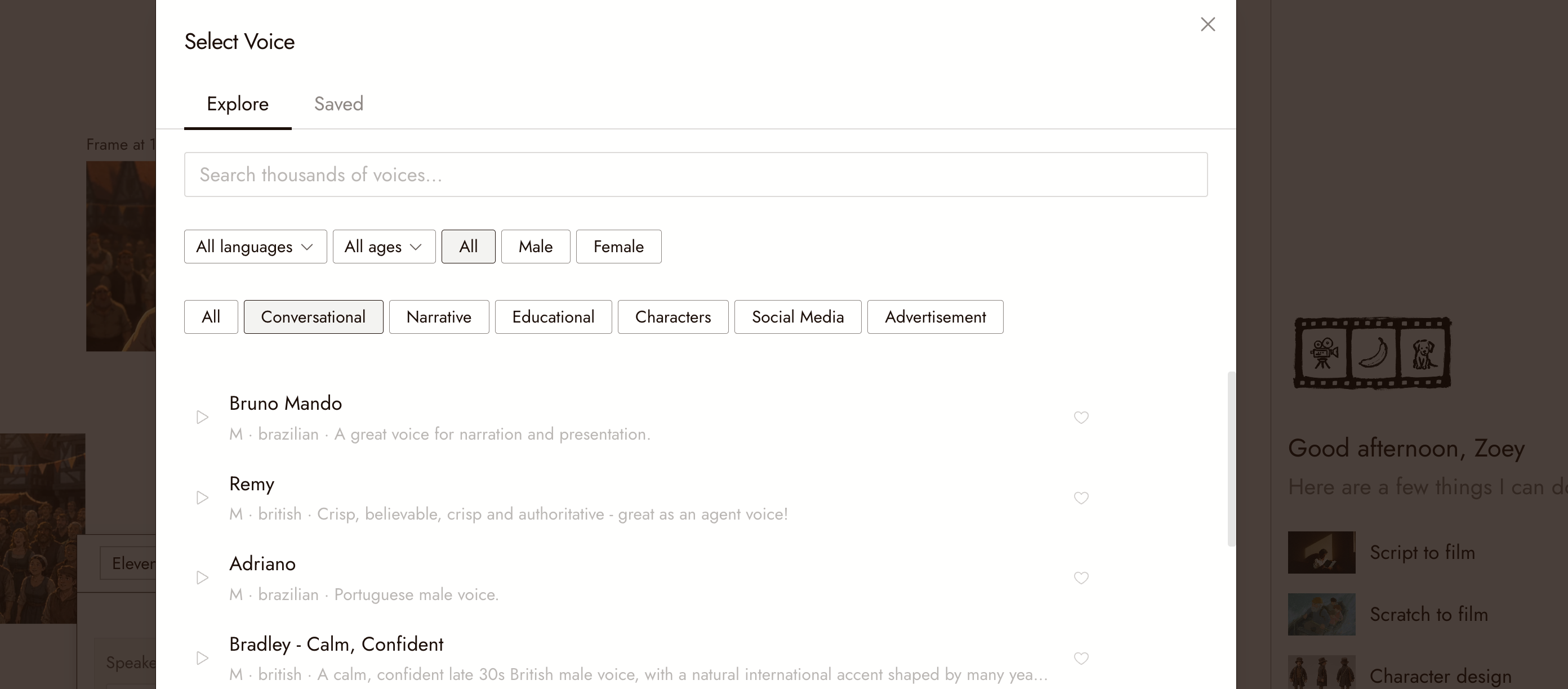
- Choose a voice and click Use.
- Enter the dialogue. Cues in square brackets such as [whispers], [laughs], or [dramatic pause] direct the performance.
- Check the cost on the Run button and run. The audio appears as a node on the canvas.
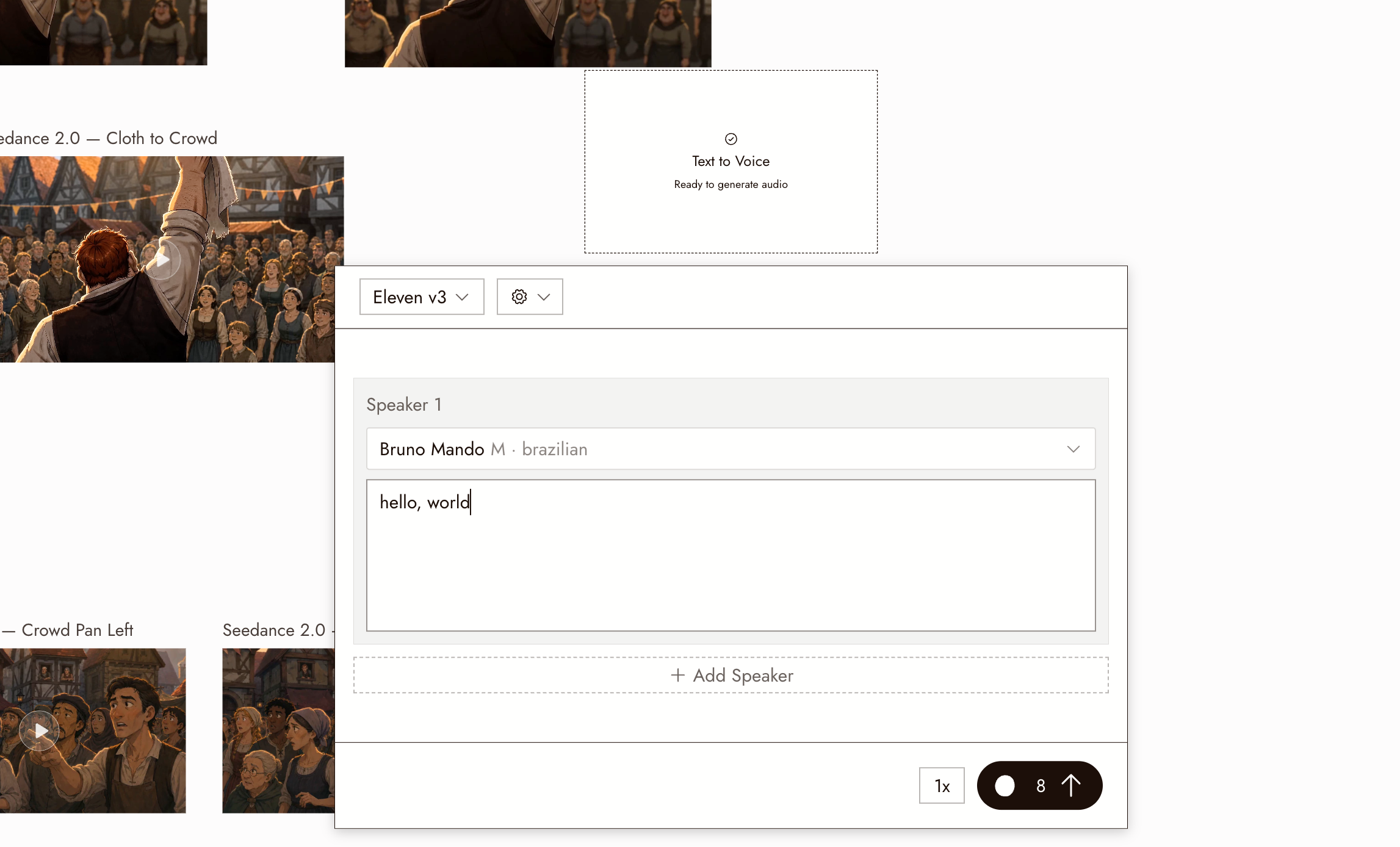
A conversation with several speakers
For several speakers, choose Eleven v4 (or Eleven v3, which works the same way). Enter the first speaker's lines, then click + Add Speaker under the block to add voices and lines in order, up to 10 speakers. The result is one audio clip of the exchange. Seed Audio uses a different, prompt-based workflow.
Use your own voice reference
Choose Seed Audio 1.0 to use audio or video voice references. Audio and video share a total limit of three reference clips; mention them as @Audio1 or @Video1, using the labels shown in the panel. A video reference needs an audio track. An image reference cannot be combined with audio or video references in this workflow. Use references you have the right to use.
Keep one voice per character
Use the same voice selection for each character's new lines. An existing audio file contains the old line; reuse it only for that line or as a supported voice reference. See Voice Consistency.
Review the result
- The line is the line you wrote, with no dropped words.
- Pauses fall where the punctuation is.
- The delivery fits the moment: a whisper is not shouted.
If something looks wrong
The preview sounded different from the result. Regenerate once and compare. If it happens again, report it with both files.
The delivery is flat. Break the line into shorter sentences and add punctuation. Describe the delivery in observable terms: volume, pace, a pause before a word; see the Seedance Performance Guide.
Two characters sound the same. Choose distinct voices and keep a note of which is whose.
I need a language the picker does not show. Check the voice list for the language; not every voice supports every language.
Next
- Character Dialogue to make the character speak the line on screen.
- Import audio to bring in a recording instead.
- Timeline basics to lay the audio under the picture.