3D scenes on the canvas
Turn an image into a 3D scene for free that lives on your canvas as a card. Open the card to place cameras, draw how they and the people move, and record takes. The takes land next to the card, ready to use as references for video.
Before you start
Start from an image on the canvas. A wide shot with a clear floor and walls gives the best set. Only one scene is live at a time: opening a second card closes the first.
Turn an image into a scene
Select an image on the canvas and choose Convert to 3D from its menu. This feature is free with no credit cost.
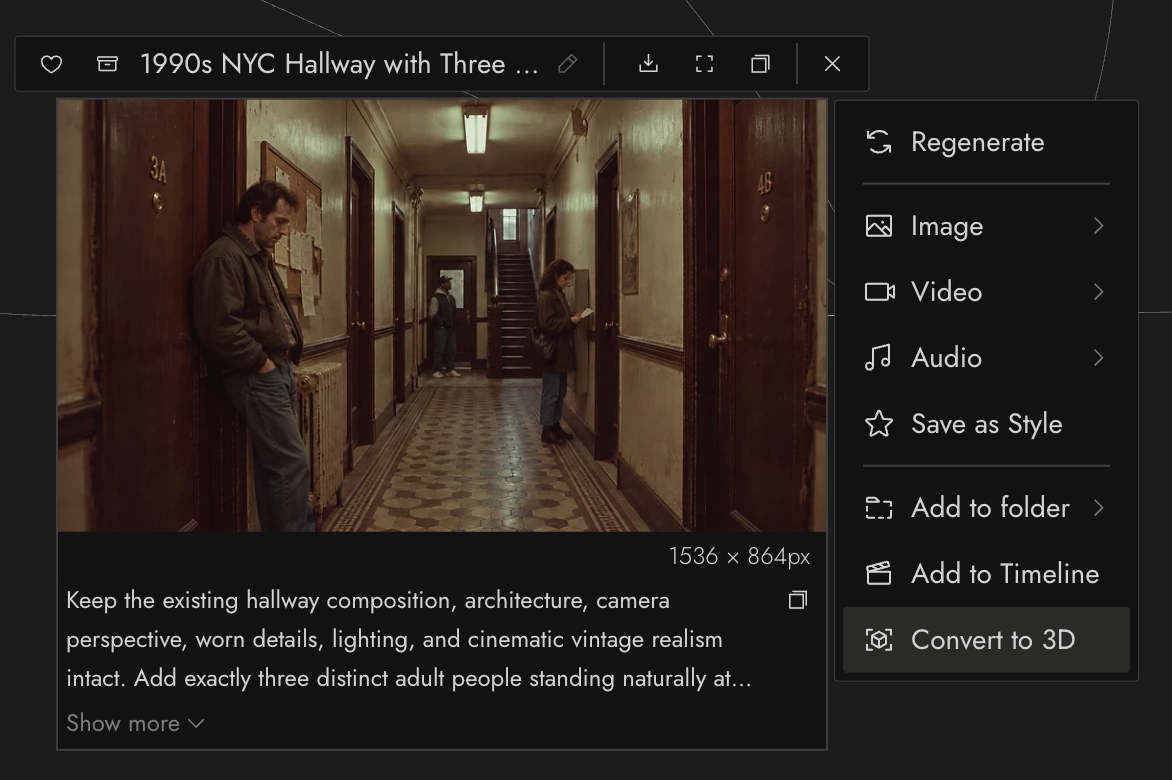
A new scene card appears beside the image, connected to it, and shows Building scene… while the set is made. Keep working on the canvas, or click the card to watch the build. When it finishes, the card shows the first camera's view.
The people in your image come in as Figures: simple stand-ins, standing where each person is, with white marks on the front so you can see which way they face. Someone sitting or crouching in the image stands at their spot. See People in the scene below.
You can also ask the chat to turn an image into 3D while you are on the canvas.
The scene card
A closed card shows a still of the scene with Direct Scene on top. The footer lists the cameras, the length of the show, and the takes you have recorded.

- Click the card to open it.
- Open in 3D Stage opens the same scene in the full editor.
- Hover the card to rename the scene or remove the card from the canvas.
Get familiar with the scene UI
An open card shows the scene live, with a panel docked under it.

- Live view, top: what the selected camera sees.
- Plan, middle: a top-down map of the set. People are marked with the way they face, cameras have a view cone, and props are footprints.
- Footer, bottom: the selected camera's Height and Lens, plus Rehearse and Record.
- ?, upper right of the panel: replays the short tutorials.
Aim the camera
The tag in the lower left of the live view names the camera you are looking through. Drag the picture, or use the four arrows, to change where it aims.

With no camera selected, the view orbits freely around the set and reads Free view. Select a person or a prop and the view keeps it in the middle, showing it selected. Select several and it frames them all.
Move things on the plan
Click anything on the plan to select it, drag to move it, and use the ring around it to turn it. Hold Shift while dragging to snap.
Scroll or pinch to zoom the plan (up to 500%), and drag with the right or middle mouse button to pan. Click the zoom percentage to fit everything in view.
People in the scene
Every person is a Figure or a Human. Select one on the plan and its row shows Figure and Human side by side; click the other one to switch. Hover either to see which suits your shot:
- Figure: best when your video prompt directs the acting. The video model sees where the person stands, which way they face, and where they walk, and performs the rest from your prompt.
- Human: best when you animate the acting in the 3D Stage. Video follows its movement closely.

A person keeps their place and their moves when you switch. A Human with clips, Play recordings, or Rig Transforms from the 3D Stage cannot become a Figure until those are gone: the message that appears names them, and Delete and switch removes them and switches in one step. Undo puts everything back.
To make someone walk, select them and draw their route; see the next section. They face the way they walk unless you tap a subject for them to look at.
Add a camera
Click Add camera in the upper left of the panel. The new camera appears on the plan and the view glides to it.
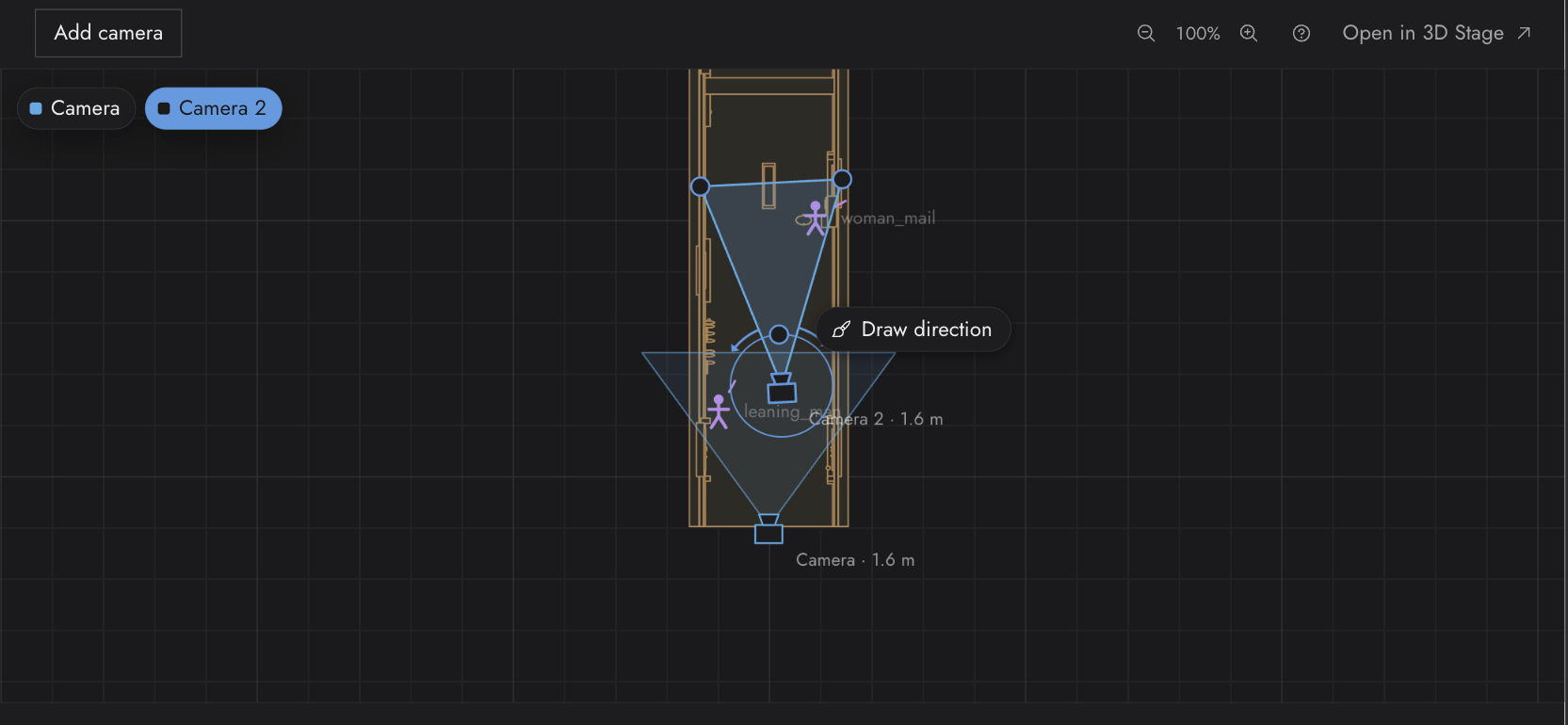
Each camera has a pill in the upper left of the plan. Click a pill to select that camera. A camera off the edge of the plan gets an arrow that points to it.
Draw a move
- Select a camera, a person, or a prop.
- Click Draw direction next to it. The pill changes to Drawing….
- Press on the plan and draw where it should go. The show plays while you draw, so you can time the move to the action.
- Let go to save the move.

Match draw speed is on by default: the move keeps the speed you drew it at, pauses included. Turn it off for a steady speed.
While drawing, hovering a person or prop shows Tap to focus · Drag to draw. A drag that starts on it still draws a path. A tap picks what to look at:
- Drawing a camera: the camera keeps that subject in frame for the whole move.
- Drawing a person: they look at the subject as they walk. The head turns first, and the body follows once the head cannot turn any further.
Once something has a move, the pill reads Update direction. Draw again to replace the move, or click Delete path to remove it. A camera keeps its focus after you delete its path.
Shape the height and lens
When the selected camera has a move, Height across the move appears above the footer.

- Press the line and drag up to raise the camera through part of the move, like a crane.
- Drag a point to move it, and drag its handles to shape the curve. Hold Alt to bend one handle on its own.
- Double-click a point to remove it.
- Drag along the strip at the top to scrub through the move.
Height sets how high the camera sits. Lens goes from 14 mm (wide) to 200 mm (telephoto).
Rehearse and record
Rehearse plays the whole show from the start in the live view. Click it again (it reads Stop) to end early.
Record Camera N records the selected camera. With no camera selected, Record all records every camera.
The takes appear on the canvas next to the scene card, connected to it. Use them as video references like any other clip. One undo on the canvas removes a whole recording.
Film with your phone
To fly the shot by hand, select a camera on the plan and click the Film with phone pill under Draw direction, then scan the code. The pill reads Phone linked, the live view shows what the phone sees, and Record films the take, which lands beside the card. See Film with your phone.
If something looks wrong
Clicking a card does nothing. Another scene may be busy, for example while it builds or while the chat edits it. Wait for it to finish and try again.
A tap selects something instead of drawing. Click Draw direction first so the pill reads Drawing…, then drag. A tap focuses; a drag draws.
I cannot switch a Human to a Figure. It still has something only a Human can do. Click Delete and switch in the message, or remove those actions in the 3D Stage first.
Undo changed the canvas instead of my scene. Undo follows your pointer: inside the scene and its panel it undoes scene edits, outside it undoes canvas edits.
The camera cannot go high enough. The height range grows with the set: up to 4 m in a room, 12 m on a large set, and more on very tall sets, up to 50 m.
I want the tutorials again. Each one shows once. Click ? in the panel to see them again.
Next
- 3D Stage basics to add characters and props in the full editor, and for more on Figure and Human.
- Film with your phone to fly a camera by hand.
- 3D Stage animation to animate a Human with clips, Play, and Rig Transform.
- 3D Stage export for more ways to record a take.