Film with your phone
Your phone becomes the camera and your computer becomes the monitor. Move the phone, and the camera moves through the scene with the weight of a real rig. No phone to hand? The keyboard flies the same rigs.
Before you start
Place a camera and block the scene first; see 3D Stage basics and 3D Stage animation. Anything on the timeline plays while you film, so you can follow the action as it happens. Your phone and computer do not have to be on the same Wi-Fi, but it is smoother if they are.
Start filming
Open filming from any of these:
- Select a camera and click Film with phone in its Properties.
- Click the phone button on the camera's preview window, beside record.
- On a scene card, select a camera on the plan and click the Film with phone pill. See Film from a scene card.
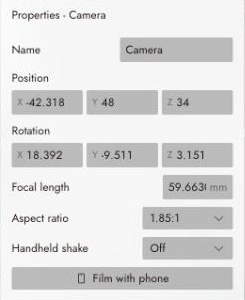
The monitor opens with a card offering two ways in.
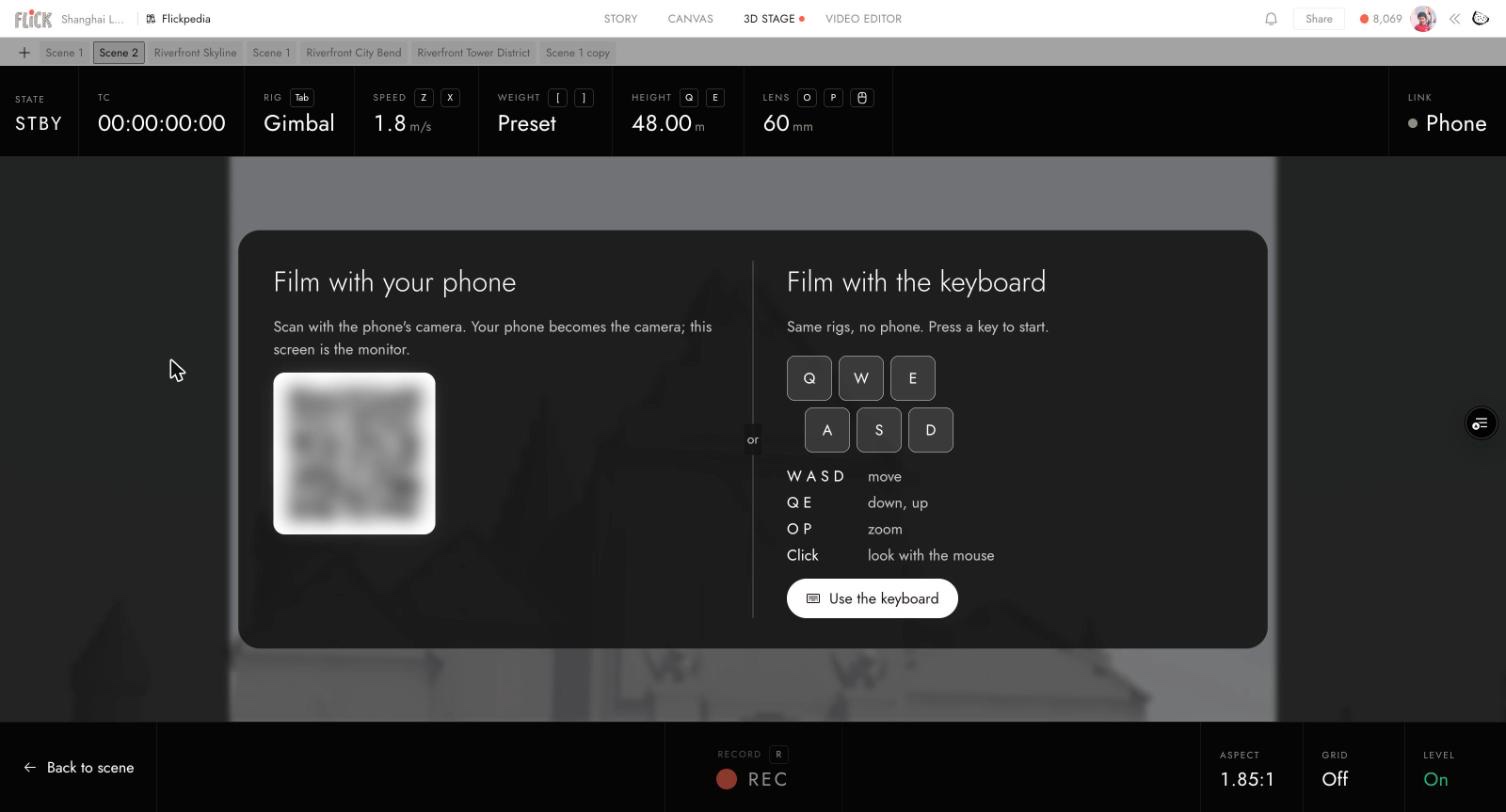
To use your phone:
- Scan the QR code with your phone's camera.
- Tap Start, then allow motion access so the phone can aim the camera as you move it.
- Turn the phone the way it asks, landscape or portrait, to match the shot.
The phone stays linked until you leave the Stage, including while you visit the canvas.
The phone
The phone has two tabs at the top.
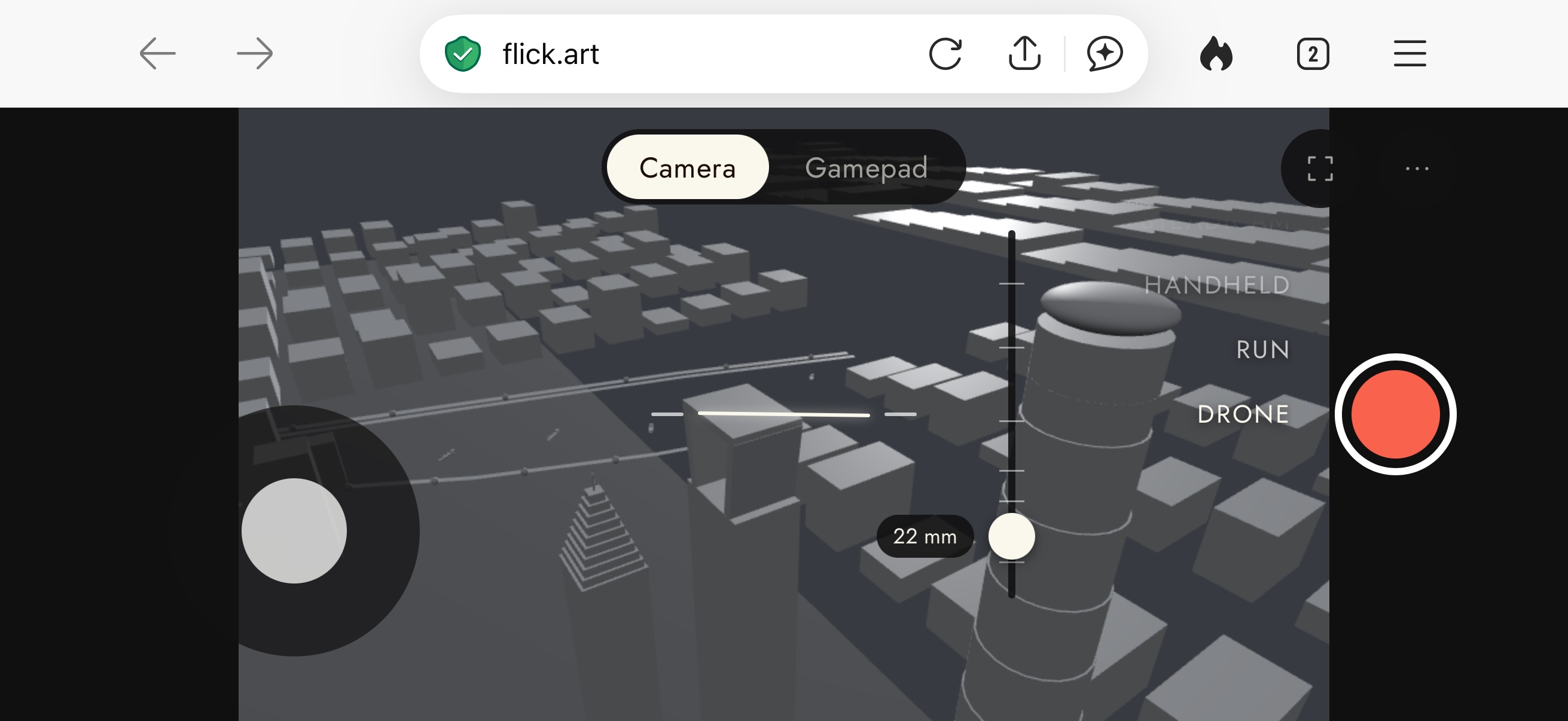
Camera aims the shot by moving the phone. The stick on the left moves the camera, the wheel on the right picks a rig, and the slider sets the lens from 14 mm to 200 mm.
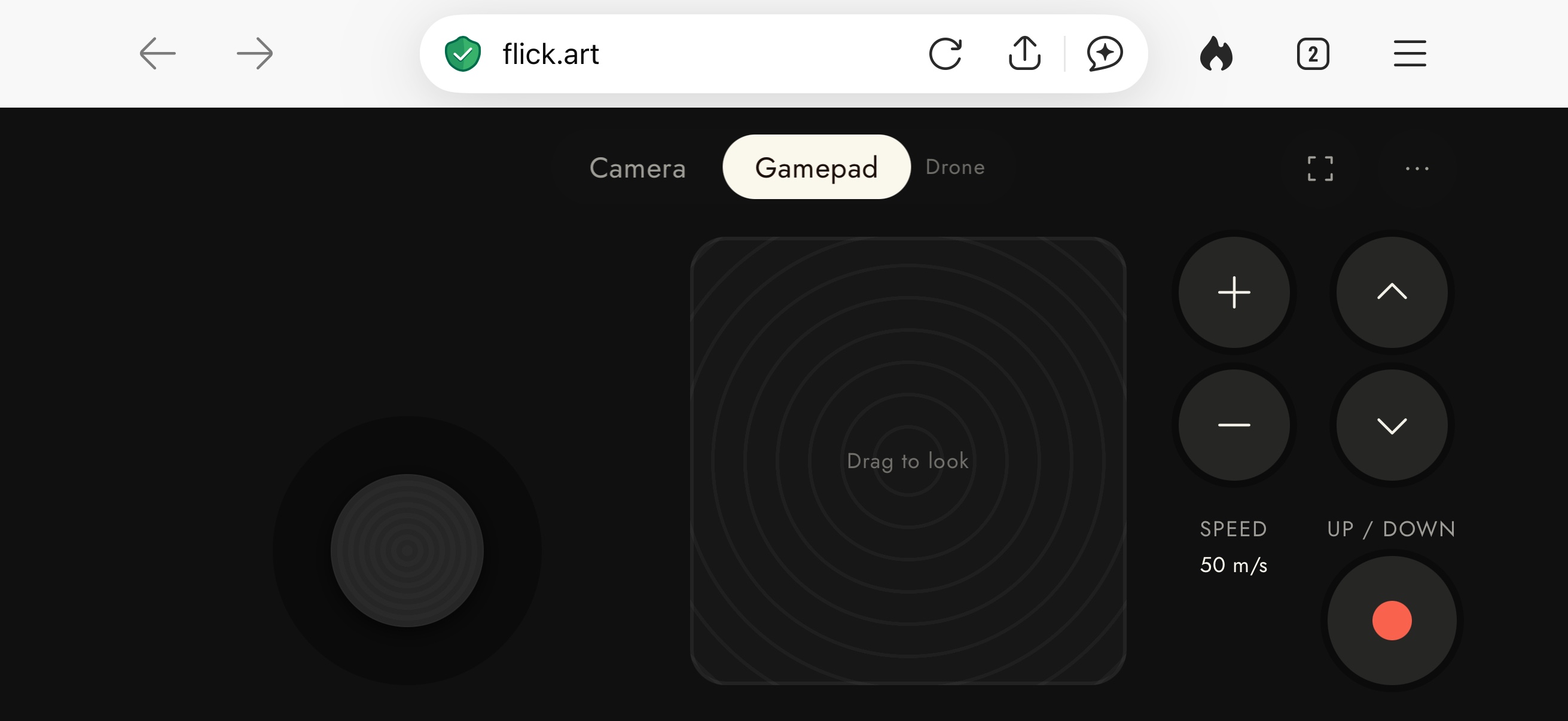
Gamepad needs no motion at all, so you can hold the phone still. Drag the square to look, use the stick to move, and step Speed and Up / down with the buttons.
The ⋯ menu holds Recenter to aim straight ahead again, Grid, Level, and the rig's Weight. On an iPhone, the full screen button shows how to add Flick to your Home Screen, which hides the browser's bars.
Choose a rig
A rig sets how the camera moves: how quickly it gets going and stops, how it turns, and how much it shakes.
| Rig | Feels like | Starts at |
|---|---|---|
| Tripod | Stays put. The stick pans and tilts it like a fluid head. | 20 °/s |
| Gimbal | A smooth walk. | 1.8 m/s |
| Steadicam | A heavier float, slower to start and stop. | 1.8 m/s |
| Handheld | Quick and alive, with shake. | 1.8 m/s |
| Run | Running, with a shake on each stride. | 5 m/s |
| Drone | Flies freely and banks into its turns. | 7.5 m/s |
Speed is the rig's top speed, from 0.3 m/s to 50 m/s, so a car chase is possible. On a Tripod it is the top pan rate, from 5 °/s to 90 °/s. Weight runs from Light through Preset to Heavy and makes the rig slower or quicker to respond without changing its speed.
A phone take uses its rig's shake, not the camera's Handheld shake setting.
The monitor
The computer shows the frame you are recording, between two black bars. Rig and speed stay in step with the phone, so you can change them from either side.
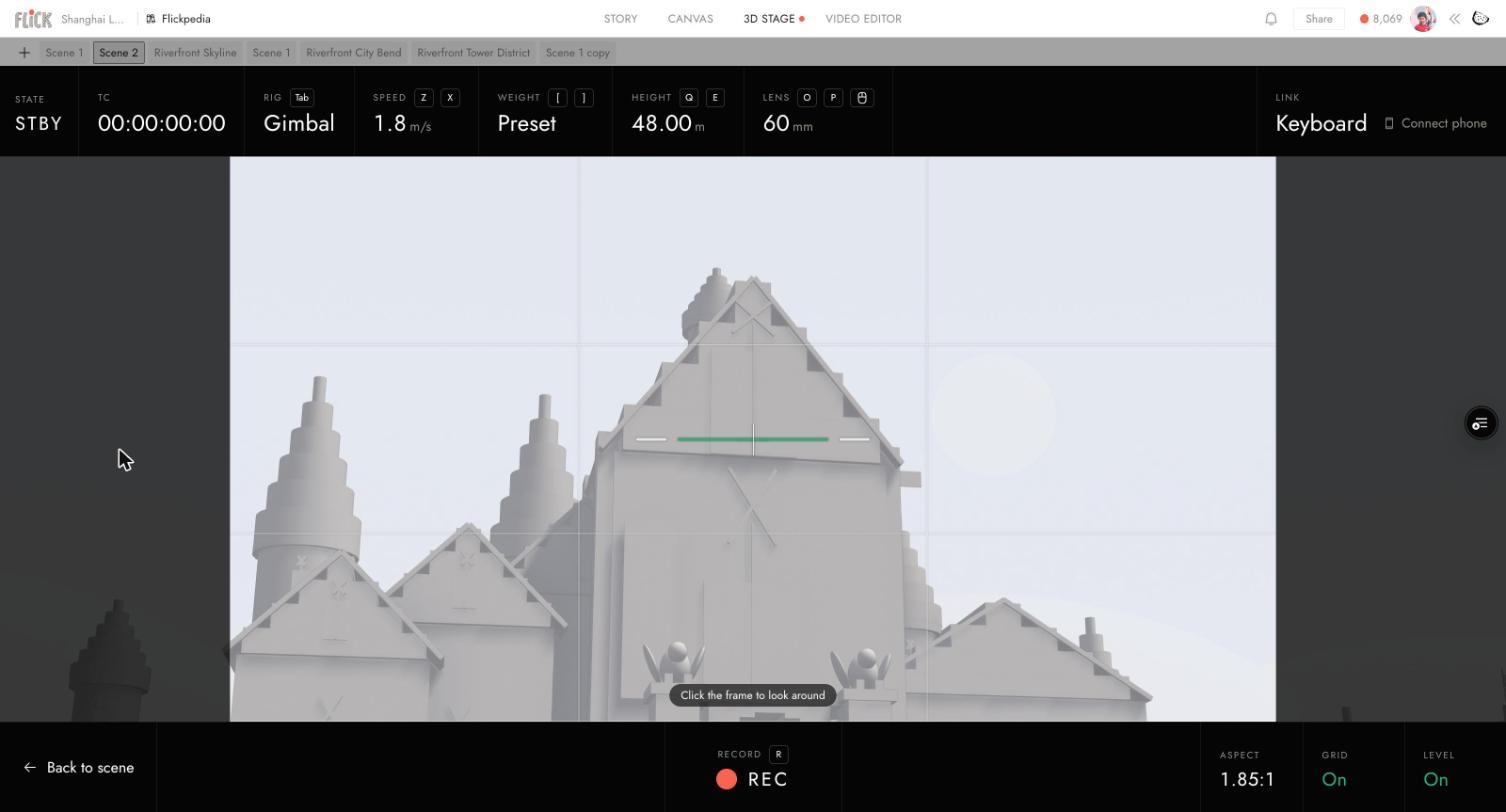
| To | Press |
|---|---|
| Change rig | Tab |
| Slower or faster | Z or X |
| Lighter or heavier | [ or ] |
| Down or up | Q or E |
| Zoom | Hold O or P, or scroll |
| Record or stop | R |
| Back to the scene | Esc, or Back to scene |
Aspect sets the camera's record aspect. Level turns green when the camera is level. Grid shows the rule of thirds.
Film with the keyboard
Click Use the keyboard on the card, or just press one of W A S D Q E. W A S D move, Q and E go down and up, and Shift goes slow. Click the frame to look with the mouse. All the monitor's keys above work the same. On a Tripod, W A S D pan and tilt instead. To bring the phone back, click Connect phone in the top right.
Record the take
Press record on the phone, or Record or R on the computer. The timeline plays from the start while you fly. A take range does not apply to a phone take. Press again to stop, then click Save in Your camera move to send the video to the canvas.
Your flight stays on the camera's track as a Phone segment, so the same move plays again when you rehearse or record the scene. To replace it, select the segment and click Film again.
Filming adds the Phone segment when you open the monitor. If you click Back to scene without flying, it is removed.
Film from a scene card
You can film without leaving the canvas. Open a scene card, select a camera on the plan, and click the Film with phone pill under Draw direction.
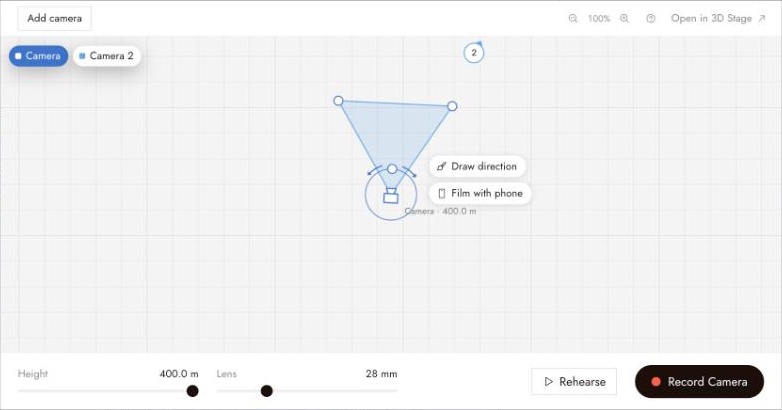
Scan the code. The pill now reads Phone linked, and the card's live view shows what the phone sees. Record films the take, and it lands on the canvas beside the card. Click the pill again to stop filming with the phone.
Best practices
Pick the rig before you frame. A Drone and a Gimbal need different moves. Try the rig once before you record.
Lower the speed for close work. Near people, use a slow speed and a heavier Weight, then go faster for wide moves.
Rehearse first. Fly the shot once with the scene playing to learn the timing, then record.
If something looks wrong
The phone says motion access was denied. Allow motion and orientation access for the site, then tap Try again. Or use the Gamepad tab, which needs no motion.
The phone says it has no motion sensors. Use the Gamepad tab, or film with the keyboard.
The phone says Waiting for your computer. Filming is closed on the computer. It picks up again when you open the monitor.
The monitor says Phone lost. The phone dropped off, and a take that was rolling stops. Scan the code again.
The motion looks steppy. Put the phone and computer on the same Wi-Fi.
The camera drifted off straight ahead. Open ⋯ and tap Recenter.
Next
- 3D Stage cameras for moves you draw rather than fly.
- 3D Stage export for more ways to record and use a take.