탐색
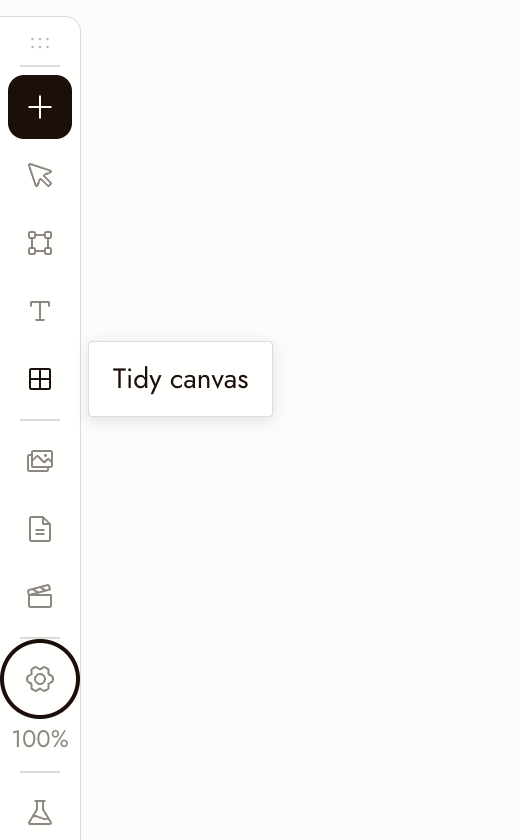
Use these controls to move around the canvas, select nodes, and run generations. The left toolbar contains Add Node, Hand/Select Mode, Add Section (S), Add Text (T), Tidy canvas, Assets, Story, Video Editor, Canvas settings, and Zoom options.
마우스 및 트랙패드
- 왼쪽 클릭: 선택, 상호작용
- 오른쪽 클릭: 메뉴
- 오른쪽 클릭 + 드래그: 캔버스 이동
- 마우스 가운데 버튼: 캔버스 이동
- 스크롤 휠 또는 트랙패드: 위, 아래, 좌, 우 이동
- Control 또는 Command ⌘ + 스크롤: 확대/축소
- 핀치: 확대/축소
- 왼쪽 클릭 + 드래그:
- 노드 위에서: 노드 이동
- 플러스 버튼 위에서: 연결선 드래그
- 빈 캔버스 위에서: 박스 선택
단축키
- 생성 실행: Enter로 선택한 노드 실행
- 삭제: 노드를 선택한 상태에서 Backspace 또는 Delete
- 복사: 선택한 노드 또는 노드 그룹에서 Control 또는 Command ⌘ + C
- 붙여넣기: Control 또는 Command ⌘ + V로 노드를 붙여넣거나, 클립보드의 이미지 또는 비디오를 붙여넣기
- 확대/축소: Command + Plus로 확대; Command + Minus로 축소. Command + 1로 캔버스 맞춤; Command + 0로 100%로 복귀. 확대/축소 옵션에서 50% 및 200%도 제공.
- 도구: S로 섹션 추가, T로 텍스트 노트 추가. 도구 모음의 손 모드로 전환을 사용하면 왼쪽 드래그가 이동으로 변경되며, 같은 버튼으로 선택 모드로 다시 전환.
Minimap
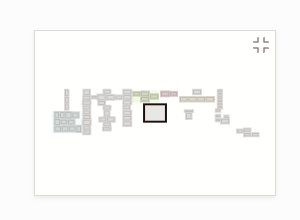
The minimap in the bottom-right corner shows the whole board: each section in its own color, every node as a small grey block, selected nodes highlighted, and the part you are looking at as a frame.
- Click anywhere on the minimap to glide there.
- Drag the frame to pan across the board.
- Hover the minimap and click the button in its corner to hide it. Turn it back on with Minimap in Canvas settings.
The minimap hides itself on an empty canvas and on narrow screens.
Tidy the canvas
Tidy canvas on the left toolbar arranges the whole board in one step: it lines up the nodes inside each section (each source next to what was made from it, generations left to right), resizes each section to fit, then lays out the sections and loose nodes and brings the result into view. Running it twice changes nothing, and one Command+Z puts everything back.
To tidy only part of the board, select those nodes and choose Tidy up in the toolbar above the selection.
모범 사례
단일 이미지를 판단하기 전에 축소하세요. 중요한 것은 이미지 자체가 아니라 시퀀스에서 작동하는지 여부입니다.
박스 선택으로 씬을 한 번에 이동하세요. 빈 캔버스에서 드래그한 다음 선택 영역을 드래그하세요.
실행하거나 삭제하기 전에 선택 항목을 확인하세요. Enter는 선택한 노드를 실행하고 크레딧을 사용합니다. Backspace는 선택 항목을 삭제합니다.
문제가 있어 보인다면
패닝할 수 없습니다. 마우스 오른쪽 버튼을 클릭한 채로 드래그하거나, 마우스 가운데 버튼을 사용하거나, 손 모드로 전환한 후 드래그하세요.
스크롤하면 패닝 대신 확대/축소됩니다. Control 또는 Command 키를 놓으세요. 그래도 확대/축소된다면 캔버스 설정 > 마우스 및 트랙패드에서 스크롤하여 확대/축소를 끄세요.
My nodes disappeared. They are most likely off screen. Press ⌘1 to fit the whole canvas in view, or click the area you want on the minimap.
노드가 없어진 것 같습니다. 화면 밖에 있는지 확인하려면 축소하세요. 노드를 삭제하기 전에 선택을 확인하고 보관하려는 항목은 복사하세요.
다음 단계
- 텍스트 노드 - 캔버스의 메모에서 프롬프트 작성하기.
- 첫 번째 프로젝트 만들기 - 첫 프로젝트 전체 가이드.
- 섹션 및 폴더 - 대형 캔버스를 정리하기.