Navigazione
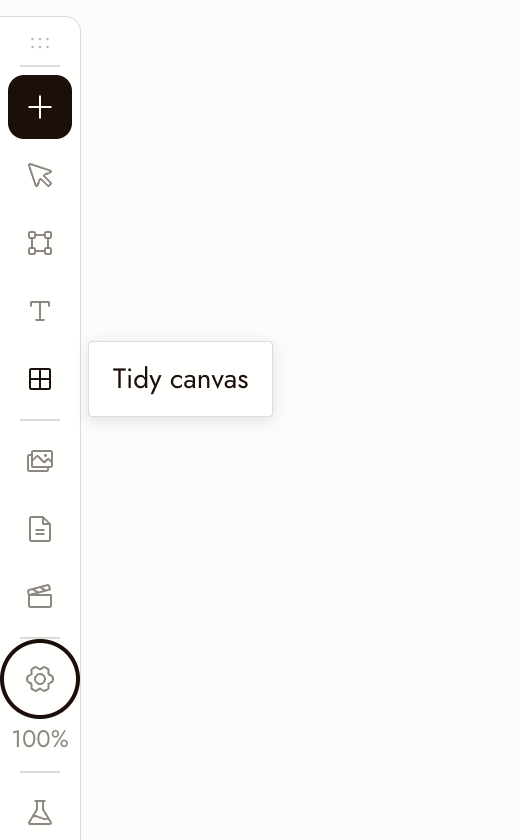
Use these controls to move around the canvas, select nodes, and run generations. The left toolbar contains Add Node, Hand/Select Mode, Add Section (S), Add Text (T), Tidy canvas, Assets, Story, Video Editor, Canvas settings, and Zoom options.
Mouse e trackpad
- Clic sinistro: selezionare, interagire
- Clic destro: menu
- Clic destro + trascinare: spostare il canvas
- Pulsante centrale del mouse: spostare il canvas
- Rotella di scorrimento o trackpad: spostare su, giù, sinistra e destra
- Control o Command ⌘ + scorrimento: zoom
- Pinch: zoom
- Clic sinistro + trascinare:
- Su un nodo: spostare il nodo
- Sul pulsante più: trascinare una connessione
- Sul canvas vuoto: selezione a riquadro
Scorciatoie
- Esegui generazione: Enter esegue i nodi selezionati
- Elimina: Backspace o Delete con qualsiasi numero di nodi selezionati
- Copia: Control o Command ⌘ + C su un nodo selezionato o gruppo di nodi
- Incolla: Control o Command ⌘ + V incolla nodi, o qualsiasi immagine o video dagli appunti
- Zoom: Command + Più ingrandisce; Command + Meno riduce. Command + 1 adatta il canvas; Command + 0 ritorna al 100%. Le Opzioni zoom offrono anche 50% e 200%.
- Strumenti: S aggiunge una sezione, T aggiunge una nota di testo. Passa alla modalità Mano sulla barra degli strumenti trasforma il trascinamento sinistro in spostamento; lo stesso pulsante torna alla modalità Selezione.
Minimap
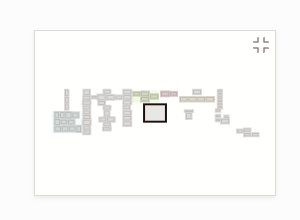
The minimap in the bottom-right corner shows the whole board: each section in its own color, every node as a small grey block, selected nodes highlighted, and the part you are looking at as a frame.
- Click anywhere on the minimap to glide there.
- Drag the frame to pan across the board.
- Hover the minimap and click the button in its corner to hide it. Turn it back on with Minimap in Canvas settings.
The minimap hides itself on an empty canvas and on narrow screens.
Tidy the canvas
Tidy canvas on the left toolbar arranges the whole board in one step: it lines up the nodes inside each section (each source next to what was made from it, generations left to right), resizes each section to fit, then lays out the sections and loose nodes and brings the result into view. Running it twice changes nothing, and one Command+Z puts everything back.
To tidy only part of the board, select those nodes and choose Tidy up in the toolbar above the selection.
Best practice
Riduci lo zoom prima di giudicare una singola immagine. La domanda è se funziona nella sequenza, non da sola.
Seleziona a riquadro per spostare una scena in una volta. Trascina sul canvas vuoto, poi trascina la selezione.
Controlla la selezione prima di eseguire o eliminare. Enter esegue i nodi selezionati e utilizza crediti. Backspace elimina la selezione.
Se qualcosa non sembra giusto
Non riesco a fare pan. Fai clic con il tasto destro e trascina, usa il pulsante centrale del mouse oppure passa alla modalità Mano e trascina.
Lo scorrimento esegue lo zoom invece del pan. Rilascia Control o Command. Se continua a eseguire lo zoom, disattiva Scroll per zoom in Impostazioni canvas > Mouse e trackpad.
My nodes disappeared. They are most likely off screen. Press ⌘1 to fit the whole canvas in view, or click the area you want on the minimap.
Sembra mancare un nodo. Riduci lo zoom per verificare se si trova fuori schermo. Prima di eliminare i nodi, conferma la selezione e copia tutto ciò che vuoi conservare.
Prossimi passi
- Nodi di testo per creare prompt da note sul canvas.
- Crea il tuo primo progetto per la guida completa al primo progetto.
- Sezioni e cartelle per organizzare un canvas di grandi dimensioni.