Navigation
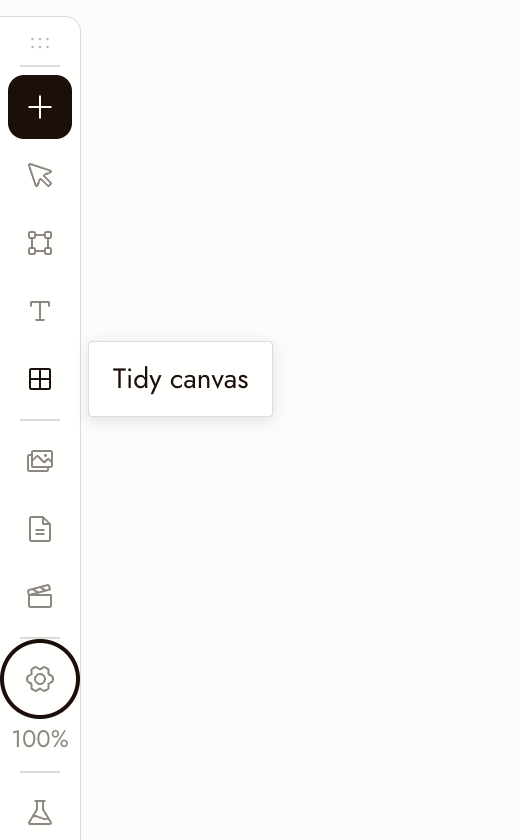
Use these controls to move around the canvas, select nodes, and run generations. The left toolbar contains Add Node, Hand/Select Mode, Add Section (S), Add Text (T), Tidy canvas, Assets, Story, Video Editor, Canvas settings, and Zoom options.
Maus und Trackpad
- Linksklick: auswählen, interagieren
- Rechtsklick: Menü
- Rechtsklick + ziehen: Canvas verschieben
- Mittlere Maustaste: Canvas verschieben
- Scrollrad oder Trackpad: nach oben, unten, links und rechts verschieben
- Control oder Command ⌘ + scrollen: zoomen
- Pinch: zoomen
- Linksklick + ziehen:
- Auf einem Knoten: Knoten verschieben
- Auf dem Plus-Button: Verbindung ziehen
- Auf leerem Canvas: Box-Auswahl
Tastenkombinationen
- Generierung ausführen: Enter führt die ausgewählten Knoten aus
- Löschen: Backspace oder Delete mit beliebig vielen ausgewählten Knoten
- Kopieren: Control oder Command ⌘ + C auf einem ausgewählten Knoten oder einer Gruppe von Knoten
- Einfügen: Control oder Command ⌘ + V fügt Knoten ein, oder jedes Bild oder Video aus deiner Zwischenablage
- Zoom: Command + Plus zoomt hinein; Command + Minus zoomt heraus. Command + 1 passt den Canvas an; Command + 0 kehrt zu 100% zurück. Zoom-Optionen bieten außerdem 50% und 200%.
- Werkzeuge: S fügt einen Abschnitt hinzu, T fügt eine Textnotiz hinzu. Zu Hand-Modus wechseln in der Werkzeugleiste macht Linksziehen zum Verschieben; derselbe Button wechselt zurück zum Auswahlmodus.
Minimap
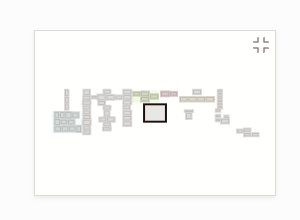
The minimap in the bottom-right corner shows the whole board: each section in its own color, every node as a small grey block, selected nodes highlighted, and the part you are looking at as a frame.
- Click anywhere on the minimap to glide there.
- Drag the frame to pan across the board.
- Hover the minimap and click the button in its corner to hide it. Turn it back on with Minimap in Canvas settings.
The minimap hides itself on an empty canvas and on narrow screens.
Tidy the canvas
Tidy canvas on the left toolbar arranges the whole board in one step: it lines up the nodes inside each section (each source next to what was made from it, generations left to right), resizes each section to fit, then lays out the sections and loose nodes and brings the result into view. Running it twice changes nothing, and one Command+Z puts everything back.
To tidy only part of the board, select those nodes and choose Tidy up in the toolbar above the selection.
Best Practices
Zoome heraus, bevor du ein einzelnes Bild beurteilst. Die Frage ist, ob es in der Sequenz funktioniert, nicht für sich allein.
Verwende Box-Auswahl, um eine Szene auf einmal zu verschieben. Ziehe auf leerem Canvas, dann ziehe die Auswahl.
Überprüfe deine Auswahl, bevor du ausführst oder löschst. Enter führt die ausgewählten Knoten aus und verwendet Credits. Backspace löscht die Auswahl.
Wenn etwas nicht stimmt
Ich kann nicht schwenken. Rechtsklick und ziehen, die mittlere Maustaste verwenden oder in den Hand-Modus wechseln und ziehen.
Scrollen zoomt statt zu schwenken. Strg oder Command loslassen. Falls weiterhin gezoomt wird, Scrollen zum Zoomen unter Canvas-Einstellungen > Maus & Trackpad deaktivieren.
My nodes disappeared. They are most likely off screen. Press ⌘1 to fit the whole canvas in view, or click the area you want on the minimap.
Ein Knoten scheint zu fehlen. Herauszoomen, um zu prüfen, ob er außerhalb des Bildschirms ist. Vor dem Löschen von Knoten die Auswahl bestätigen und alles kopieren, was behalten werden soll.
Weiter
- Text-Knoten zum Prompting aus Notizen auf dem Canvas.
- Erstelle dein erstes Projekt für die vollständige Anleitung zum ersten Projekt.
- Bereiche und Ordner zur Organisation eines großen Canvas.