ナビゲーション
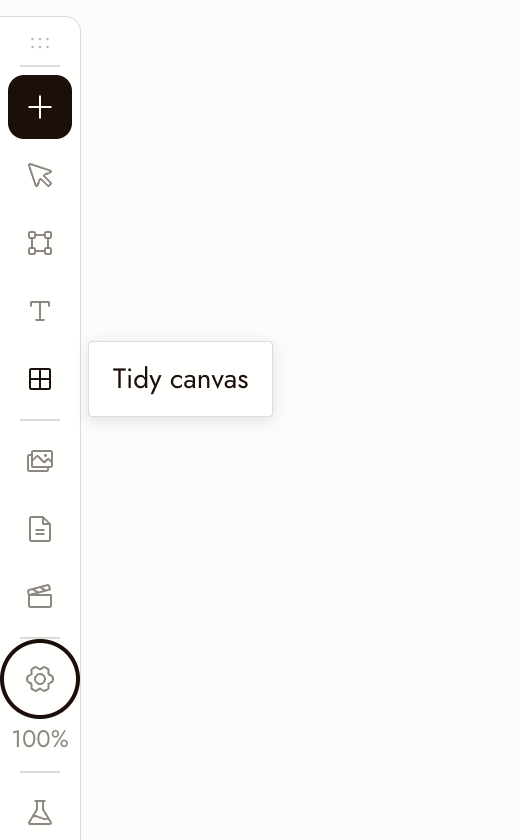
Use these controls to move around the canvas, select nodes, and run generations. The left toolbar contains Add Node, Hand/Select Mode, Add Section (S), Add Text (T), Tidy canvas, Assets, Story, Video Editor, Canvas settings, and Zoom options.
マウスとトラックパッド
- 左クリック:選択、操作
- 右クリック:メニュー
- 右クリック + ドラッグ:キャンバスをパン
- マウス中ボタン:キャンバスをパン
- スクロールホイールまたはトラックパッド:上下左右にパン
- ControlまたはCommand ⌘ + スクロール:ズーム
- ピンチ:ズーム
- 左クリック + ドラッグ:
- ノード上:ノードを移動
- プラスボタン上:接続線をドラッグ
- 空のキャンバス上:ボックス選択
ショートカット
- 生成を実行:Enterで選択したノードを実行
- 削除:任意の数のノードを選択してBackspaceまたはDelete
- コピー:選択したノードまたはノードグループ上でControlまたはCommand ⌘ + C
- ペースト:ControlまたはCommand ⌘ + Vでノード、またはクリップボードから任意の画像や動画をペースト
- ズーム:Command + Plusで拡大、Command + Minusで縮小。Command + 1でキャンバスをフィット、Command + 0で100%に戻る。ズームオプションでは50%と200%も選択可能。
- ツール:Sでセクションを追加、Tでテキストノートを追加。ツールバーのハンドモードに切り替えで左ドラッグがパンになり、同じボタンで選択モードに戻る。
Minimap
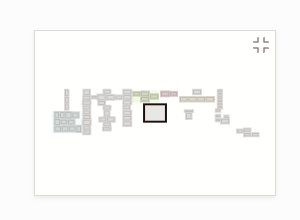
The minimap in the bottom-right corner shows the whole board: each section in its own color, every node as a small grey block, selected nodes highlighted, and the part you are looking at as a frame.
- Click anywhere on the minimap to glide there.
- Drag the frame to pan across the board.
- Hover the minimap and click the button in its corner to hide it. Turn it back on with Minimap in Canvas settings.
The minimap hides itself on an empty canvas and on narrow screens.
Tidy the canvas
Tidy canvas on the left toolbar arranges the whole board in one step: it lines up the nodes inside each section (each source next to what was made from it, generations left to right), resizes each section to fit, then lays out the sections and loose nodes and brings the result into view. Running it twice changes nothing, and one Command+Z puts everything back.
To tidy only part of the board, select those nodes and choose Tidy up in the toolbar above the selection.
ベストプラクティス
1枚の画像を評価する前にズームアウトしましょう。重要なのは、単独ではなくシーケンス内で機能するかどうかです。
ボックス選択でシーン全体を一度に移動。空のキャンバス上でドラッグし、その後選択範囲をドラッグします。
実行または削除する前に選択内容を確認しましょう。Enterは選択したノードを実行し、クレジットを使用します。Backspaceは選択範囲を削除します。
何かおかしい場合
パンができません。右クリックしてドラッグするか、マウスの中ボタンを使用するか、ハンドモードに切り替えてドラッグしてください。
スクロールするとパンではなくズームされます。ControlまたはCommandキーを離してください。それでもズームする場合は、キャンバス設定 > マウス & トラックパッドでスクロールでズームをオフにしてください。
My nodes disappeared. They are most likely off screen. Press ⌘1 to fit the whole canvas in view, or click the area you want on the minimap.
ノードが見つかりません。ズームアウトして画面外にないか確認してください。ノードを削除する前に、選択内容を確認し、保持したいものをコピーしてください。
次のステップ
- テキストノード キャンバス上のメモからプロンプトを作成できます。
- 最初のプロジェクトを作成 初回プロジェクトの完全なチュートリアルです。
- セクションとフォルダ 大きなキャンバスを整理できます。