Trim a clip on the canvas
Trim keeps the part of a video or audio clip you want, as a new node you can feed into the next step: Extend Video, sound effects, lip sync or the timeline. It is free, runs in your browser, and never changes the original.
클립 트림
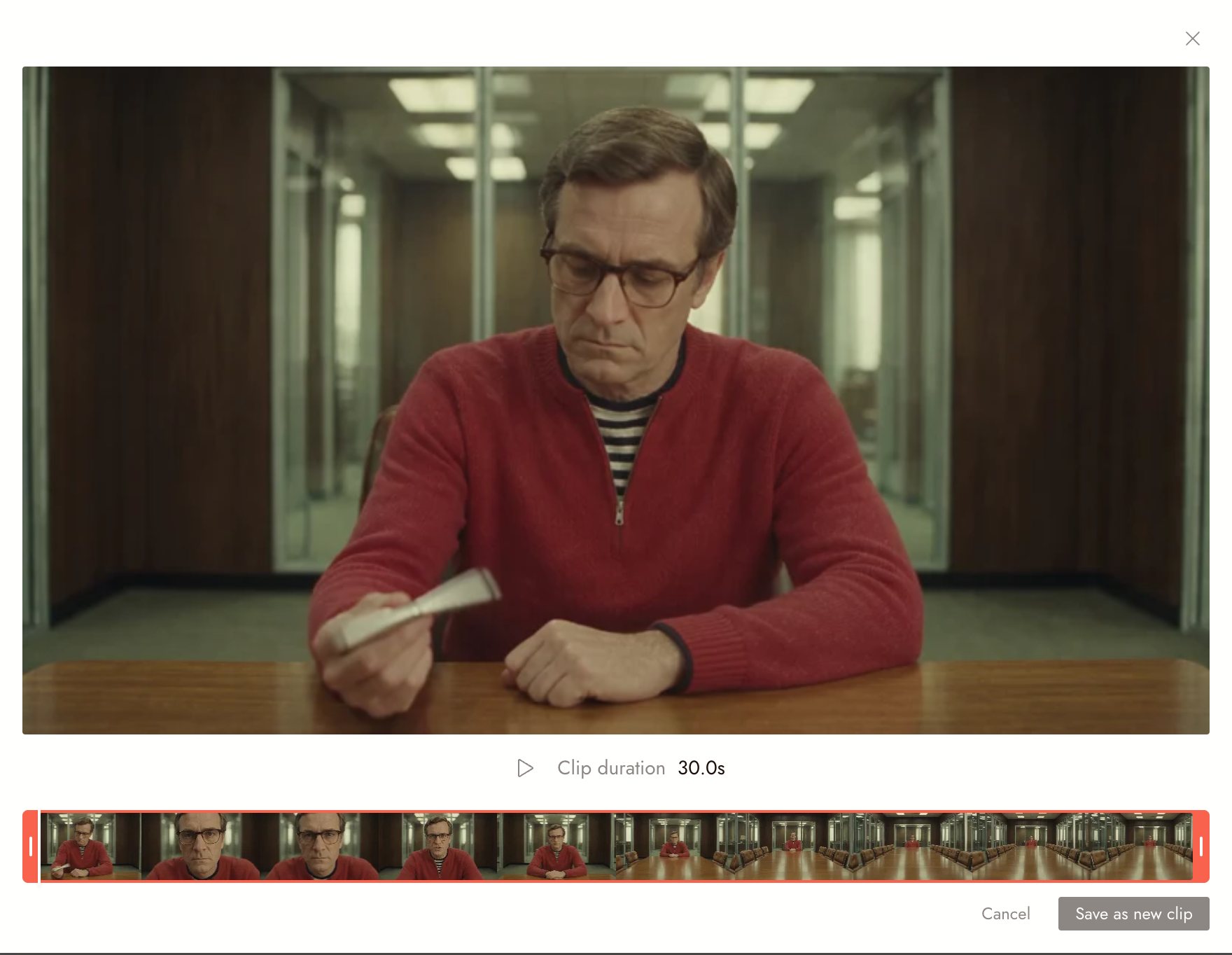
- Select a video or audio node on the canvas and choose Video (or Audio), then Trim. The trim editor opens, paused on the first frame.
- Drag the grips at each end of the strip to set where the clip starts and ends. A video shows a filmstrip; audio shows its waveform. The kept part loops as you work.
- Drag inside the kept range to slide it, click to jump the playhead, or drag the playhead itself. A grip snaps to the playhead, which turns red when they meet.
- Click Save as new clip. The editor closes at once, and the new node appears beside the original, or in its section, showing its progress.
The new clip is named after the original with the kept range added, for example "Dance (Trimmed 0.04-1.25)", so two trims of one clip are easy to tell apart. It is not connected to the original.
Keyboard
- Space plays and pauses.
- I and O set the start and end at the playhead.
- Left and Right step one frame; hold Shift to step one second.
- Enter saves; Esc cancels.
문제가 있어 보인다면
Save as new clip is greyed out. The range is still the whole clip. Move a grip first.
I trimmed the wrong part. Delete the new node and trim the original again; it was never changed.
다음 단계
- Extend a clip to add footage to the trimmed clip.
- Sound effects to give it sound.
- Trim and split for trimming on the timeline instead.