Publish your film
Publishing puts your finished film on Flick TV, where everyone on Flick can watch it, like it, comment and tip. This page covers the two ways to publish, what the form asks for, and how to change the details later.
Before you publish
Watch the film start to finish, and check that every image, sound and reference in it is yours to publish; see Your content and rights.
Publish while you export
- In the Video Editor, click Export and choose the resolution and watermark; see Export and download your film.
- Click Export. The next screen opens straight away: your render runs on the left while the publish form waits on the right, so you can fill it in while the file renders. You still get the download.
- Check the cover. Flick picks one from your opening clip. Hover it and click Change to choose an image from the project, upload one, or go back to the film's own frame.
- Check the title, which starts as the project name, and add an About text so viewers know what they are watching.
- Decide on workflow sharing. It is on by default: viewers can open Get Workflow and see the canvas that made the film, prompts included. Turn it off to keep the project private.
- Click Publish.
Publishing the same project again updates the film you already published, rather than adding a second one. Its link, likes and tips stay. If a project already has more than one film, Flick asks which one to update.
The same screen offers sharing to YouTube, Instagram, TikTok, LinkedIn, X and Reddit.
Publish from the Share menu
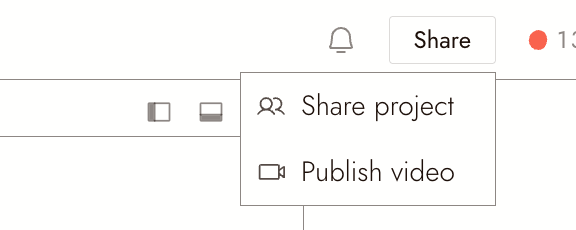
To publish a file you already have, click Share at the top right of a project and choose Publish video.
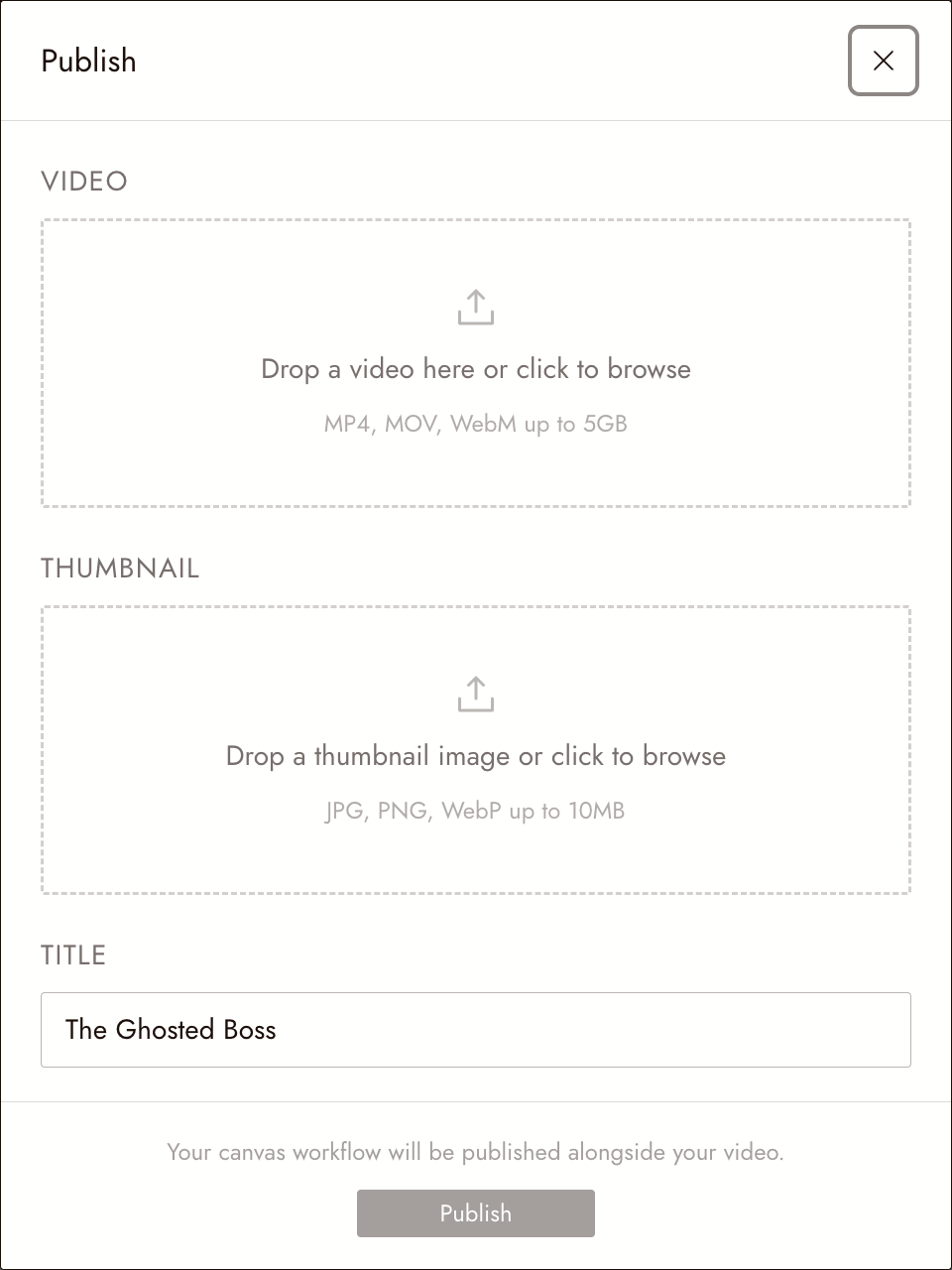
- Add the video: MP4, MOV or WebM, up to 5 GB.
- Add a thumbnail: JPG, PNG or WebP, up to 10 MB.
- Check the title, which starts as the project name, and add a description if you like.
- Click Publish. The project's canvas workflow is published alongside the video.
Change the details later
To fix a typo, add a description or swap the cover, click the pencil next to your film's title. You will find it on the film's page, on your profile, and in Creator Studio under film performance. The dialog has three fields: Cover, Title and About.
The film's link never changes. To replace the video itself, publish again from the export screen.
何かおかしい場合
Viewers cannot see Get Workflow. Workflow sharing was off when you first published. Updating a film keeps the setting it was published with.
I want to change the video, not just the title. Export again and publish from the export screen; it updates the film you already published.
次のステップ
- Tipping a film for how tips work.
- Cash-out rules to turn tips into money.
- Your content and rights for what publishing shares.