Sound effects
Generate Sound Effects watches a clip and gives it footsteps, doors, wind and room tone, timed to what happens on screen. The result is a new copy of your video with the sound added.
Avant de commencer
- The clip can be 1 to 60 seconds long, up to 100 MB, as MP4, MOV or WebM.
- It costs 3 credits per second of the source video, on any plan. A 10-second clip costs 30 credits; check the Run button.
- For ready-made sounds you place yourself, try the Sound Effects library in Flickpedia or the Video Editor's SFX tab first.
Add sound to a clip
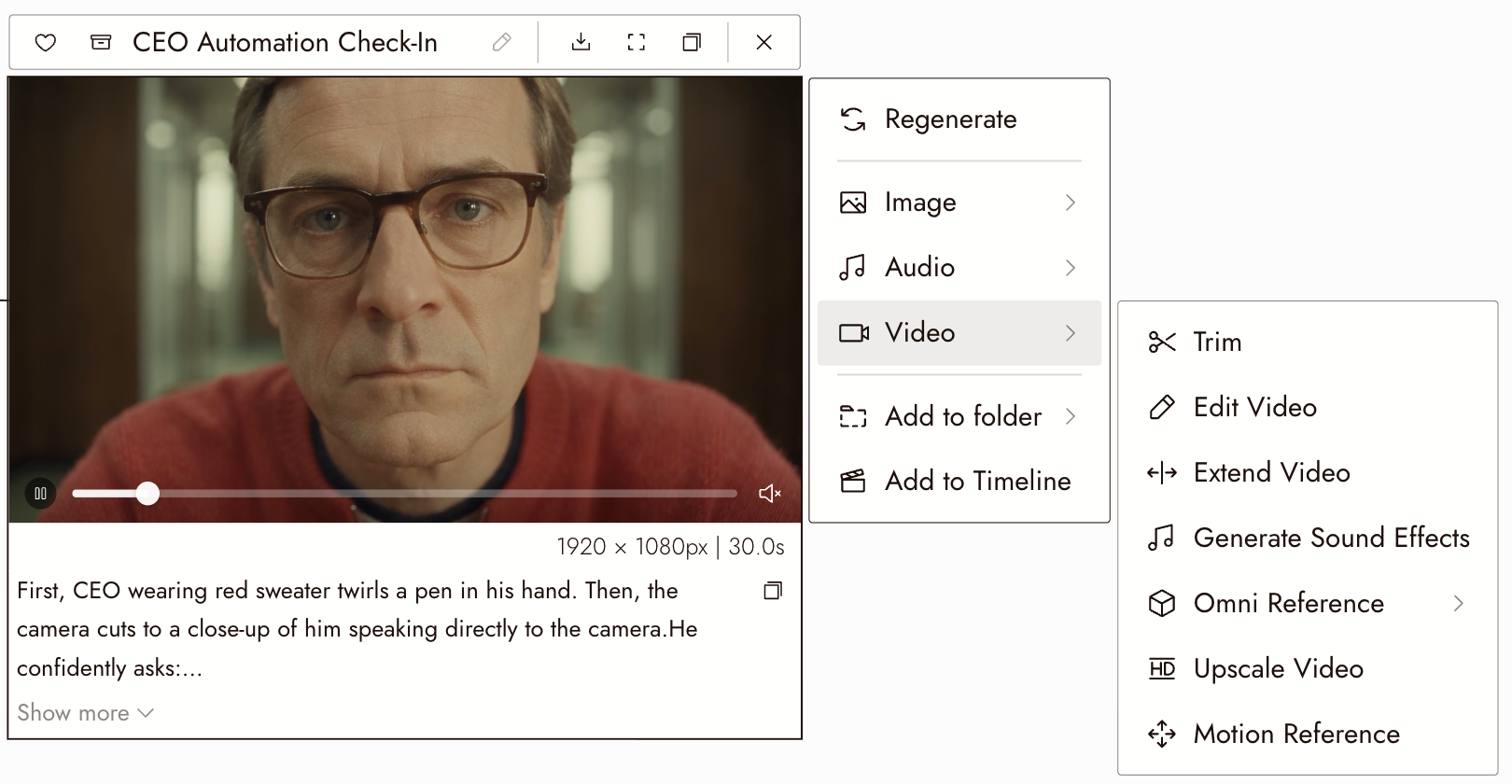
- Select the video on the canvas and choose Video, then Generate Sound Effects.
- Leave the prompt empty to let the model decide, or describe the sound you want: "rain on a tin roof, distant thunder".
- Keep Keep Dialogue on to keep the speech already in the clip. Turn it off for sound effects only.
- Under Negative Prompt, list sounds to leave out, separated by commas: "music, wind".
- Check the cost on Run and run. In about a minute, a new video node appears with the sound added. The original clip is not changed.
Examinez le résultat
- Each sound lands on the action that makes it: the door closes when the door closes.
- Any dialogue is still there and still clear.
- Nothing you listed in the negative prompt crept back in.
Si quelque chose ne va pas
The clip was rejected. Check its length (1 to 60 seconds), size and format. Trim a long clip first; see Trim a clip on the canvas.
The dialogue disappeared. Turn Keep Dialogue on and run again.
There is music I did not want. Add "music" to the negative prompt.
Suivant
- Import audio to balance the new sound against music and voice.
- Timeline basics to put the clip in your film.
- 09. Build the sound for deciding what the audience should hear.