Effects and color
Every picture clip in the Video Editor can be graded and stylized: a Color & Light grade, plus any number of effects stacked on top. An adjustment layer applies the same to everything below it. This page covers all three.
Grade a clip
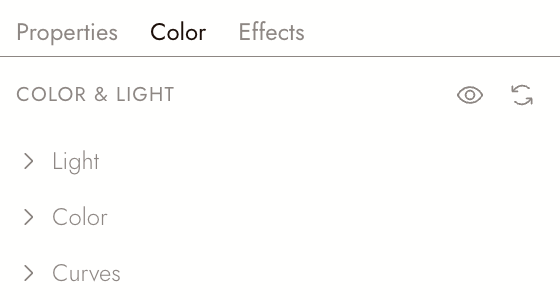
Select a video or image clip and open the Color tab in Properties. Color & Light has three sections: Light, Color and Curves. Open a section to adjust it.
Add an effect
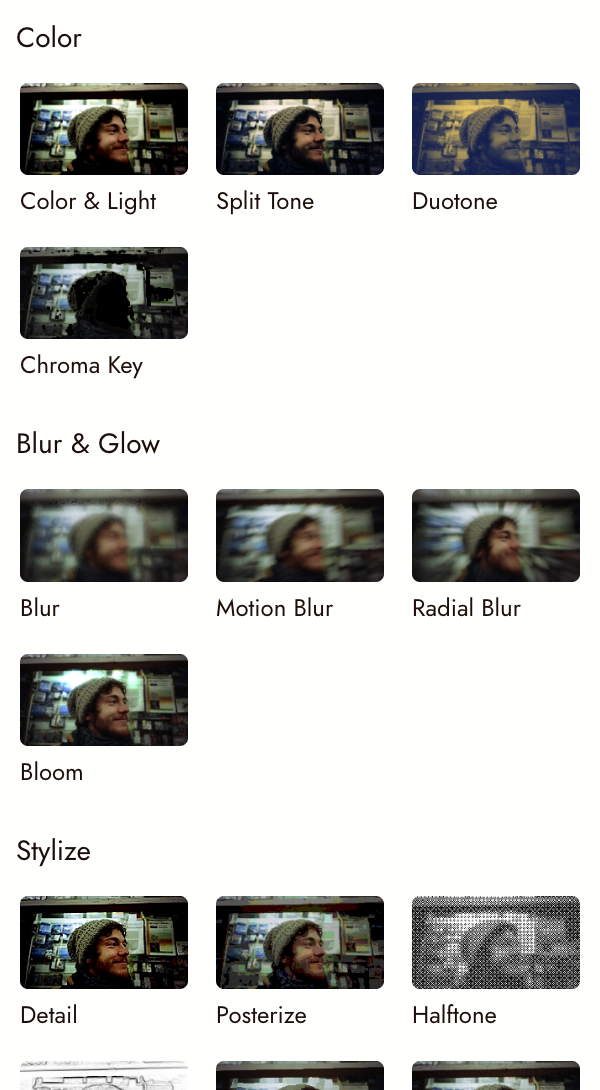
Open the Effects tab in the left panel. Effects come in four groups:
| Group | Effects |
|---|---|
| Color | Color & Light, Split Tone, Duotone, Chroma Key |
| Blur & Glow | Blur, Motion Blur, Radial Blur, Bloom |
| Stylize | Detail, Posterize, Halftone, Edge Detect, Painterly, Grain, Chromatic Aberration, Pixel Sort, Glitch, VHS |
| Distort | Pixelate, Fisheye, Whirl & Pinch, Kaleidoscope, Mirror |
Drag a card onto a clip on the timeline, or straight onto the picture in the preview. Adjust it in the clip's Effects tab in Properties, where every effect on the clip is listed in order.
Change several clips at once with an adjustment layer
Drop an effect onto empty track space instead of a clip. It becomes an adjustment layer: a clip with no picture of its own that grades every track below it for as long as it lasts. Draw a window on it, and feather the edge, to apply the look to only part of the frame.
Use one for a look that covers a whole scene, so the clips stay untouched underneath.
Export
Effects and adjustment layers are in every video you export from Flick, exactly as they play in the preview.
Premiere Pro, Final Cut Pro and DaVinci Resolve project files cannot carry them, so Continue in another editor leaves them out and says which ones it left out.
Si quelque chose ne va pas
The effect landed on the wrong clip. A drop on the preview goes to the clip you would select by clicking there. Undo and drop it on the timeline instead.
Every clip below changed. You dropped onto empty track space and made an adjustment layer. Delete it, then drop onto a clip.
Suivant
- Clip properties for scale, rotation and crop.
- Keyframes to animate a clip over time.
- Export and download your film when the look is right.