Motion titles
A motion title is text that animates by itself: a message bubble that types in, a lower third that slides on, an end credit roll, a countdown. Flick has 87 ready-made presets. Drop one on a text clip and the text animates, keeping your words, font and colour. This page covers finding a preset, applying it, editing it, and taking it off.
Find a preset
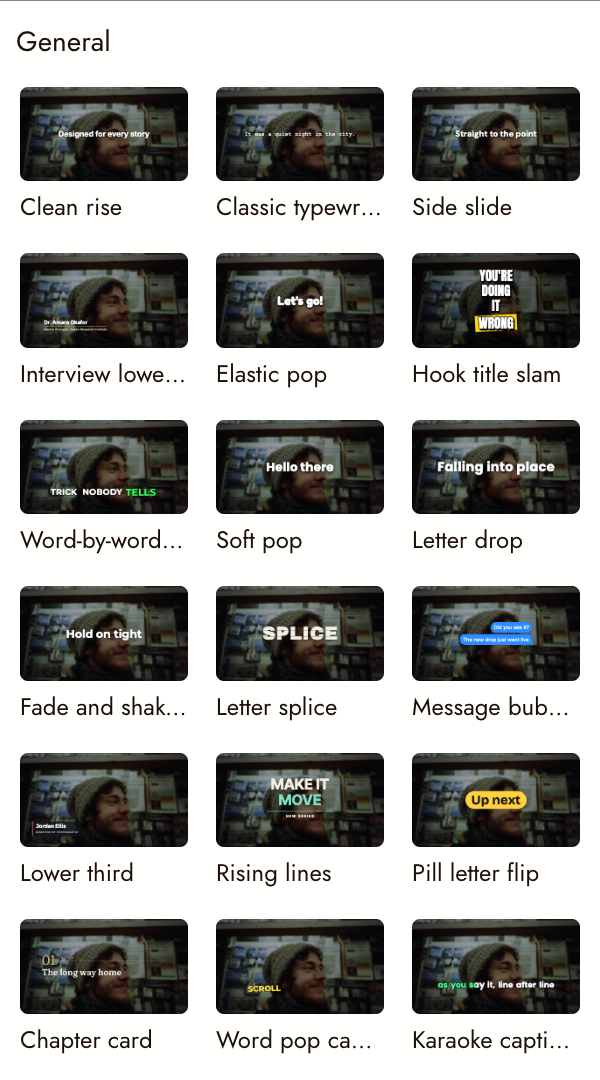
In the Video Editor, open the Motions tab in the left panel, next to Effects and Transitions. Presets come in three groups:
- General: everyday titles and captions, such as Clean rise, Lower third, Message bubbles, Karaoke captions and 3-2-1 countdown.
- Cinematic: film openings and credits, such as Film opening title, End credit roll, Festival laurels, Character intro and Location stamp.
- Campaign: promos and ads, such as Call to action, Promo price, Product launch reveal and Follow end card.
Cards show a still. Move the pointer across a card to scrub through its animation; nothing plays by itself.
Apply a preset
Drag a card onto the timeline or onto the picture in the preview. Where you drop it decides what happens:
| Drop it on | What happens |
|---|---|
| A text clip | The text animates. Its words, font, colour, opacity and keyframes carry over; the size is the preset's. |
| A motion title | The preset is swapped. The text, colour and font stay. |
| A caption line | That line animates and leaves the caption set, so restyling all captions no longer changes it. |
| Empty timeline | A new title is added with sample text, in the preset's usual place on screen. |
You cannot drop a preset while captions are generating. Wait for them to finish.
Edit a motion title
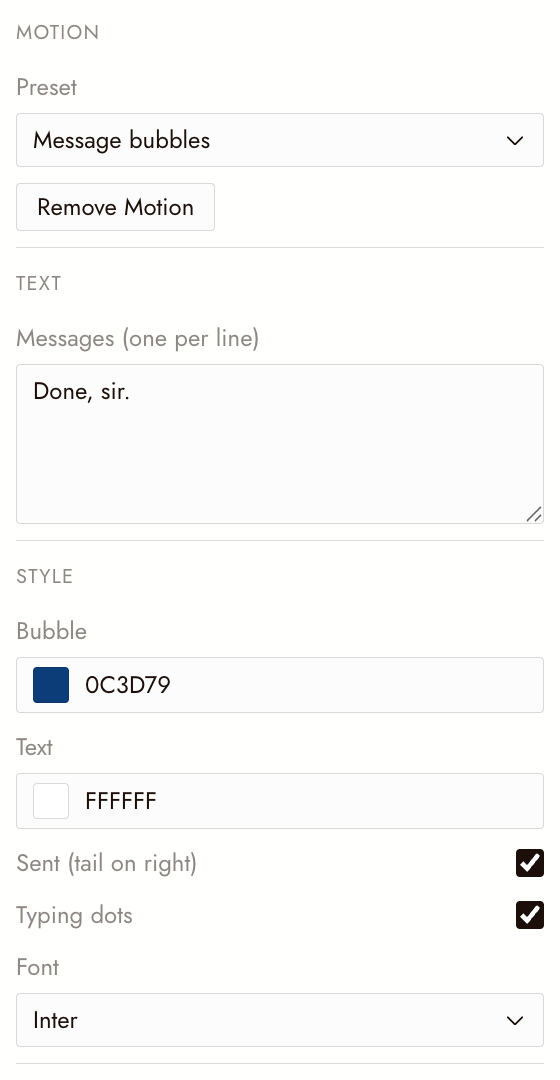
Select the title on the timeline. Properties shows its Motion section:
- Preset: switch to another preset from the list.
- Text: each line or slot the preset uses. Message bubbles, for example, takes one message per line.
- Style: the preset's own controls, such as bubble and text colours, font, or whether typing dots show.
- Layout: position, scale, rotation and opacity, each of which can take keyframes. Keyframes move the title as a whole, on top of the preset's own animation.
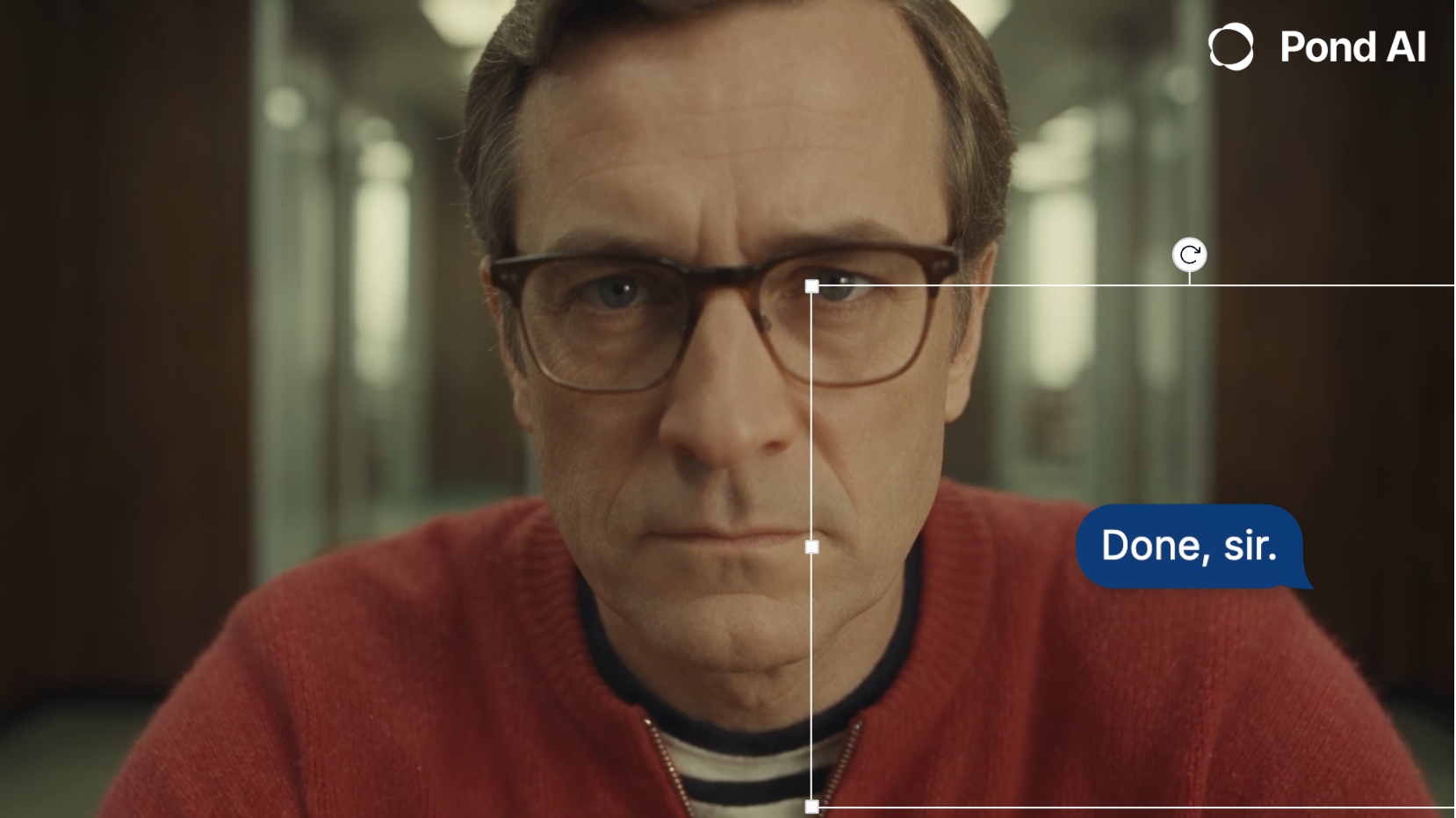
In the preview, drag the title to move it, drag a corner to scale it, or drag the round grip to rotate it. Motion titles cannot be cropped.
To change several titles at once, select them together. If they share one preset, a style change applies to all of them in one step. Their text is always edited one title at a time.
Set the timing
The clip's length is the only timing control. Drag the clip's edge on the timeline:
- A longer clip holds the finished title on screen longer.
- A clip shorter than the animation plays it faster.
- Split a motion title and each half plays its own in and out.

Take the motion off
Select the title and click Remove Motion in Properties, or right-click it on the timeline. It becomes a plain text clip again with its text and keyframes. A caption line you animated goes back into the caption set.
Ask the agent
The agent can add, swap and edit motion titles. Try, for example: "Add a lower third with the name Alex Rivera at 3 seconds" or "Animate this title with a cinematic opening." It uses plain text unless you describe a look; when you do, it picks a preset from the library. Check the result on the timeline.
Export
Motion titles are in the exported film exactly as they play in the preview. When you export a project for Premiere Pro or Final Cut Pro, each motion title arrives as a plain text clip, so you can restyle it there.
Si quelque chose ne va pas
My title shows boxes instead of letters. A few presets draw letter outlines and support basic Latin letters only. Text in Chinese, Japanese, Korean, Cyrillic or Arabic shows as boxes in those presets. Choose another preset.
Part of a long line is missing. Outline draw-on, Rising lines and Coming soon board cut off a line that is too long, and Hook title slam shows only the first four words. Shorten the text or choose another preset.
The text came out a different size. Each preset has its own type size. Use Scale in Layout to resize the whole title.
Restyling all captions skipped one line. That line has a motion preset. Remove Motion to return it to the caption set.
Suivant
- Keyframes to move a title on top of its animation.
- Trim and split to set when a title starts and ends.
- Export and download your film when the titles play right.