Extend a clip
Extend Video continues a clip you like: new footage after its last frame, or leading into its first, with sound to match. The result is one clip containing your original plus the new part, with no seam to hide.
開始之前
- The source clip must be 15 seconds or shorter, and the clip plus the extension can be at most 30 seconds.
- The clip must be MP4 or MOV, up to 100 MB.
- Extend Video uses Wan 3.0 and needs a Standard plan or higher.
- Credits are charged on the whole result, clip plus extension: 12 credits a second at 720p, half that at 480p and double at 1080p. A 5-second clip extended by 5 seconds is charged as 10 seconds. The Run button shows the exact cost.
Extend a clip
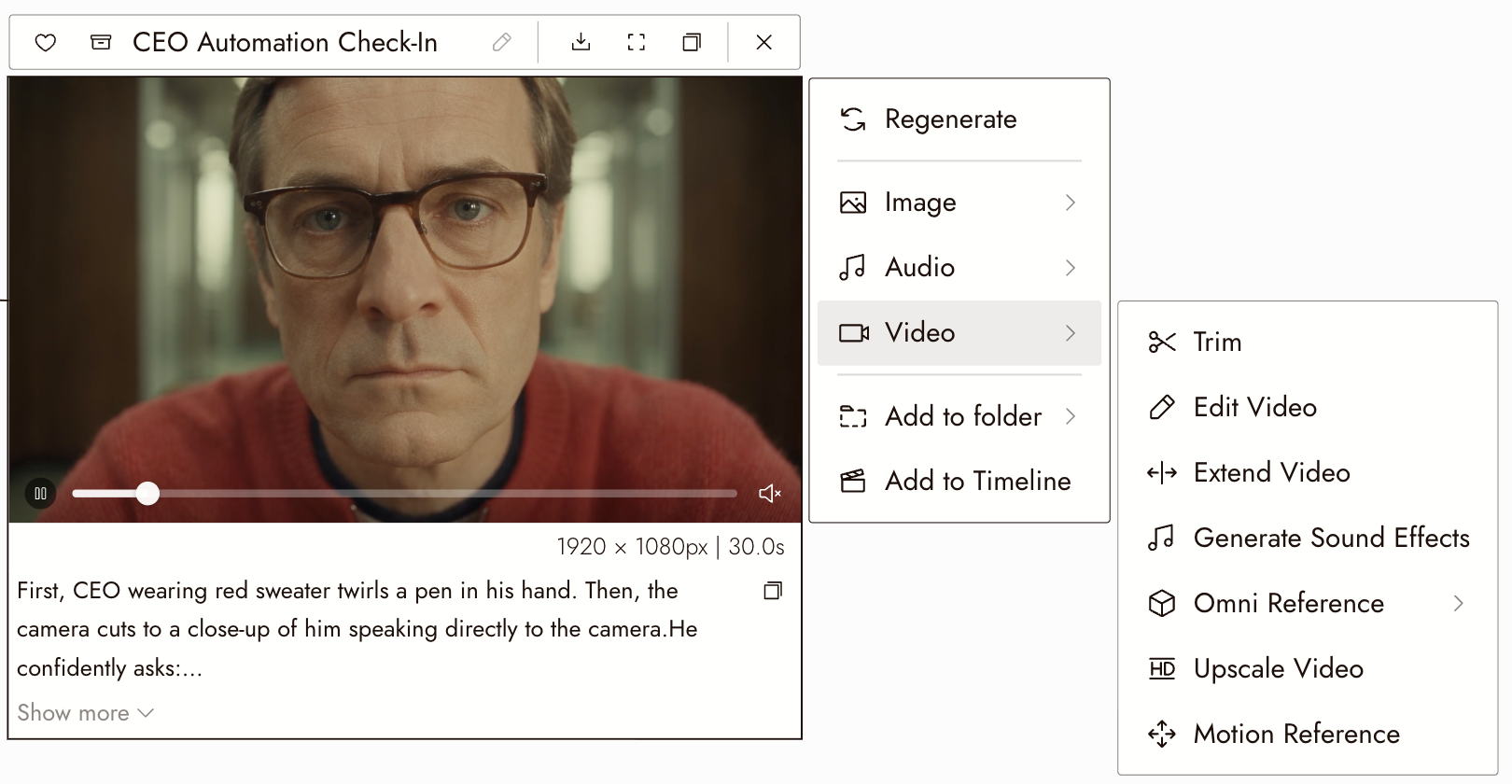
- Select the video on the canvas and choose Video, then Extend Video.
- Choose Extend by: from +2s up to whatever still fits in 30 seconds. Longer options do not appear for a long clip.
- Choose the Extend direction: After the clip or Before the clip.
- Write a prompt describing only what happens in the new footage: "she sets the cup down and looks out of the window". Do not describe the scene again.
- Choose the resolution. Generate Audio is on by default and costs the same either way.
- Check the cost on Run and run. The extended clip arrives in about three minutes as a new node.
Improve Prompt is on by default. It rewrites your prompt to describe only the new footage, because a prompt that describes the whole scene makes the model build a new one.
檢視結果
- The join is invisible: the person, the light and the camera carry on.
- The new part does the one thing you asked for.
- The sound continues without a jump.
如果有些地方看起來不對
Extend Video is locked. It needs a Standard plan or higher.
It says to use a shorter clip. The clip is longer than 15 seconds, or even +2s would pass 30 seconds. Trim it first; see Trim a clip on the canvas.
The new footage looks like a different scene. Your prompt described the setting. Keep Improve Prompt on, or describe only the next action.
下一步
- Generate Video for starting a new shot instead.
- Direct one clear action for writing the motion.
- Extract Frame for the older way to continue a clip from its last frame.