Create or clone a voice
On Standard plans and up you can make your own voices and use them in any Text to Voice speaker. Below Standard, the voice picker says Custom voices require a Standard plan.
Open it
- Click + on the left toolbar, then Generate Voice > Create or Clone Voice.
- Or, on an audio node, choose Audio > Clone Voice.
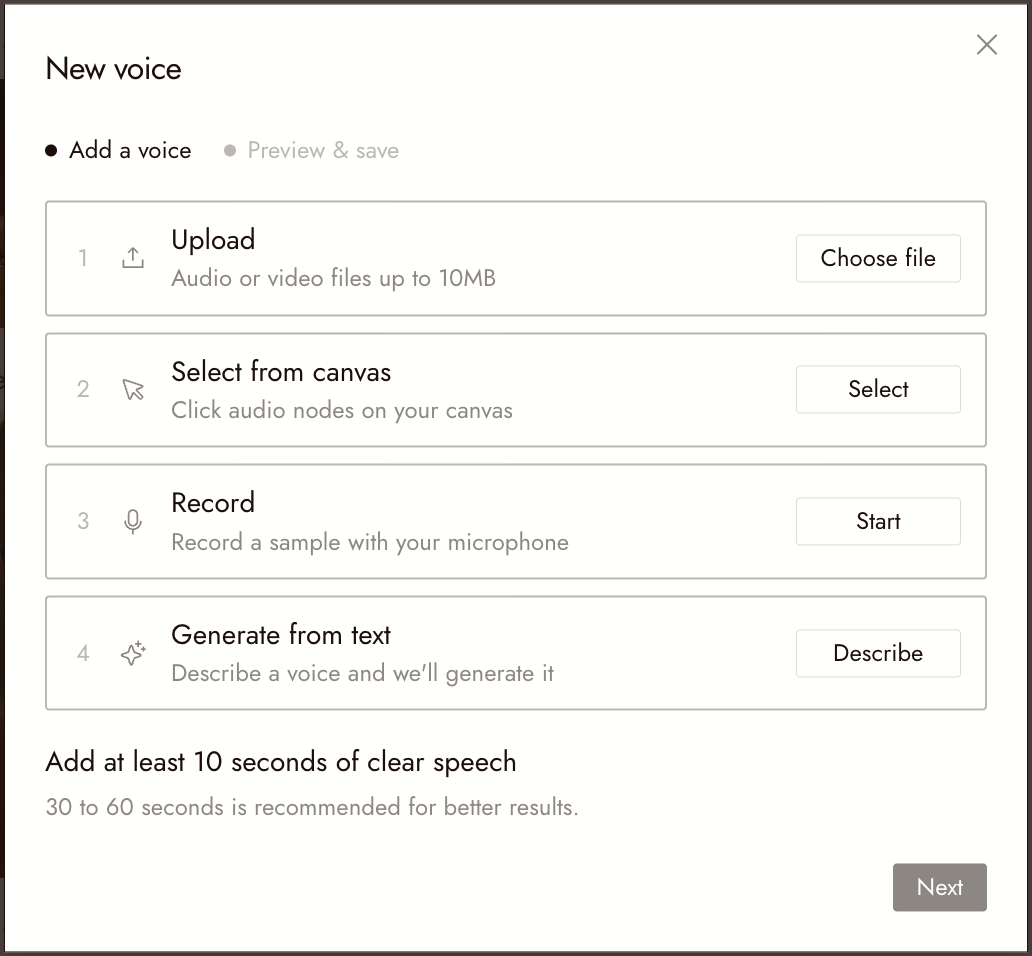
Clone a voice
- Add speech in one of three ways: Upload (audio or video files up to 10MB), Select from canvas (click audio nodes on your canvas), or Record with your microphone.
- Add at least 10 seconds of clear speech. 30 to 60 seconds gives better results.
- Tick the box confirming you have the rights to clone this voice, then click Next.
- Preview the voice, give it a Name and an optional Description, and click Save voice.
Describe a voice
Choose Generate from text, click Describe, and write what the voice should sound like. Pick one of the previews, name it and save it.
Use your voice
In the voice picker, open My voices. Voices you made are under Created. The tab shows how many voice slots you have used: Standard has 3, Pro 10 and Studio 25. Remove a voice to free a slot. A line whose voice was removed will not run until you choose another voice.
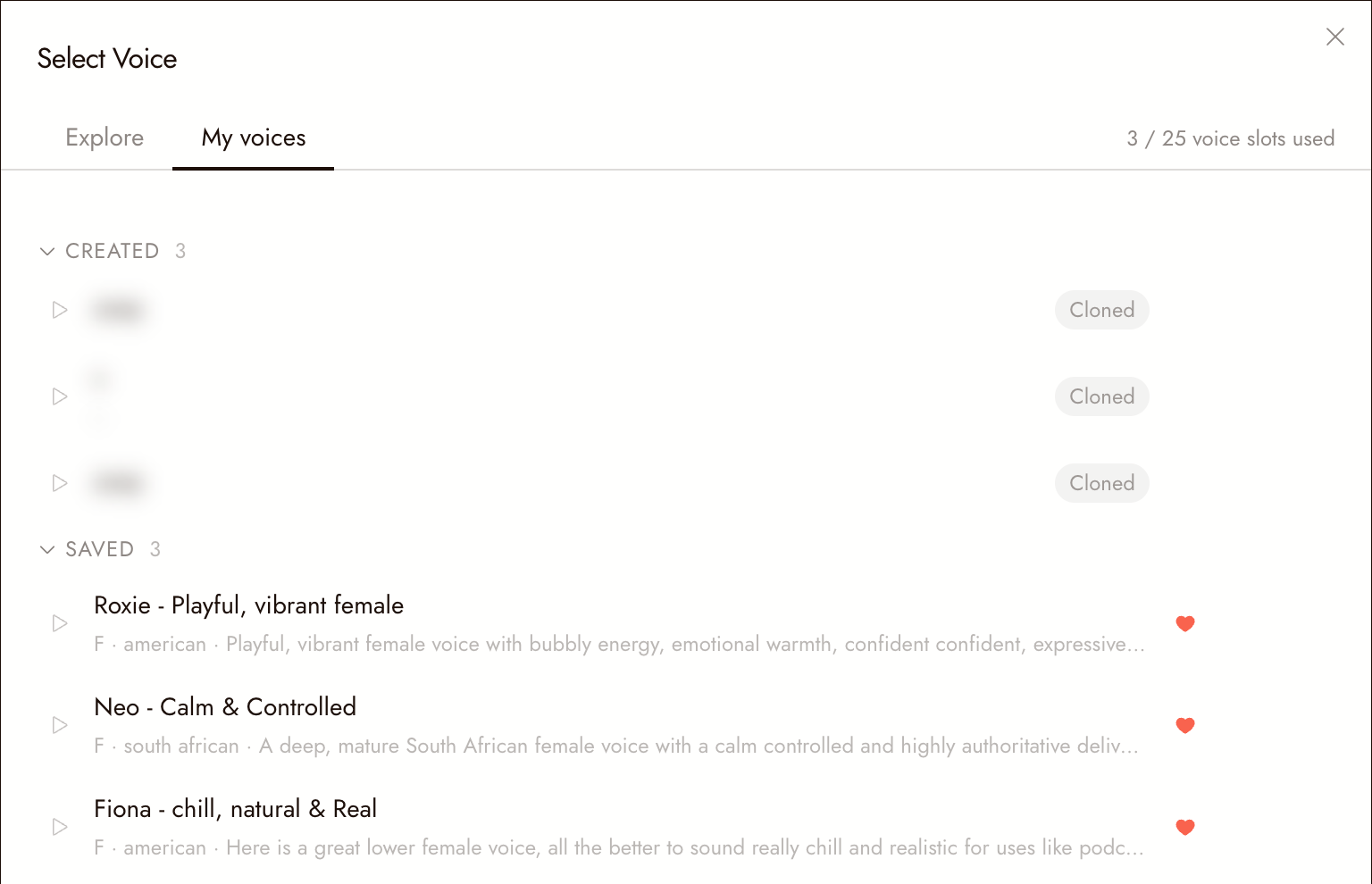
Save library voices
Click the heart on any voice in Explore to keep it under My voices > Saved. Saving works on every plan.
Si quelque chose ne va pas
Next stays greyed out. The sample is shorter than 10 seconds of speech, or the rights box is not ticked.
The clone does not sound like the speaker. Use a longer, cleaner sample: one speaker, no music, little room echo.
Suivant
- Text to Voice to speak lines with your voice.
- Voice Consistency to keep one voice per character.