Plan shots with Storyboard
Storyboard turns your script into a list of shots, scene by scene, with a picture for each shot. It sits beside the script in Story.
Open Storyboard
In Story, click Storyboard in the switch at the left of Story's top bar. The switch is in both the Story tab and the Story panel on the canvas.
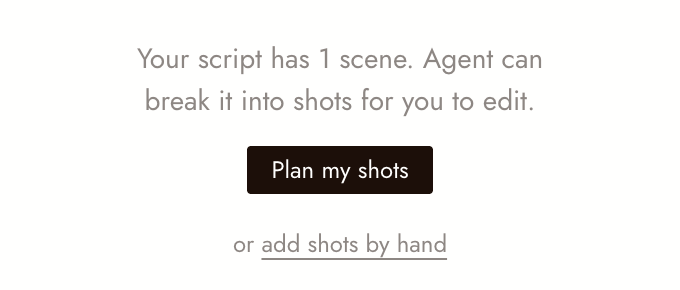
With no shots yet, Storyboard says how many scenes your script has and offers Plan my shots, which asks the agent to break them into shots for you to edit. You can also add shots by hand. With no script yet, it offers to have the agent write one from your idea.
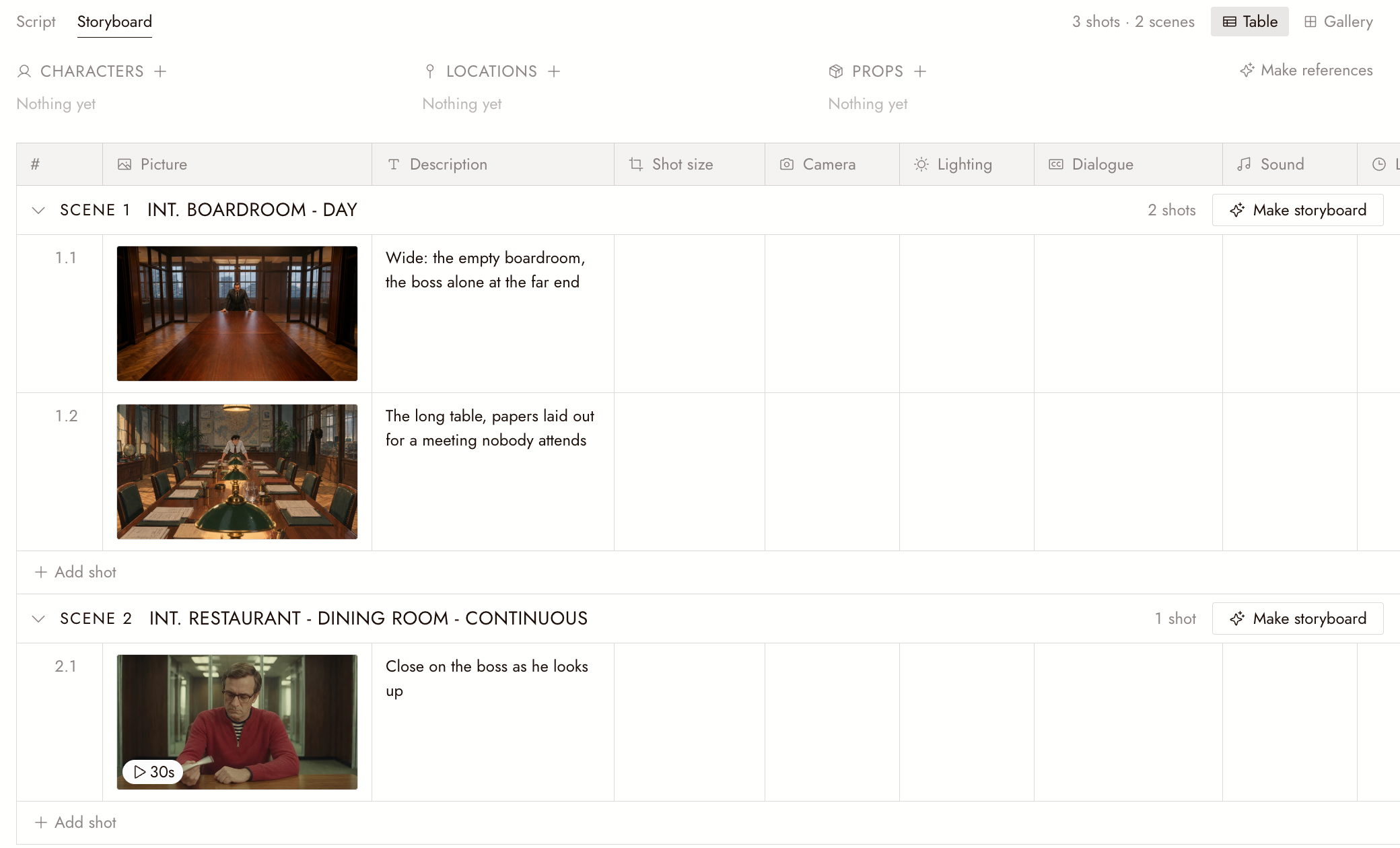
Shots
Each scene of your script is a group. Its shots are rows with these columns: Picture, Description, Shot size, Camera, Lighting, Dialogue, Sound, Length and Status.
- Status is one of To do, In progress, Needs review or Done.
- Table or Gallery, at the top right, shows the same shots two ways.
- Under each scene, Add shot adds a row and Plan shots for this scene asks the agent for that scene's shots.
- Click a row's number for Open, Insert shot above, Insert shot below, Move to scene and Delete. Drag the number to move the row into any scene.
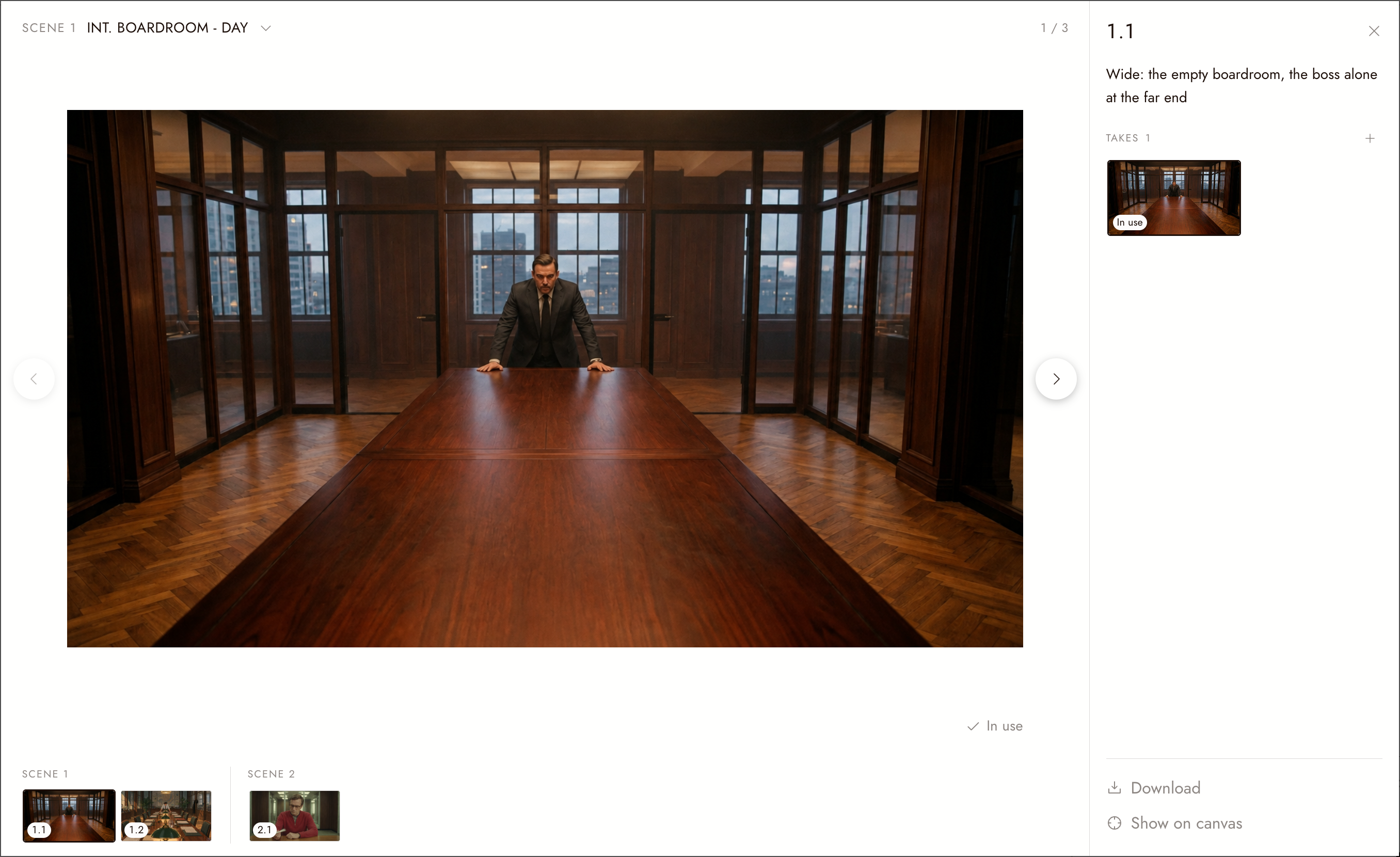
Takes
Every image or video you give a shot is a take. A shot's picture is its take marked In use: the one you picked with Use this take, otherwise the newest finished one.
- Click a picture, or Open, to see the shot large with Shot details and Takes. There you can Add a take, Remove from this shot, Download and Show on canvas.
- An empty picture cell's + Add offers Make storyboard, Pick asset and Upload.
- On the canvas, a media node's menu has Add to shot, which opens a searchable list of every scene and shot, plus + New shot.
Make storyboard
On a shot, a scene, or selected shots, Make storyboard puts a request in the chat box, unsent, for the agent to make the pictures. A picture shows in its cell while it is still being drawn. Selected shots go to the chat as context; the selection bar also has Move up, Move down and Delete.
References
Three boxes, Characters, Locations and Props, are filled from canvas sections marked as that kind.
- A box's + offers Let Agent create or Pick a section on canvas.
- Make references asks the agent for reference boards your canvas does not have yet.
- Click a reference for Open on canvas, Move to another kind, or Remove from references. The section stays on the canvas.
如果有些地方看起來不對
Add to shot is missing from a node's menu. It appears once the project has a script beyond the starter.
Pick a section on canvas is greyed out. The canvas has no sections yet; see Sections and folders.
下一步
- Story basics to write the script first.
- Talking to the agent to work with the agent on your shots.