Creator Studio
Creator Studio is your dashboard for the films you publish. See how each film is doing, change who can see it, follow the tips it earns, and request a cash-out when you are ready.
Open Creator Studio
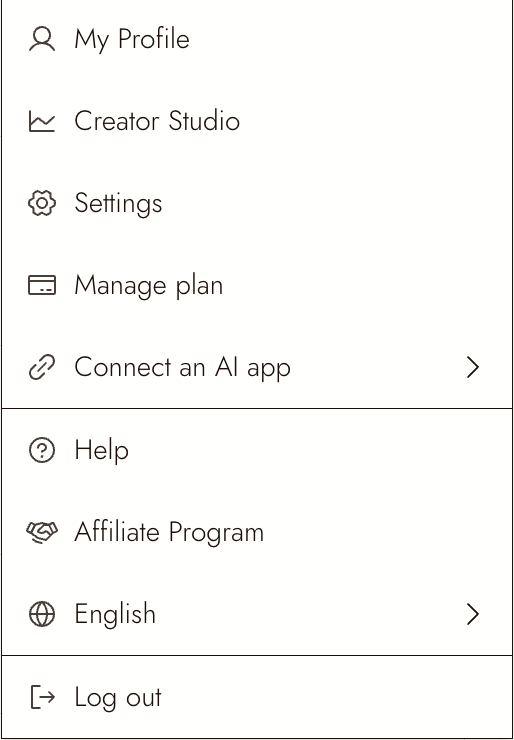
Click your profile picture in the upper right and choose Creator Studio. A notification about a new tip or a cash-out update opens it too.
The page has five parts: Film performance, Earned from tips, Recent tips, Audience, and Top supporters, with the cash-out button inside Earned from tips.
Film performance
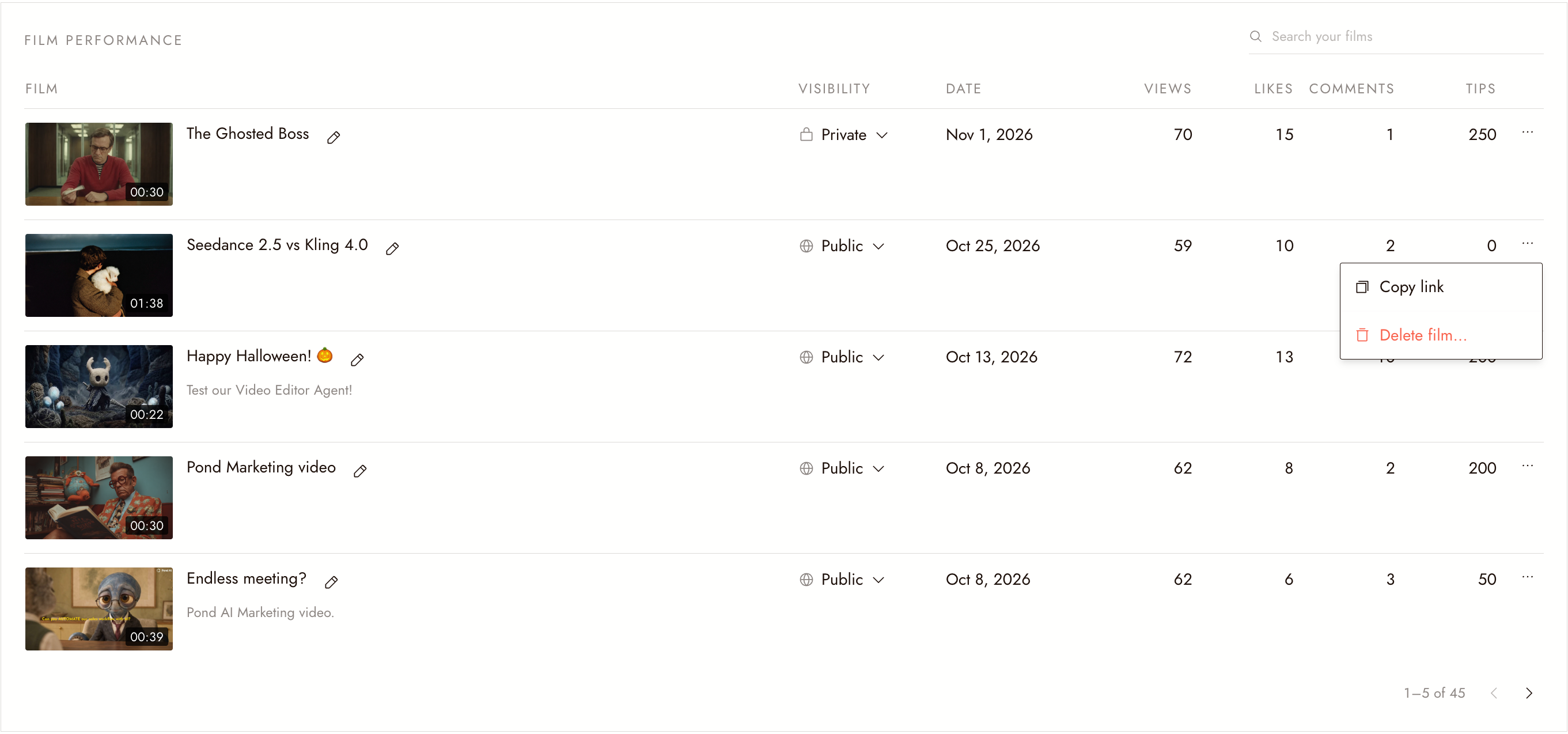
Every film you have published, one per row, with its Visibility, Date, Views, Likes, Comments, and Tips (in credits). On a wide screen two more columns appear:
- Opened: how many times people opened the film's workflow.
- Built: how many times someone copied that workflow into their own project.
Narrower windows hide some columns to keep the film and its numbers readable. Use the arrows under the table to page through your films. Once you have more films than fit on one page, Search your films appears at the top.
Change who can see a film
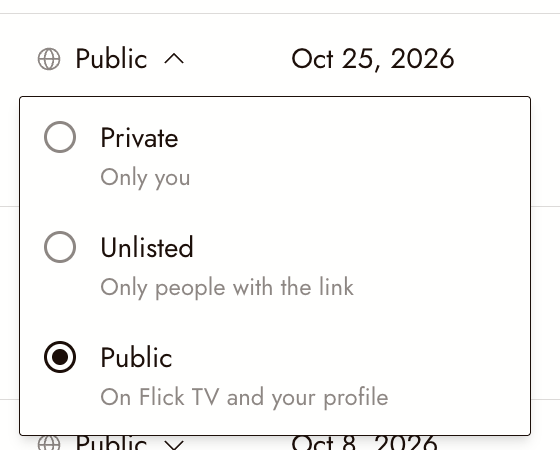
Click the film's visibility and pick one:
- Private: only you.
- Unlisted: only people with the link.
- Public: on Flick TV and your profile.
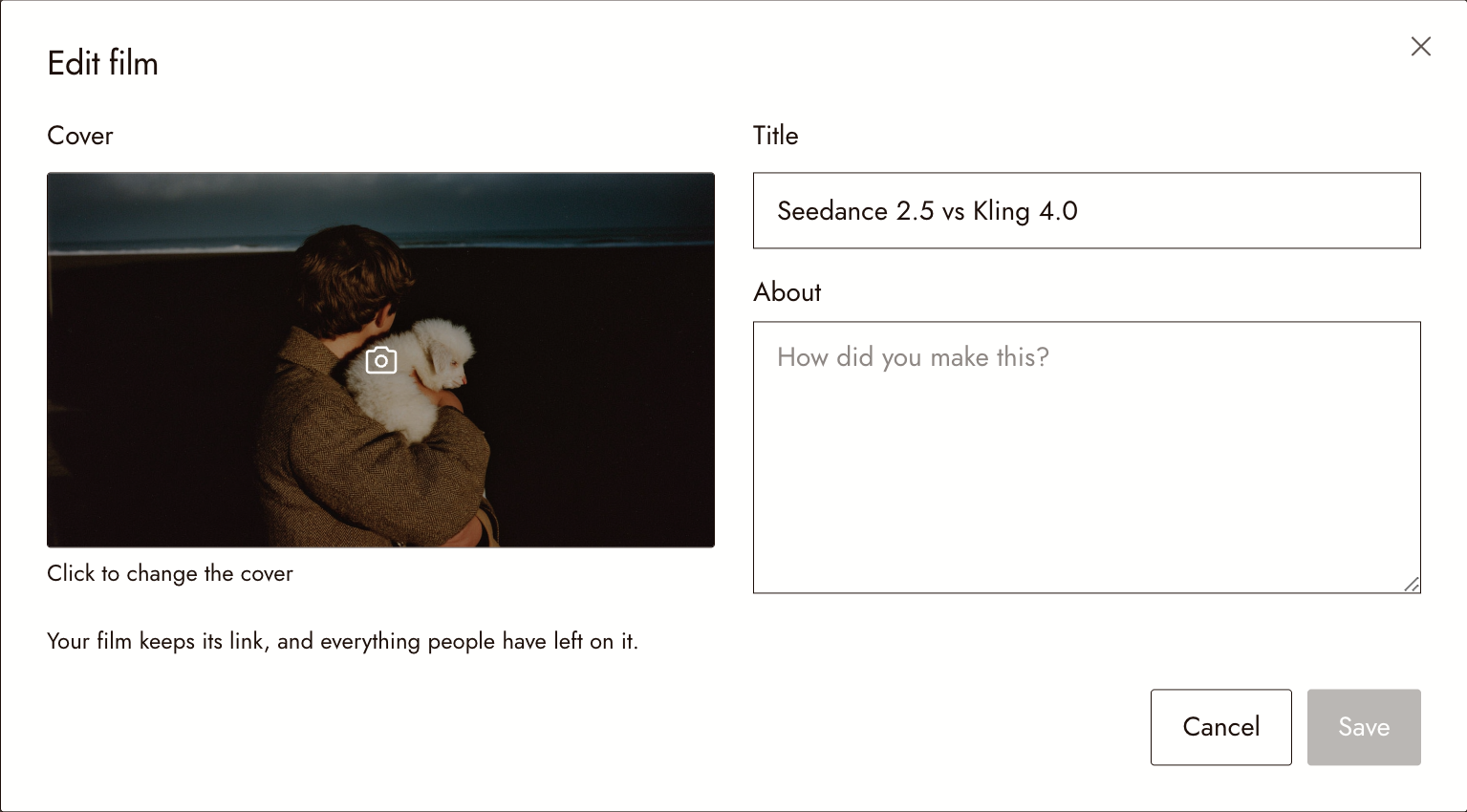
Edit a film
Click the pencil next to the title to open Edit film. Change the Cover, Title, or About, then click Save. Your film keeps its link, and everything people have left on it.
Copy the link or delete a film
Click ⋯ at the end of the row:
- Copy link copies the film's link. A private film's link opens only for you.
- Delete film… deletes the film, its link, and every comment and like on it. This cannot be undone. Tips you earned from it stay in your earnings.
To take a film down but keep the option to bring it back, click Make private in the delete dialog instead.
Earned from tips
This panel shows the credits earned from tips in total, and how many of those can be cashed out, with their value in dollars. After your first cash-out, a third number shows how many have left your balance.
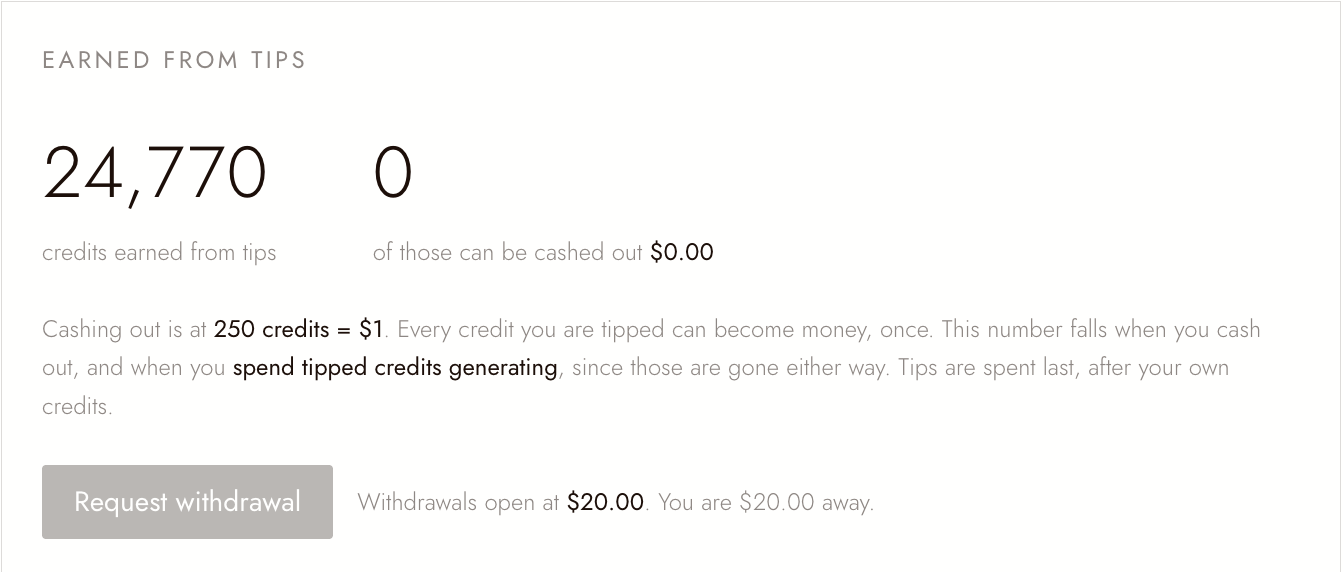
Cashing out is at 250 credits = $1. The cashable number goes down when you cash out, and when you spend tipped credits on generating, since a credit can only be spent or cashed out once. Tipped credits are spent last, after your own credits.
Cash out
- Reach $20.00. Request withdrawal turns on once your cashable balance reaches $20.00. Until then, the panel shows how far away you are.
- Click Request withdrawal. The Cash out dialog shows the amount and the credits that are held until it is paid.
- Say where to send it. Under Where should we send it?, choose PayPal and enter your PayPal email, or choose Something else and describe How should we pay you?, for example bank details, Wise, or Revolut. If your details are already on file, the dialog shows Paying to with a Change button.
- Click Request. While the request is in review, the panel shows the amount requested. We pay these out by hand, so give us a few days.
Past withdrawals lists every request with its amount, date, and status: Paid or Declined. A declined request shows the reason below it, and the held credits return to your balance.
For who can cash out, which tips count, and how review works, see Cash-out rules.
Recent tips
Every tip you have received: who sent it (From, or Anonymous), the Film, the Credits, and the Cash the tip was worth when it arrived. A tipper's note appears under its row. If you answered it with Say thanks from the tip notification, your reply appears under the note as You replied.
Notes are private between you and the tipper. Only you see them here.
Audience
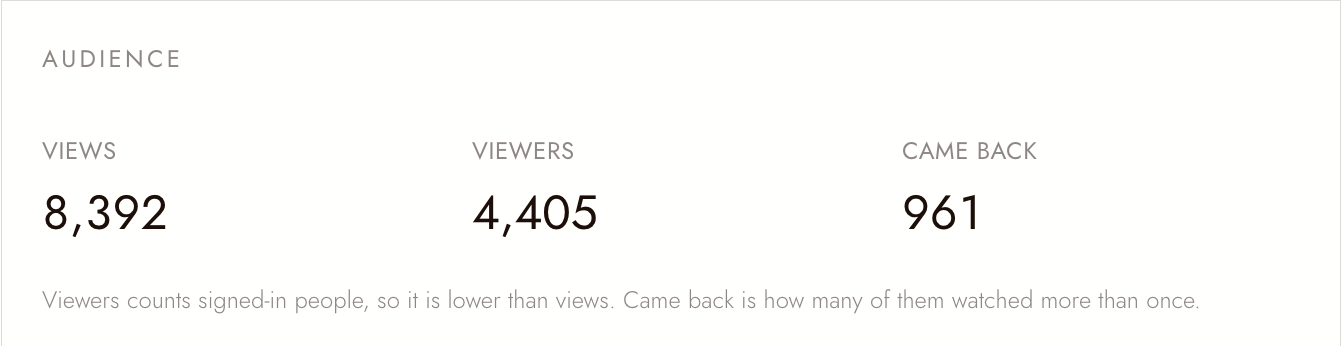
Three numbers across all your films:
- Views: every view.
- Viewers: signed-in people who watched, so it is lower than views.
- Came back: how many of those viewers watched more than once.
Top supporters
The people who have tipped you the most, with their total in credits. Anonymous tips are not counted here, so these totals can be lower than what you have earned.
如果有些地方看起來不對
Request withdrawal is grey. Your cashable balance is under $20.00, or a request is already in review. You can have one request at a time.
My cashable balance went down without a cash-out. You generated after your own credits ran out, so tipped credits were spent. A spent credit cannot also be cashed out.
Viewers is much lower than Views. Viewers counts only signed-in people, and one person can watch many times.
I do not see Opened and Built. They appear only on a wide screen. Widen the window or zoom out.
The page says it could not load your earnings. Refresh the page to try again.
下一步
- Publish your film to put a new film on Flick TV.
- Tipping a film for how viewers tip and how tipped credits work.
- Cash-out rules for eligibility, review, and fair play.