Use Flick on your phone
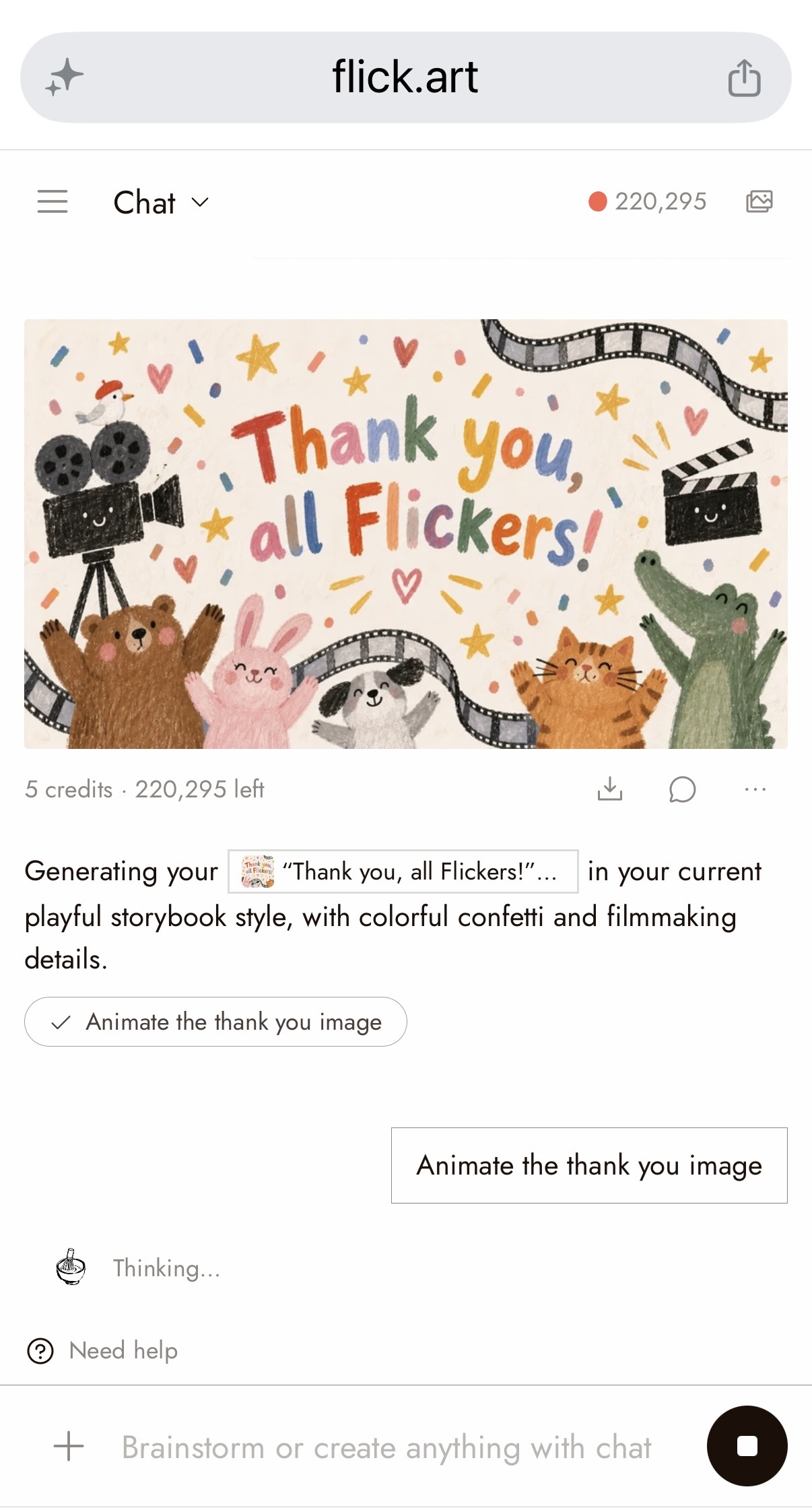
On a phone, a project opens as its chat. You ask the agent for images and videos, the results land in the thread, and you can look through your media and write the story. It is the same project you open on your computer: everything you make on the phone is on the canvas when you get back to your desk.
Tablets such as an iPad get the full canvas, as on a computer.
What works on a phone
| On a phone | On a computer only |
|---|---|
| Chat with the agent, images, videos, audio | The canvas |
| Assets: look, save, share, rename | The video editor, and export |
| Edit, Resize, Animate, Extend, Upscale, Regenerate | 3D Stage |
| Story, as text, and recording ideas into it | Deleting media |
When you tap something that needs a bigger screen, such as Video editor in the views or a clip on the timeline, Flick tells you which part opens on a computer, for example Video editing opens on a computer, and that your work is saved. Tap Send link to my computer to send the project's link through your phone's share sheet (where there is none, the button is Copy project link), or Keep working here to go back. If you ask the agent to cut the video or build a 3D scene, it tells you that works on a computer.
Get Workflow on a film needs a computer too, because a workflow is a canvas. On a phone, Flick tells you Get Workflow opens on a computer. Open the film on your computer to get it.
Start a project
- Open flick.art on your phone and sign in, or sign up there.
- On Home, type your idea, or tap the mic and say it. The mic records for up to ten minutes and does not stop when you pause to think.
- Send. The project opens in its chat and the agent starts working.
If you started an idea before signing in, it runs once you have signed in.
Orientati
The bar at the top of a project has four things:
- The menu button (left) opens the side menu: Home, Projects (to open another project), Flick TV, Flickpedia, this project's chats, New chat, and your account.
- Chat opens the views: Chat, Story, Assets (with how many items the project holds), and, under Needs a bigger screen, Canvas, Video editor and 3D Stage, each marked Desktop.
- Your credit balance. Tap it to see your usage.
- Assets (the images icon) opens everything the project holds.
The system back gesture (an edge swipe on iPhone, Back on Android) closes whatever is on top: the viewer, Assets, the Story view or the menu.
Make images and videos
Ask the agent in the message box, the same way as on a computer. See Talking to the agent.
- + opens Upload from device and Reference an asset, to give the agent a picture or a file to work from.
- Tap the message box and three more buttons appear under it: Agent memory, the project's visual style, and the mode (Auto). A style you pick here is the project's style on your computer too. See Visual Styles.
- On a phone, Auto asks before generating images or video, not only video. The card it shows is where you choose the model, and you can edit the prompt there before you tap Run. See Choosing a model.
What costs credits
Talking to the agent is free. Credits are spent only when something is generated: an image, a video, voice or music. Prices are the same as on a computer and depend on the model and its settings, such as length and resolution. See Model Credit Costs.
In Auto, no image or video is made until you tap Run. Auto is the mode under the message box unless you changed it. Before each image or video, the agent stops and shows a card with:
- the total cost in credits, and the cost of each item on it
- the model, which you can change; the cost updates when you do
- the prompt, which you can edit
Tap Run to spend the credits, or Skip to spend nothing. If your balance is too low, the card tells you before anything runs.
The other two modes, in the same menu:
- Manual asks before anything that costs credits, voice and music included. Pick it if you want to approve every credit.
- Autopilot generates without asking. Leave it off while you are learning.
Keep track as you go. Your balance is in the top bar; tap it to see what each generation cost. Each result in the chat also shows what it cost, and the newest one shows how many credits are left.
If a generation fails, you get the credits back. Credits are held when a generation starts and refunded automatically if it does not finish, whether from an error, a time-out or a flagged prompt. A generation that finishes is charged, even if the result is not what you wanted. See How credits work.
Buy more credits from the phone: tap your balance, then Upgrade plan. Choose Monthly, Annually or One-time, and pay on the Stripe page that opens. One-time credit packs are for Standard, Pro and Studio plans. If the card says you do not have enough credits, buy them, then ask the agent again.
Spend less while you try things. Images cost much less than video, so get the picture right as an image first, then tap Animate. Ask for short videos until you like the result.
Look at, save and reuse your media
Tap the images icon in the top bar, or tap Chat and choose Assets, to open Assets: every image, video and audio file in the project, grouped by board. Use the filter to show All, Images, Videos or Audio.
Tap a picture or a video, in Assets or in the chat, to open it full screen. From there:
- Save puts the file on your phone. Share opens your phone's share sheet.
- Tap the name to rename it.
- Use in chat adds it to your next message, so you can ask the agent about it.
- An image offers Edit, Resize, Animate and Regenerate. A video offers Extend, Upscale and Regenerate. Regenerate only appears on something a model made, not on an upload. Resize asks for the shape: 16:9, 9:16, 1:1, 4:3 or 3:4.
Each of these actions writes the request into the message box and leaves it to you. Change it if you like, then send. Nothing is generated until you do.
Write the story
Tap Chat and choose Story. You can edit the story's text on a phone, as the project's owner. The storyboard stays on the computer. Choose Chat in the same menu to go back to the conversation, which keeps its place.
To get an idea down without typing:
- In the Story view, tap the mic in the top bar (Record an idea).
- Say the idea, then tap Stop and review.
- Fix the transcript if anything was misheard.
- Under Where should it go?, choose Let Flick place it (the agent reads the story and files the idea where it fits) or Add to Ideas (kept as you said it at the end of the story, to sort later).
- Tap Save to story.
When Flick places an idea, the change shows in the chat and you can undo it.
Buono a sapersi
Saved files on Free and Casual carry a watermark. Images and videos you save or share from a phone are the same files a computer downloads, so on the Free and Casual plans the AI media carries a watermark. Standard and higher plans save without it.
Shared with you to comment? The phone shows Comments where Chat would be. Commenters do not get the agent, on a phone or a computer.
Team projects spend the team's credits. A generation in a team project comes out of the team's shared pool. If the pool runs low, the card says Your team's pool doesn't have enough credits for this. Daily credits go to your personal balance, not to a team.
Can't find an image in Assets? Media archived or hidden on the canvas does not show on a phone. An image or video that is still generating shows as a dashed frame in the chat and opens once it is done.
Turning the phone sideways does not open the canvas. Flick goes by the size of the screen, not which way you hold it: phones get the chat, tablets get the canvas.
The mic on Home appears once you are signed in. When recording an idea, if nothing was heard, Flick asks you to type it instead. If writing it down fails, the recording is kept so you can type it up, and if saving fails you see Could not save the idea. Try again.
Tips
Leaving mid-reply is safe for what already started. An image or video that has started keeps generating and appears in the project when you come back. Only the agent's reply, and the steps it had not started yet, stop. Open Assets before asking again, so you do not pay twice.
Videos in the chat load when you play them, which saves data. In a long chat, older messages load as you scroll up.
Put the keyboard away by dragging down on the chat or the story.
Looking for the canvas or the timeline? They are on the computer. Open the same project at flick.art on your computer and everything you made on your phone is there. Tap Send link to my computer when Flick asks, and the project's link goes wherever you send it.
Need to pick a model? A phone has no model menu outside the approval card. Ask for the image or video, then choose the model on the card before you tap Run. You can also name the model in your message.
Prossimi passi
- Talking to the agent for how to ask for what you want.
- Story basics for the full Story view on a computer.
- What Flick can do and its limits for everything else.