Colors for notes and sections
Color a text node or a section to tell scenes, characters, or ideas apart at a glance. Pick a preset, or choose any color you like and reuse it later from Recent colors.
Passaggi
- Select a text node or a section.
- Hover over it. A row of colors appears below it.
- Click a preset to apply it.
The row has three parts, left to right: the presets, your recent colors, and + for a custom color.
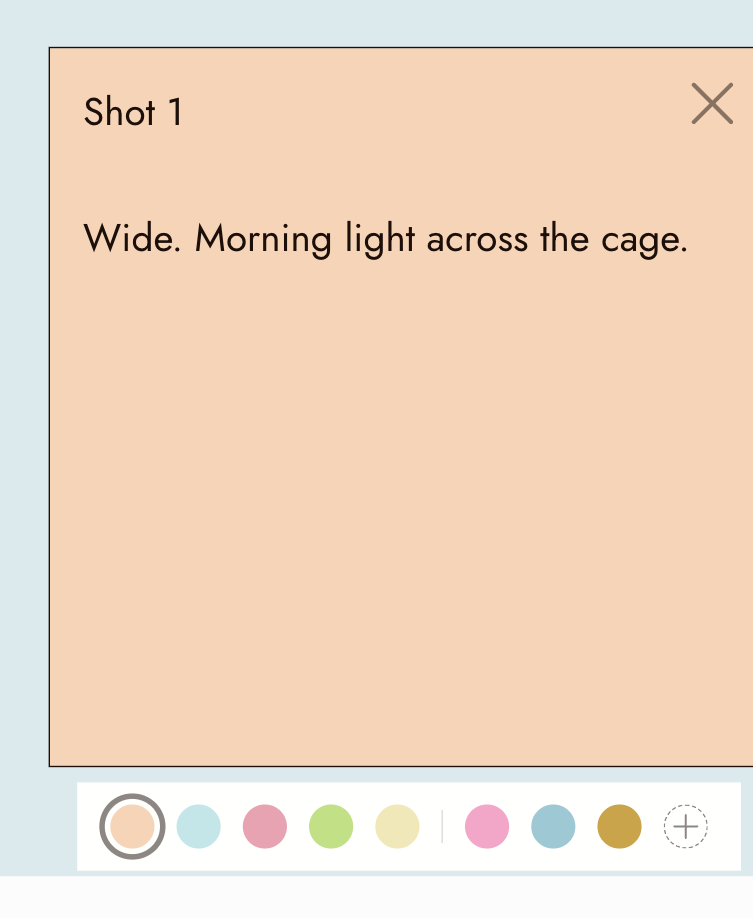
A selected text node and its color row: five presets, a divider, three recent colors, and +. The ring marks the current color.
Pick a custom color
- Click + at the end of the color row.
- Drag in the color square and along the hue bar. The node or section previews the color as you drag.
- Release to apply it. Or type a hex code such as
e07ecdin the field below the picker and press Enter.
Press Esc or click anywhere outside the picker to close it.
Each drag is one step in undo, so Cmd+Z (Ctrl+Z on Windows) returns to the color you had before that drag.
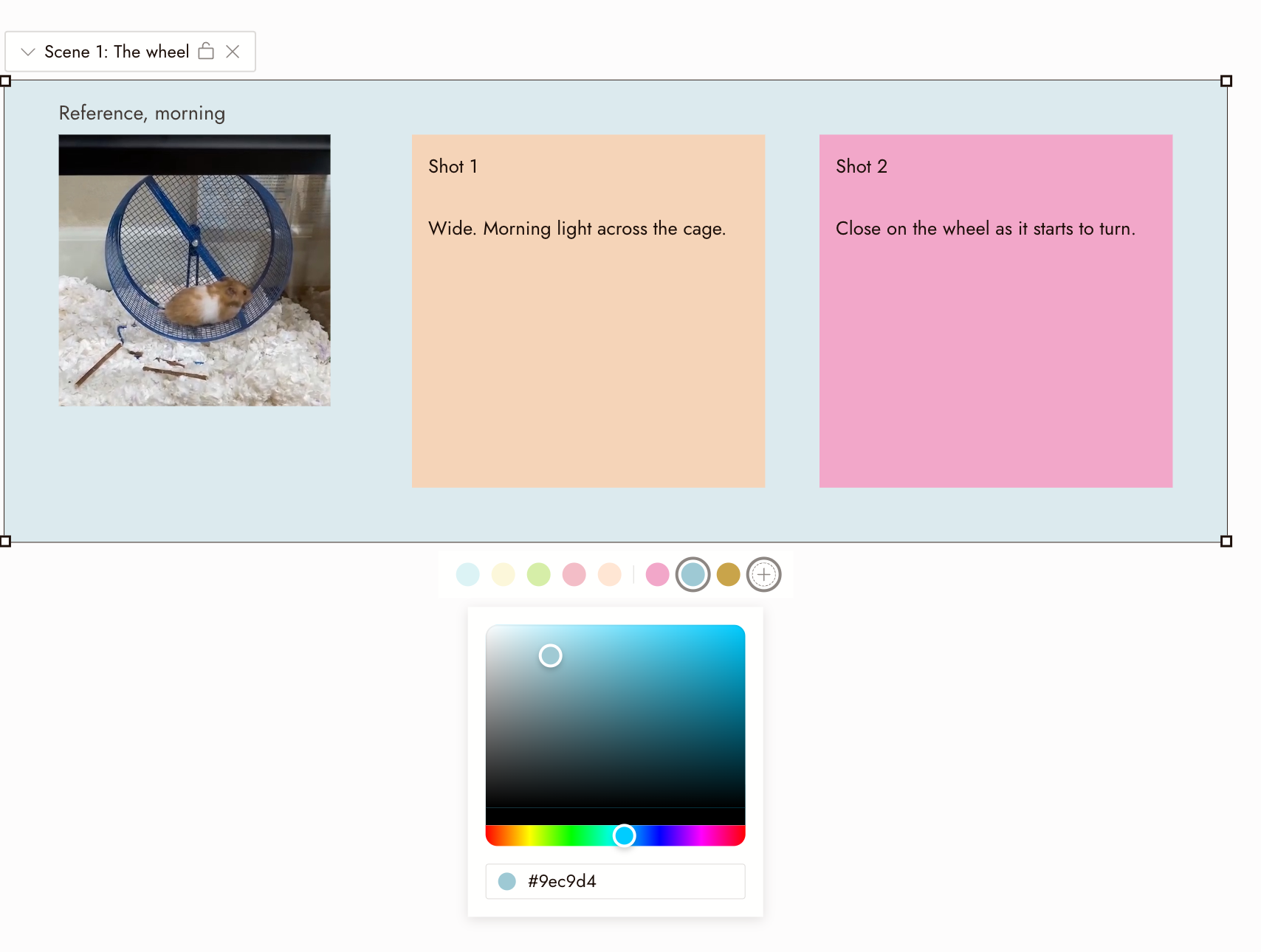
The custom picker under a selected section. It opens on the current color, and the field below shows its hex code.
Recent colors
Every custom color you apply goes to the front of Recent colors, between the presets and +.
- It keeps your last 5 custom colors, newest first. Applying a color that is already there moves it to the front.
- It is shared between text nodes and sections, so a color picked for a note is ready for the section around it.
- Click a recent color to apply it again.
Remove a recent color
Hover over a color in Recent colors and click the small × in its corner.
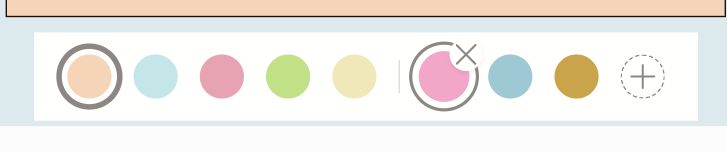
The pink recent color, hovered, with its ×.
This only removes it from the list. Text nodes and sections already using that color keep it.
Where colors are saved
- Colors on your canvas are saved with the project. They look the same on any computer and to everyone you share the canvas with.
- Recent colors are saved in your browser. On another computer or browser, the list starts empty until you pick colors there.
Best practice
One color per scene or character. Give a scene's section and its notes the same color so they read as one group.
Keep presets for everyday notes. Save custom colors for the few things you want to stand out.
Se qualcosa non sembra giusto
A color I picked is missing from Recent colors. You picked it on another computer or browser, removed it, or it dropped off after 5 newer colors. A collaborator's colors do not appear in your list either. Pick it again with +, or type its hex code.
My section looks paler than the color I picked. A section shows a light tint of its color so the nodes inside stay easy to see. A collapsed section shows a slightly stronger tint.
The text on my note is hard to read. On a dark color, note text switches to light automatically. On a mid-tone color, pick a lighter or darker shade.
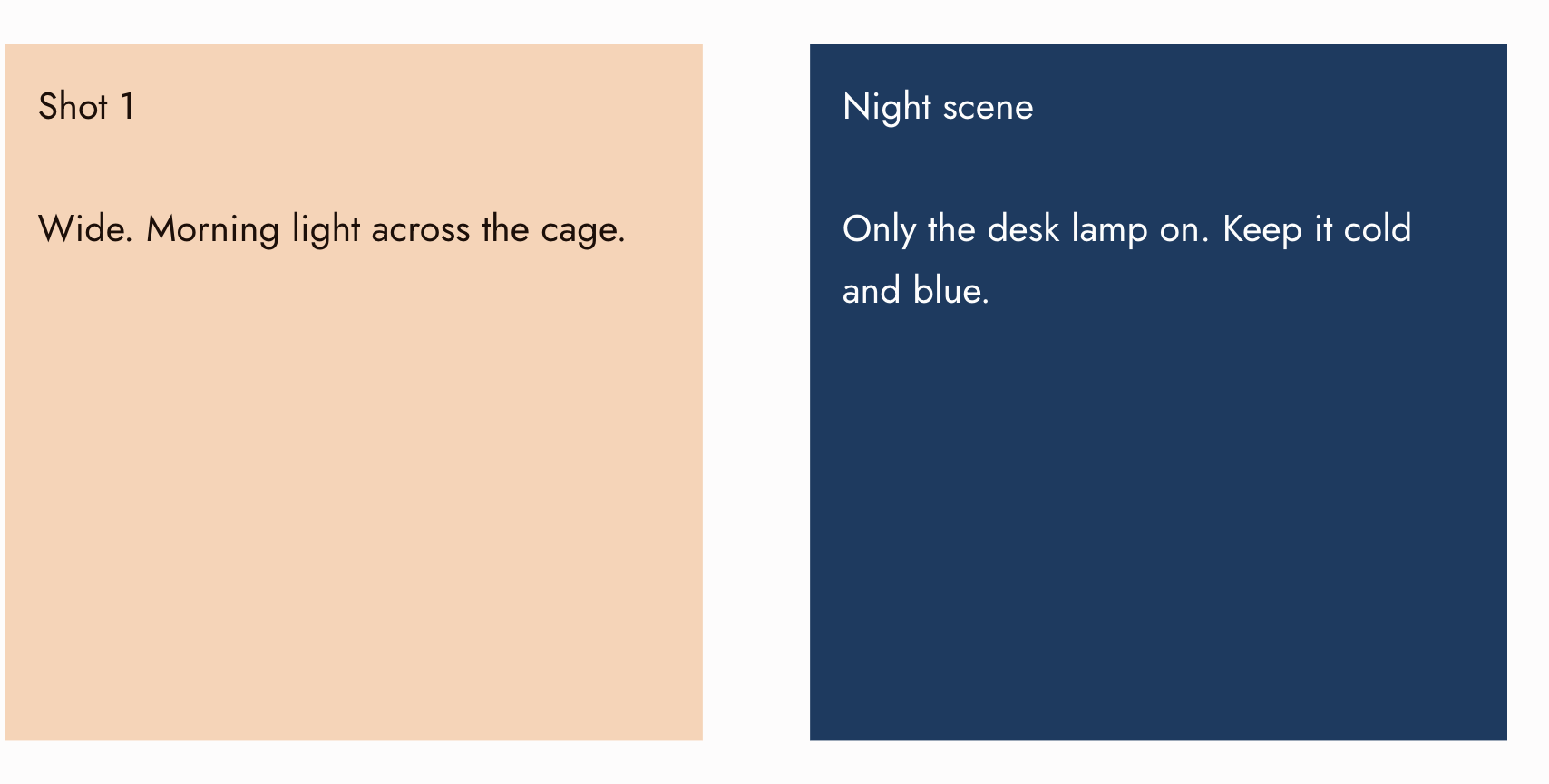
A preset note beside a dark custom note. The text on the dark note switches to light.
No color is highlighted in the row. The current color is a custom color that is not in your Recent colors. The node or section keeps it; click any color to change it.
Prossimi passi
- Text Nodes for writing prompts on the canvas.
- Sections and folders for grouping nodes by scene.
- Collaboration & Share for working on a canvas with others.