Continue in another editor
Finish your edit somewhere else: Flick can hand over the whole timeline as a project file for Premiere Pro, Final Cut Pro or DaVinci Resolve, with every clip it uses. Your cuts, timing and keyframes come with it.
Download the project
- In the Video Editor, click Export.
- Click Continue in another editor at the bottom of the dialog.
- Choose Premiere, Final Cut Pro or DaVinci Resolve.
- Click Download .zip.
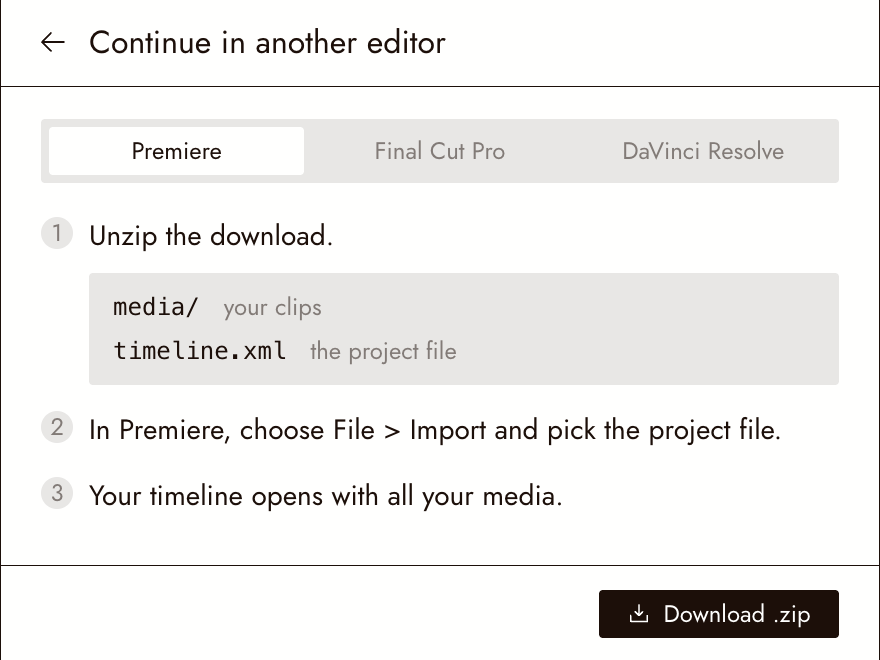
Open it in your editor
Unzip the download. Inside are a media folder with your clips and the project file: timeline.xml for Premiere and DaVinci Resolve, timeline.fcpxml for Final Cut Pro.
- Premiere Pro: File > Import, then pick the project file.
- Final Cut Pro: File > Import > XML, then pick the project file.
- DaVinci Resolve: File > Import > Timeline, then pick the project file.
Your timeline opens with all its media.
What comes across
| From Flick | In your editor |
|---|---|
| Clips, cuts, trims and speed | As in Flick |
| Scale, position, rotation, opacity, crop and fades | As in Flick |
| Keyframes | As keyframes, placed closely enough to match the motion |
| Motion titles | Plain text clips you can restyle |
| Effects, color grades and adjustment layers | Left out; the download says which |
Se qualcosa non sembra giusto
The look is missing. Effects and grades cannot travel in these project files. Rebuild the grade in your editor, or export a video from Flick instead.
My editor cannot find the clips. Keep the media folder next to the project file, as it was in the zip.
Prossimi passi
- Export and download your film to render a video file instead.
- Keyframes for what comes across as keys.
- Motion titles for titles that arrive as plain text.