Clip properties
Select a clip in the Video Editor and the Properties panel on the right shows what you can change about it. This page covers the layout controls, text backgrounds, Reverse, and editing several clips at once.
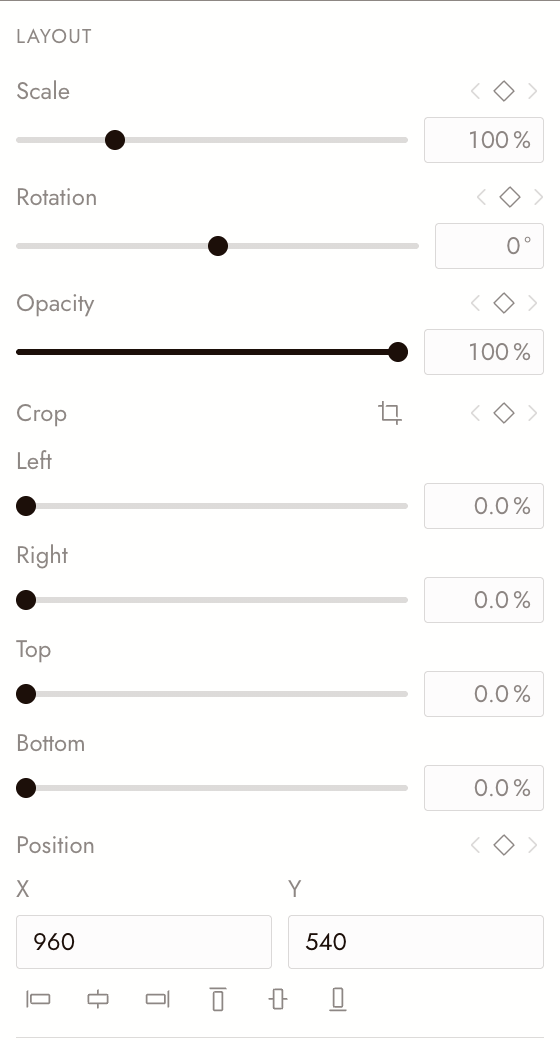
Layout: scale, rotation, opacity, crop, position
Video, image, text and motion-title clips share a Layout section:
- Scale and Opacity as sliders with an exact value beside them.
- Rotation in degrees. In the preview, drag the round grip above the clip to turn it; hold Shift to snap to 15°.
- Crop from each edge (video and image). Click the crop button to crop on the preview instead.
- Position as X and Y, with buttons to align the clip to the frame's edges or centre.
Each of these can also change over time with keyframes.
Give text a background
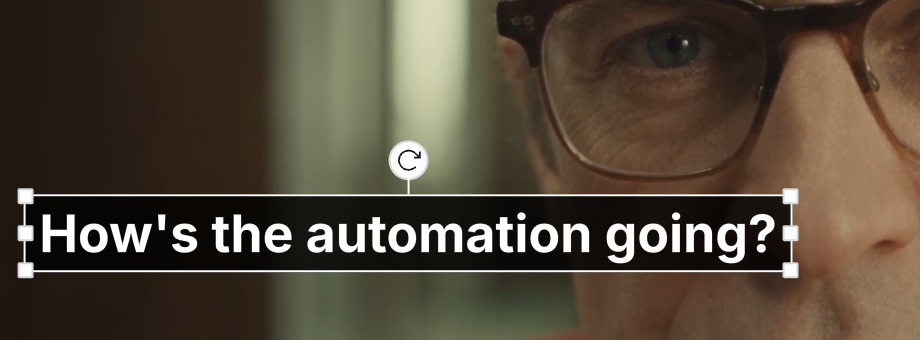
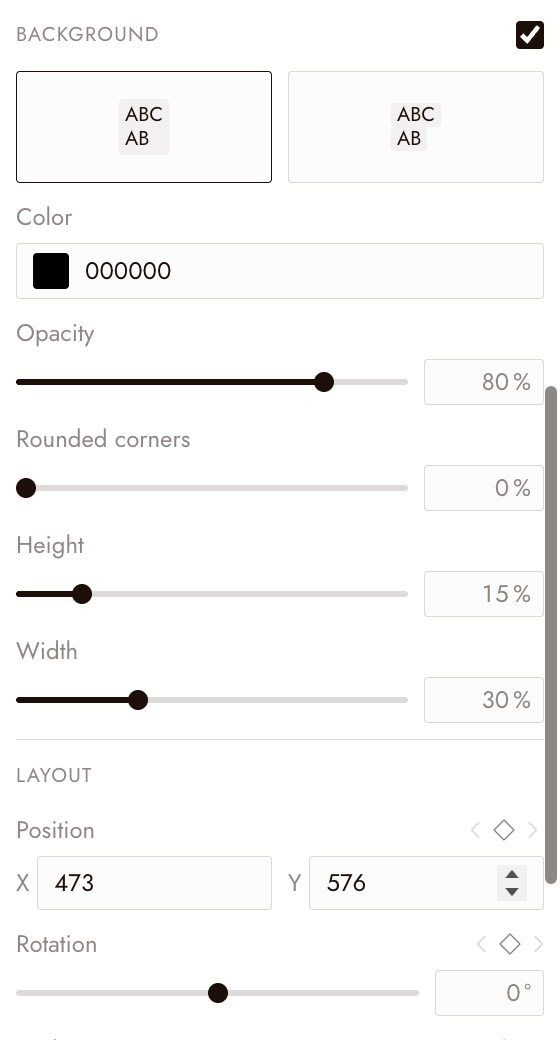
For a caption look, a text clip can sit on a box. In a text clip's Properties, tick Background, then choose:
- The shape: one box around all the text, or a box per line.
- Color and Opacity.
- Rounded corners.
- Height and Width: the padding around the text. It scales with the text size.
Untick Background to hide the box; your settings are kept for next time.
Reverse a clip
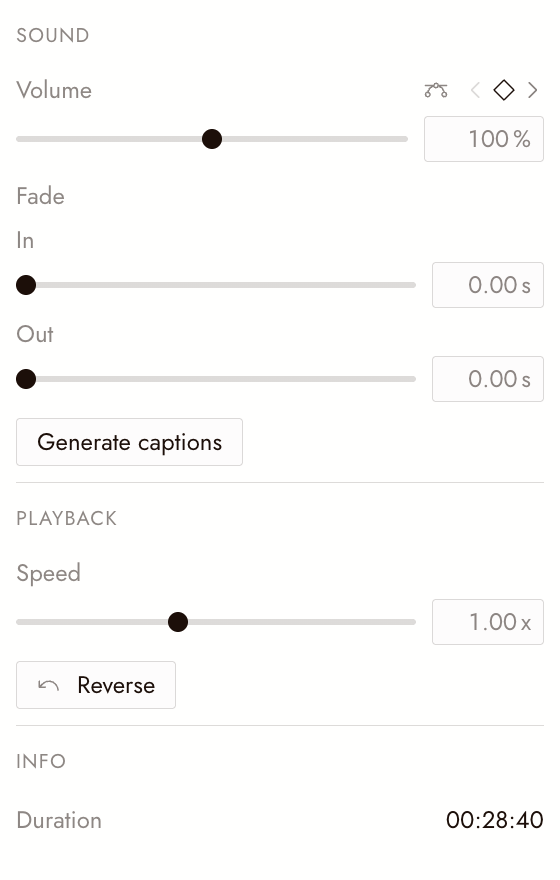
To play a video or audio clip backwards, sound included, select it and click Reverse in Properties, or right-click the clip on the timeline. It is free.
Flick prepares a reversed copy, which can take a moment: the button reads Cancel and a "Reversing clip…" message shows until it is ready. A reversed clip carries a curved arrow on the timeline. Click Play Forward to turn it back.
Reverse is not available while captions are generating.
Change several clips at once
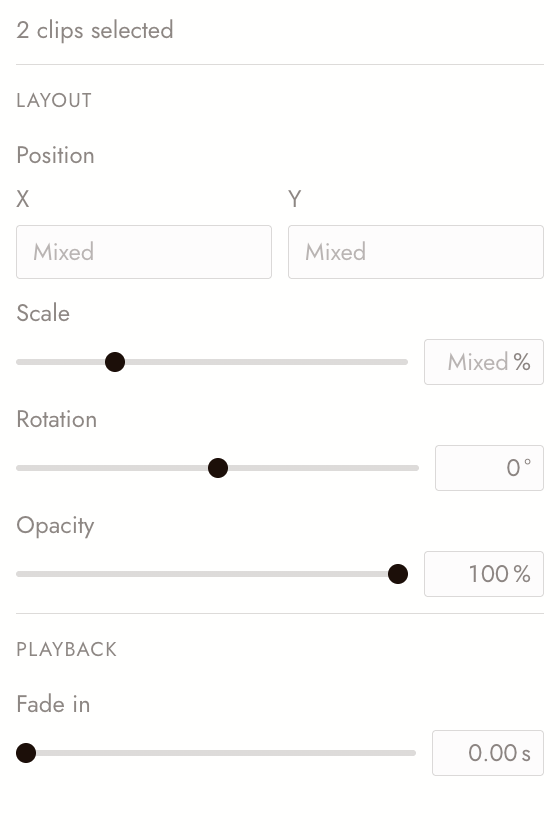
Shift-click to select two or more clips. Properties shows the fields every selected clip has, under a count such as 2 clips selected.
- Where the clips differ, the field shows Mixed. Type a value and every selected clip takes it.
- Values are absolute, not relative: Scale 50% puts every clip at 50%.
- One change is one undo step, however many clips it touches.
- Fields with keyframes on any selected clip are read-only here; edit that clip on its own.
Trim several clips together. With clips selected, drag the start or end edge of one of them. Every selected clip moves that edge by the same amount, and the drag stops when the first clip reaches its limit.
Weiter
- Keyframes to animate these properties.
- Motion titles for animated text.
- Effects and color for the Color and Effects tabs.