Keyframes
A keyframe pins a clip's property to a value at one moment. Set two or more and Flick moves the property smoothly between them: a slow push in, a title that drifts up, music that dips under a line. This page covers what you can animate, how to set and edit keys, and how keys behave when you cut the clip.
What you can keyframe
| Clip | Properties |
|---|---|
| Video and image | Position, Scale, Rotation, Opacity, Crop |
| Text and motion titles | Position, Scale, Rotation, Opacity |
| Video and audio | Volume |
Color, font size, speed, fades and effects do not take keyframes.
Animate a property
This example makes a slow push in on one shot.
- In the Video Editor, select the clip and move the playhead to where the move should start.
- In Properties, find Scale. Click the diamond ◆ on its label line to add a key at the playhead.
- Move the playhead to where the move should end.
- Change the value, for example type 130 in the Scale box. Because Scale now has a key, Flick adds a second key at the playhead for you.
- Play the clip. Between the two keys the value eases from one to the other, with no overshoot.
Once a property has a key, every change to it adds or updates a key at the playhead: typing a value, dragging the slider, or dragging the clip in the preview. A property without keys changes the whole clip, as before.
Find your keys
- In the panel. Each property has a ◀ ◆ ▶ cluster: previous key, add or remove a key at the playhead, next key. The diamond turns red when the playhead is on a key.
- On the timeline. A selected clip opens a thin row of diamonds under it for each keyed property, named in the track header. Deselect the clip and the rows fold away, leaving a ◆ before the clip's name.

Move or delete keys
- Click a diamond on the timeline to select it. The playhead jumps to it.
- Shift-click to add more keys to the selection, or take one out.
- Drag to move the selected keys together. They land on whole frames, and the playhead stays where it is.
- Press Delete to remove the selected keys. One press is one undo step.
When you delete the last key of a property, the property keeps the value it had at the playhead.
Shape the curve
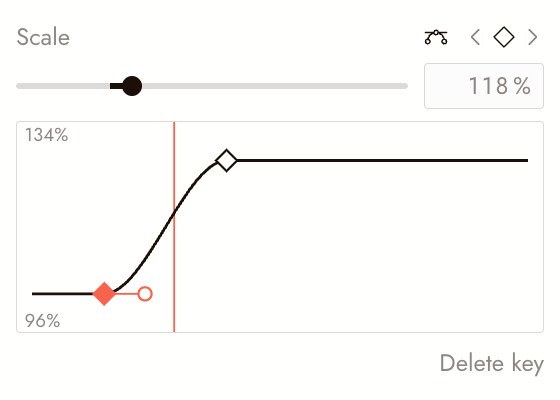
Click the curve button at the start of a property's cluster to open its curve under the field.
- Click the line to add a key there.
- Drag a key to change its value. Shift-drag adds it to the selection.
- Drag a key's handle to change how fast the value eases in or out. Hold Alt to move one side of the handle on its own.
- Double-click a key, or click Delete key, to remove it.
- Reset to auto returns a key you shaped by hand to the default smooth curve.
Keys follow your edits
Keys are stored against the clip's own footage, so they stay on the same frames when you edit it:
- Trim the start, and the keys stay on their frames. A key you trim away is kept, out of sight, and still shapes the curve; extend the clip to see it again.
- Split a clip, and each half keeps its part of the move with no jump at the cut.
- Change speed or reverse the clip, and the keys stretch or flip with the footage.
- Detach audio, and volume keys move to the new audio clip.
Keys export with the film. Exports to Premiere Pro and Final Cut Pro carry the same motion as linear keys placed close enough to match the curve.
Ask the agent
The agent can set keys too. Select the clip and ask, for example: "Slowly zoom in on this clip from 100% to 130% over its length" or "Fade the title in over its first second." It replaces the keys on the property it changes, so check the result on the timeline.
Se algo parecer errado
A field will not change. The playhead is outside the clip. A keyed property can only be edited while the playhead is over the clip, because each edit writes a key at the playhead.
I changed a value and the whole clip did not change. The property has keys, so your change became a key at the playhead. Delete the keys to set one value for the whole clip.
A field shows a ◆ note in the multi-clip panel and cannot be edited. One of the selected clips has keys on that property. Select that clip on its own to edit it.
Dragging several clips in the preview did not move a keyed one. Keyframe one clip at a time.
Próximo
- Motion titles to animate text with a preset.
- Trim and split for cutting a keyed clip.
- Export and download your film when the motion plays right.