Flickpedia 指南
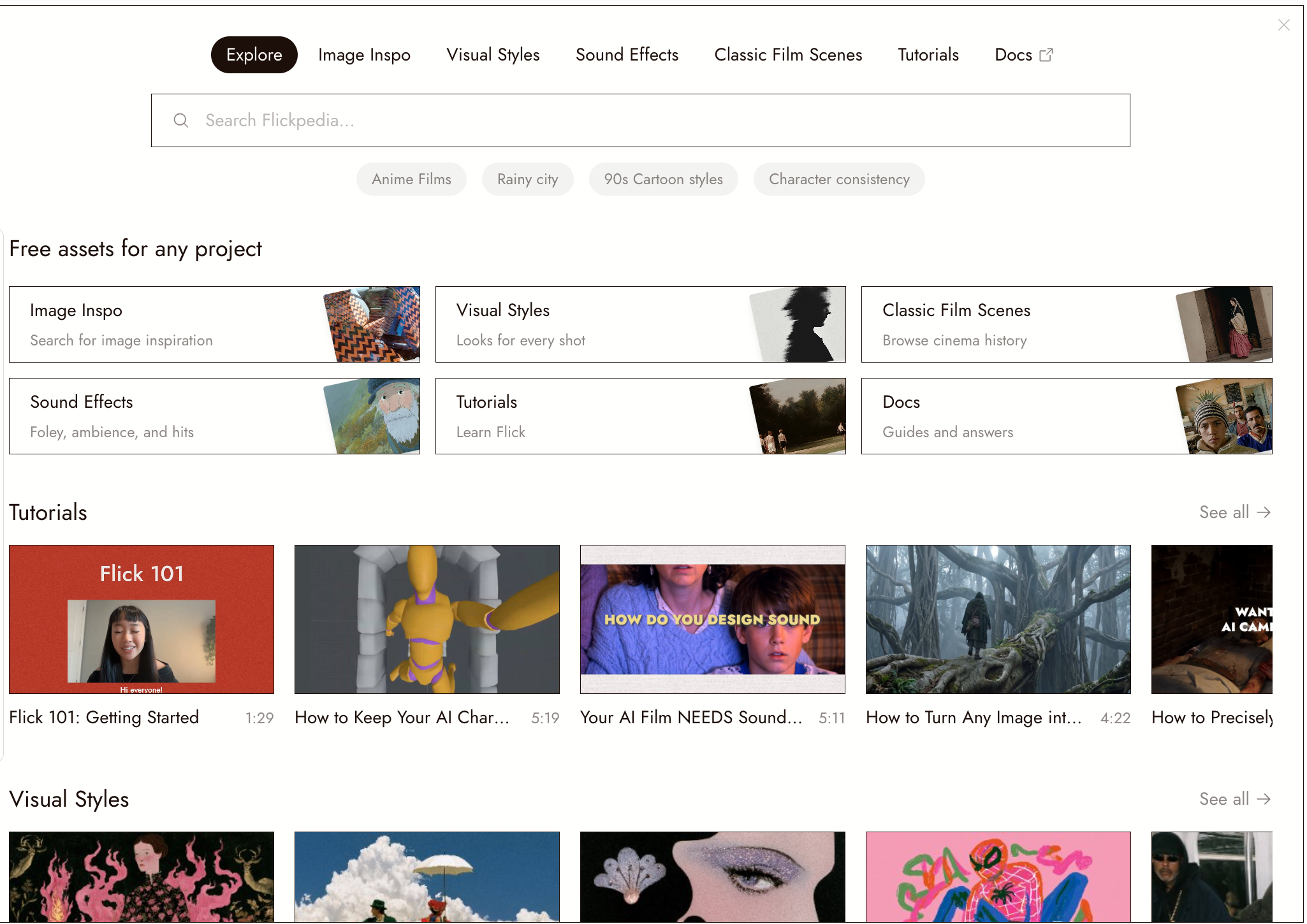
Flickpedia is Flick's free library: over 1.5 million reference images, visual styles, film stills, sound effects, and video tutorials. Find what you need and add it to your project as you go.
Browse at flick.art/flickpedia or open Flickpedia from a project's top bar. You do not need an account to browse. Sign in to save items or add them to a project.
导航指南
Flickpedia opens on Explore. The tabs along the top lead to each section:
| Section | What's inside |
|---|---|
| Image Inspo | 1.5M+ curated reference images: photography, art, fashion, architecture |
| Visual Styles | Ready-made looks you can apply to a whole project |
| Sound Effects | Foley, ambience and hits, with instant preview |
| Classic Film Scenes | Stills from cinema history, searchable by mood, style or director |
| Tutorials | Short videos from the Flick team, organized like these docs |
| Docs | Opens these docs in a new tab, in your language |
Use the search bar under the tabs. On Explore, choose the section to search; within a section, search stays in that section. Each section has its own address, so you can bookmark or share it.
Flickpedia inside a project
In a project, click Flickpedia in the top bar. It opens as a panel over the canvas that you can drag and resize, and it remembers where you left it. Adding a scene, a sound or a style keeps the panel open, and the new node lands beside it, so you can keep browsing.
To search without opening the panel, hover over the Flickpedia button. A search field drops in with a section menu and suggestions.

搜索图片灵感
通过描述、颜色或图像搜索图像灵感:
- By words. Describe the subject and look. Try "brutalist concrete stairwell" instead of "building".
- By color. Open Color Search with the color wheel button. Choose up to two colors or enter a hex code.
- By image. Upload a picture or click Find similar on an open image. Browse the results and step back through previous searches.
Category chips such as Fashion, Photography, Art and Architecture narrow the results. Opening an image shows it full size with its credit and a Source link to the original page.
经典电影场景
Search stills from cinema history by mood, style, color or director: try "Wes Anderson symmetrical compositions". Typing a title also suggests matching films; open one to browse all of its scenes.
Every scene opens with a written description and a technique breakdown: shot type, composition, lighting, camera angle, lens, color palette and mood. Heart a scene to keep it in My Favorites. See Classic Film Scenes for how to study and recreate a shot.
视觉风格
Browse by category: cinematic, cartoon, anime, drawing, illustration, painting or 3D. Search by name, description or tag, and sort by Latest or Recommended.
Open a style to preview it. From a project, set it as the default style or add its reference image to the canvas. Use Create My Style to build your own from up to five images. See Visual Styles.
Sound Effects
Search sound effects and press play to preview them. Each one shows its waveform, so you can see where the sound is and where the silence is. Add the ones you need to the canvas.
Tutorials
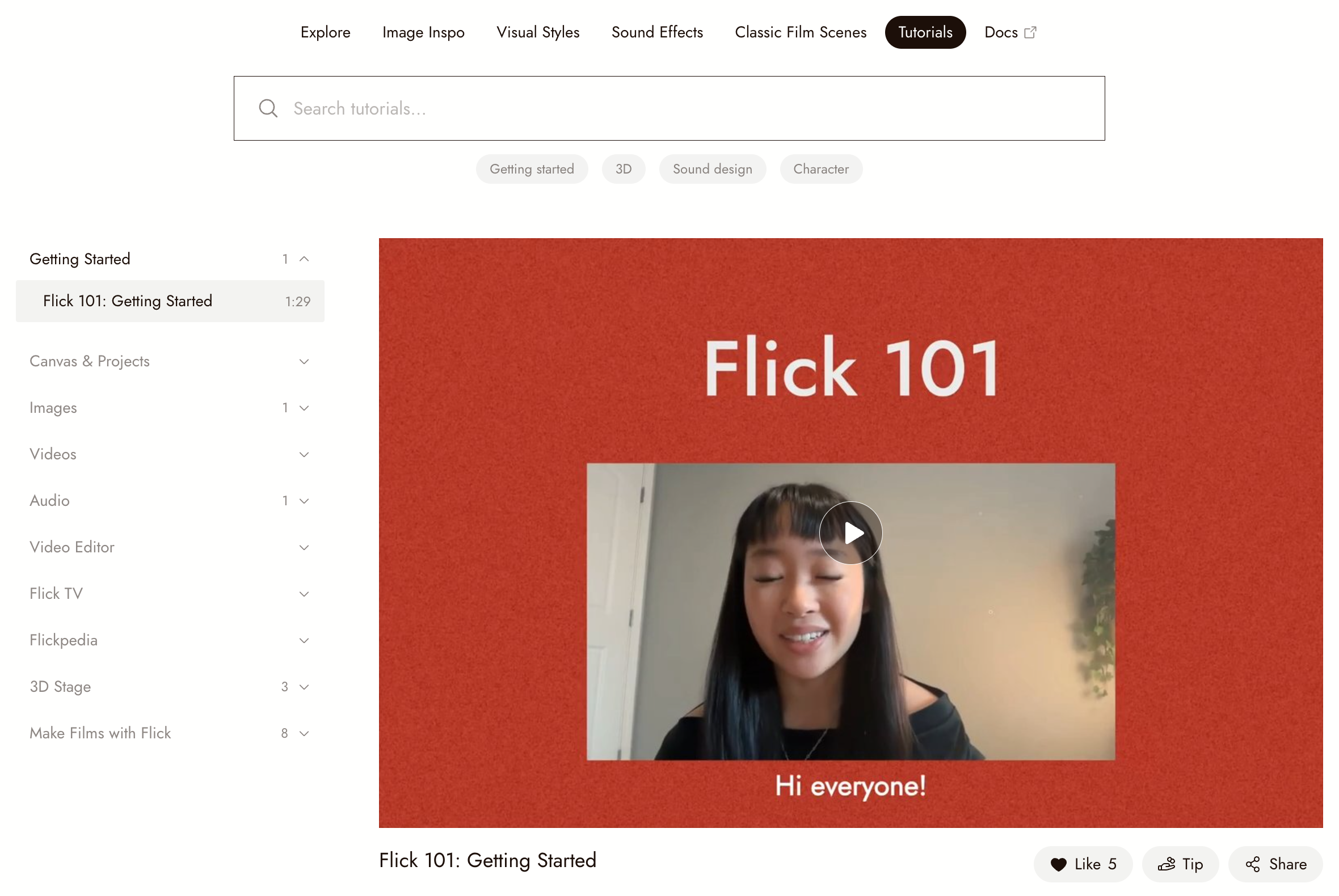
Tutorials are short films from the Flick team, played right in Flickpedia. The list on the left follows the same topics as these docs, from Getting Started to Make Films with Flick. Pick a video to play it, with the usual controls for play, seek, speed, volume and fullscreen, and previous or next video.
Under each video you can like, tip or share it, and read or add comments. A topic without a video yet shows Video coming soon and a link to the docs instead.
使用你找到的内容
- Inside a project, use Add to Canvas for images and scenes and Add to canvas for sound effects. Styles apply to the project.
- On flick.art/flickpedia, with no project open, Image Inspo shows Add to project: pick one of your projects, or start a new one with the image already on the canvas.
- In chat, describe the references you need. The agent returns film scenes and images from Flickpedia. Select items and click Done to add them to the canvas.
概览
| Where | flick.art/flickpedia, or the Flickpedia button in any project |
| Cost | Free |
| Account needed | Only to save: favorites, saved styles, adding to a project |
| Reference images | 1.5M+, with attribution and source links |
| Search by | Words, color (one or two), or an image |
| Sections | Image Inspo, Visual Styles, Sound Effects, Classic Film Scenes, Tutorials, plus a link to Docs |
常见问题
我需要账号吗? 浏览或搜索不需要。当你想保存内容时需要登录:收藏场景、保存风格或将图像添加到项目。
图像来自哪里? 来自精选来源。每张图像都标有署名,详情视图会链接回原始页面。
Can I search by a color palette? Yes. Open Color Search in Image Inspo and pick up to two colors, from the wheel or by hex code.
Where did Workflow Templates and Blogs go? They were removed from Flickpedia. To see how a film was made, open it on Flick TV and choose Get Workflow; guides are on the Flick blog.
我可以通过对话查找参考吗? 可以。向智能助手询问参考,从结果中选择内容,然后点击完成将其添加到画布。