How to Use Kling O3 in 2026: The Complete Guide
Oct 2026
Kling O3 is Kling's Omni video model: the member of the Kling 3.0 family built around references. You give it a start frame, characters, objects or a short clip, and it holds them steady through up to 15 seconds of video with native sound. On Flick it runs from an image-to-video node or from Omni Reference, in a Standard tier and a Pro tier.
Quick answer: how do you use Kling O3?
Pick Kling O3 in the video model picker, connect a start frame, and write one short instruction about what moves and what the camera does. Then:
- Lock the frame first. Get the still right before you animate it. Kling O3 keeps what you give it, including its mistakes.
- Say what the camera does. One phrase such as "(fixed camera)" or "slow push-in" changes the result more than any adjective.
- Start at 5 seconds. Go to 10 or 15 only once the 5 second take holds its blocking.
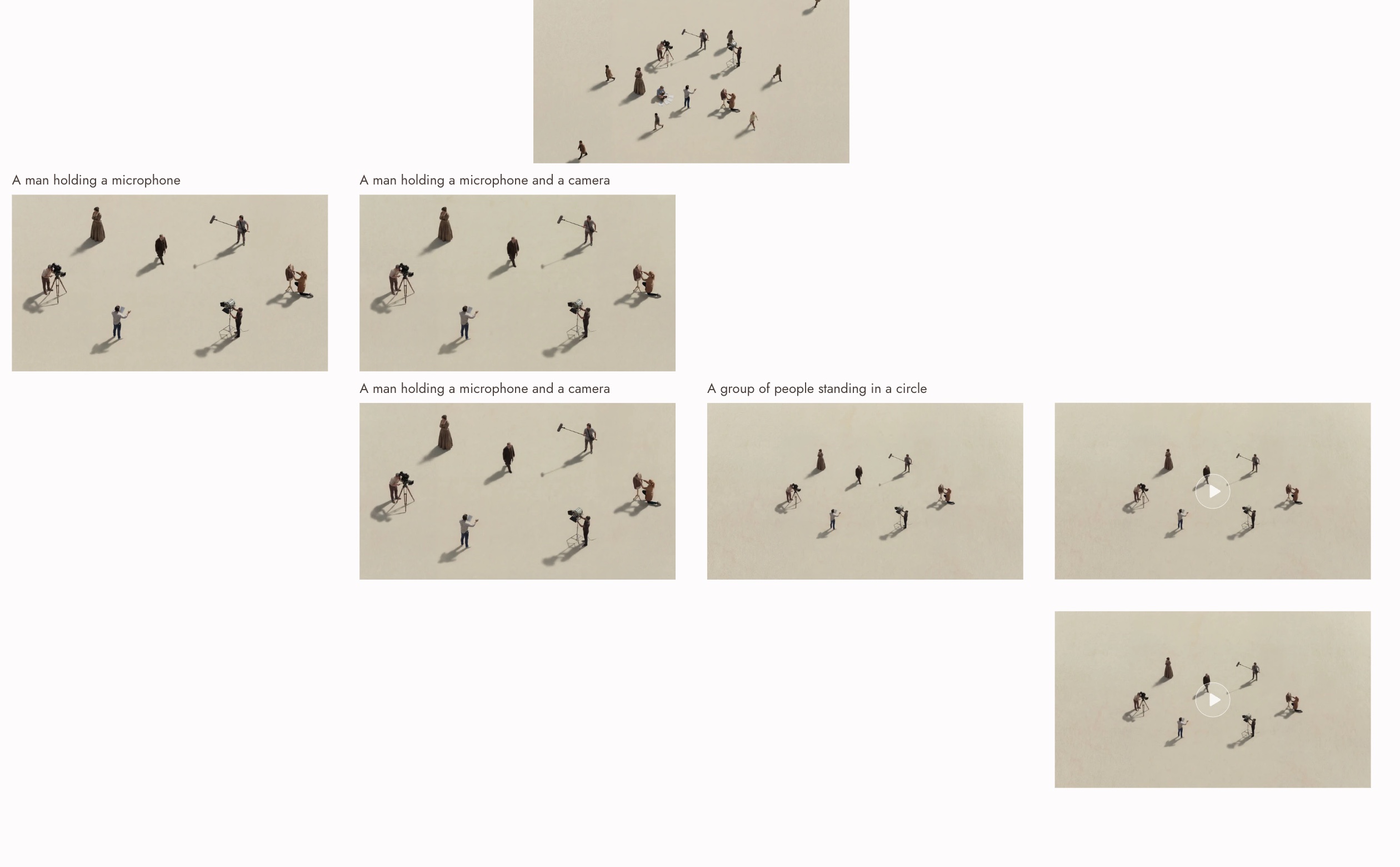
That canvas is the workflow this guide tests end to end: five image revisions, four Kling O3 clips, and the one prompt change that fixed the shot. Every prompt, price and clip below comes from it.
Animate your first frame with Kling O3
Lock the still, direct the motion, render the take you would cut in.
Kling O3 at a glance
| Spec | Kling O3 on Flick |
|---|---|
| What it is | Kling VIDEO 3.0 Omni, the reference-driven model in the Kling 3.0 family |
| Tiers | Kling O3 (Standard) and Kling O3 Pro |
| Output | Standard renders 720p (1284 × 716 measured). Pro renders 1080p (1924 × 1076 measured) |
| Clip length | 5, 10 or 15 seconds from a start frame; 3 to 15 seconds in Omni Reference |
| Aspect ratios | 16:9, 9:16, 1:1 |
| Audio | Native audio, generated with the video, as a setting |
| References | Start and end frame, plus up to 4 elements of up to 4 images or one video of up to 8 seconds each |
| Multishot | Up to 5 shots in one generation, 15 seconds in total |
| Editing | Kling O3 Pro edits existing clips of 3 to 10 seconds |
| Prompt length | Up to 2,500 characters |
| Plan | Premium video models are available on Standard and above |
The resolutions are measured from the files these models actually returned, not taken from a spec sheet. Kling's own guide lists the same two modes, 720p and 1080p (Kling VIDEO 3.0 Omni user guide).
What Kling O3 is, and how it differs from Kling 3.0
Kling ships two video models in its 3.0 generation. Kling 3.0 is prompt-led: you describe the scene and it builds it. Kling O3, which Kling calls VIDEO 3.0 Omni, is reference-led: it is built to keep what you hand it, whether that is a start frame, a character, a product or a short clip. Kling's comparison guide puts it plainly: use Omni "when the project depends on reference consistency" (Kling VIDEO 3.0 vs Omni).
In practice that means two things on a Flick canvas:
- Your still decides the shot. Composition, wardrobe, light and the number of people in frame all come from the image you connect. Kling O3 animates it; it does not redesign it.
- Your prompt decides the motion. With the look already fixed, the prompt is free to spend its words on what moves, how far, and what the camera does.
If you want the model to invent the scene from a paragraph, start with Kling 3.0 instead. If you already know what the frame looks like, Kling O3 is the better fit. The model guide covers how it sits next to Seedance and Veo.
Version history
- Kling O1 was the first Omni model, capped at 10 second clips. It is no longer in Flick's picker; use Kling O3.
- Kling O3 (VIDEO 3.0 Omni) launched with the Kling 3.0 series in February 2026, raising the cap to 15 seconds and adding multishot, video element references and element voices.
- On Flick, Kling O3 appears as six entries: Kling O3 and Kling O3 Pro for image to video, Kling O3 Pro in Omni Reference, Kling O3 and Kling O3 Pro Multishot, and Kling O3 Pro in Edit Video.
How to generate a video with Kling O3 on Flick
- Make or import the start frame. Generate it on the canvas, upload it, or pull one from a classic film scene for reference. Revise it until you would be happy with it as a still.
- Add a video node from the image. Hover the image, open Video, and choose Generate Video. The first project walkthrough shows the same step with screenshots.
- Pick Kling O3 or Kling O3 Pro. Standard renders 720p and costs less; Pro renders 1080p. Draft on Standard if you will judge motion only, and render the keeper on Pro.
- Set duration and audio. 5 seconds is the default and the safest. Audio adds 25 to 33 percent to the price, so leave it off for silent B-roll.
- Write the motion, not the look. One action and one camera instruction. The one clear action guide explains why a single verb beats a list.
- Run, review, and branch. Every take lands next to its input, so you can compare takes side by side and choose the best one before you spend on a longer render.
The tested workflow: an aerial film crew in five revisions and four clips
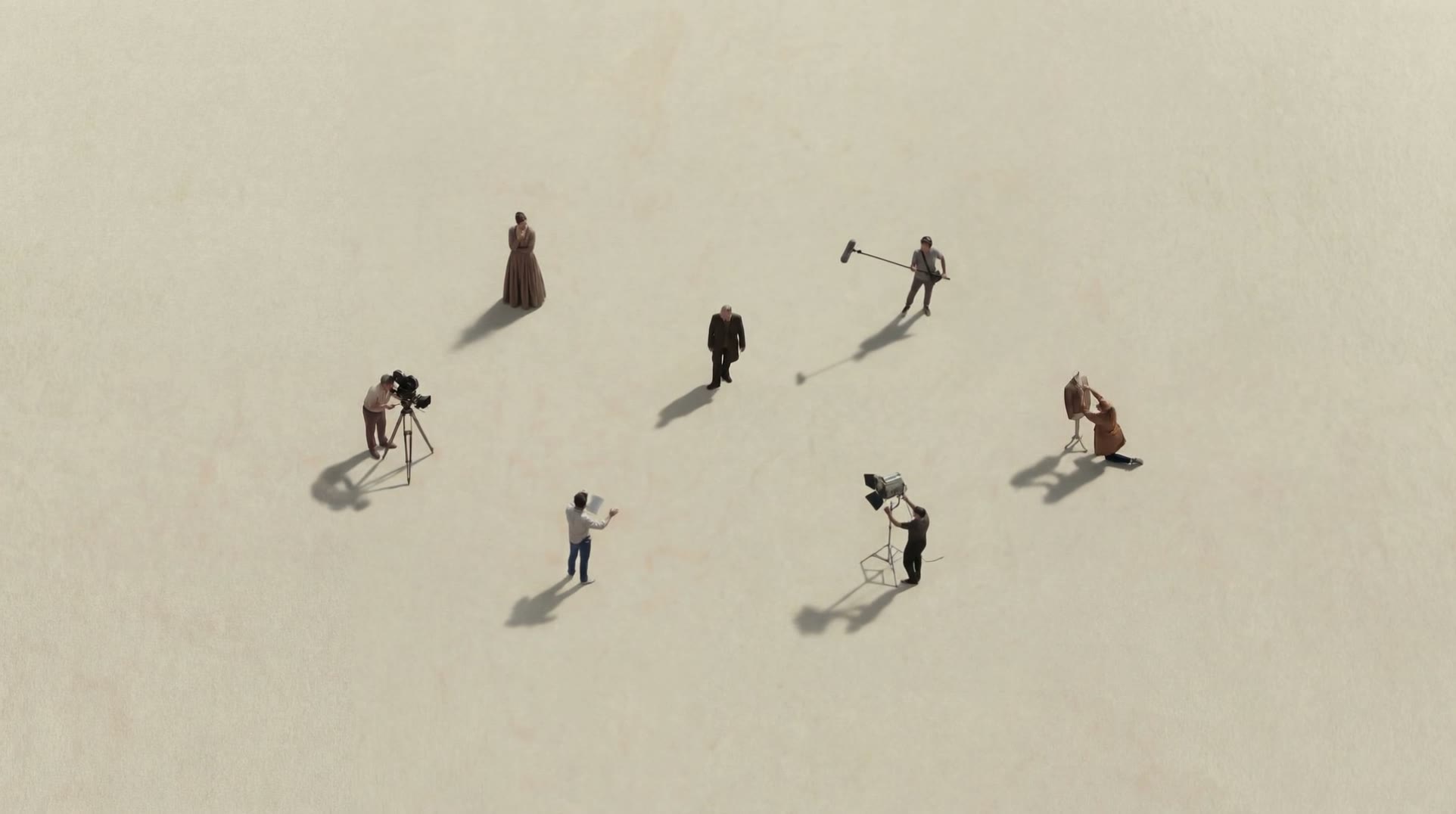
The goal was a single locked aerial shot of a tiny film crew in an empty desert, the kind of wide establishing image that opens a short film. The figures had to read as a crew (camera, boom, costume, director) and they had to stay on their marks while they paced.
Building the start frame
All five stills ran on Nano Banana Pro at 4K. Each one used the previous image as a reference, so the composition carried forward and only the named change moved.
| Step | Prompt, verbatim | What it fixed |
|---|---|---|
| 1. Layout | Top-down aerial view with a minimalist composition. The people are scattered and walking, appearing small within a vast empty space. The frame features lots of negative space, a cinematic editorial photography style, soft natural light, and long shadows. The people convey a thoughtful, contemplative mood. Overall, the composition is minimalist and cinematic. | The look: negative space, long shadows, editorial light |
| 2. Cast | Could you replace the man in a suit with the woman in costume from image 2? | Turned anonymous walkers into a crew with an actor in costume |
| 3. Merge | People scattered more irregularly across the scene, reference image 2. | Combined the layout of step 1 with the cast of step 2 |
| 4. Angle | more Top-down aerial view | Removed the slight tilt so the ground reads as a flat plane |
| 5. Scale | wider angle aerial view, people smaller, and leave more space each other. | Shrank the figures and opened the gaps, which gives the video room to move |
Step 5 matters more than it looks. Small figures with clear space around them give Kling O3 somewhere to put motion without people colliding or leaving the frame.
Animating it, and the prompt change that fixed it
The first two Kling O3 Pro takes used an earlier start frame and the prompt "They are pacing in place, deep in thought." with no camera instruction. Both read "pacing" as "walking": the figures crossed the frame and left their marks.
The fix was one parenthetical. "They are pacing in place, deep in thought. (fixed camera)" on the final start frame produced a locked frame, and the crew stayed where the still put them.
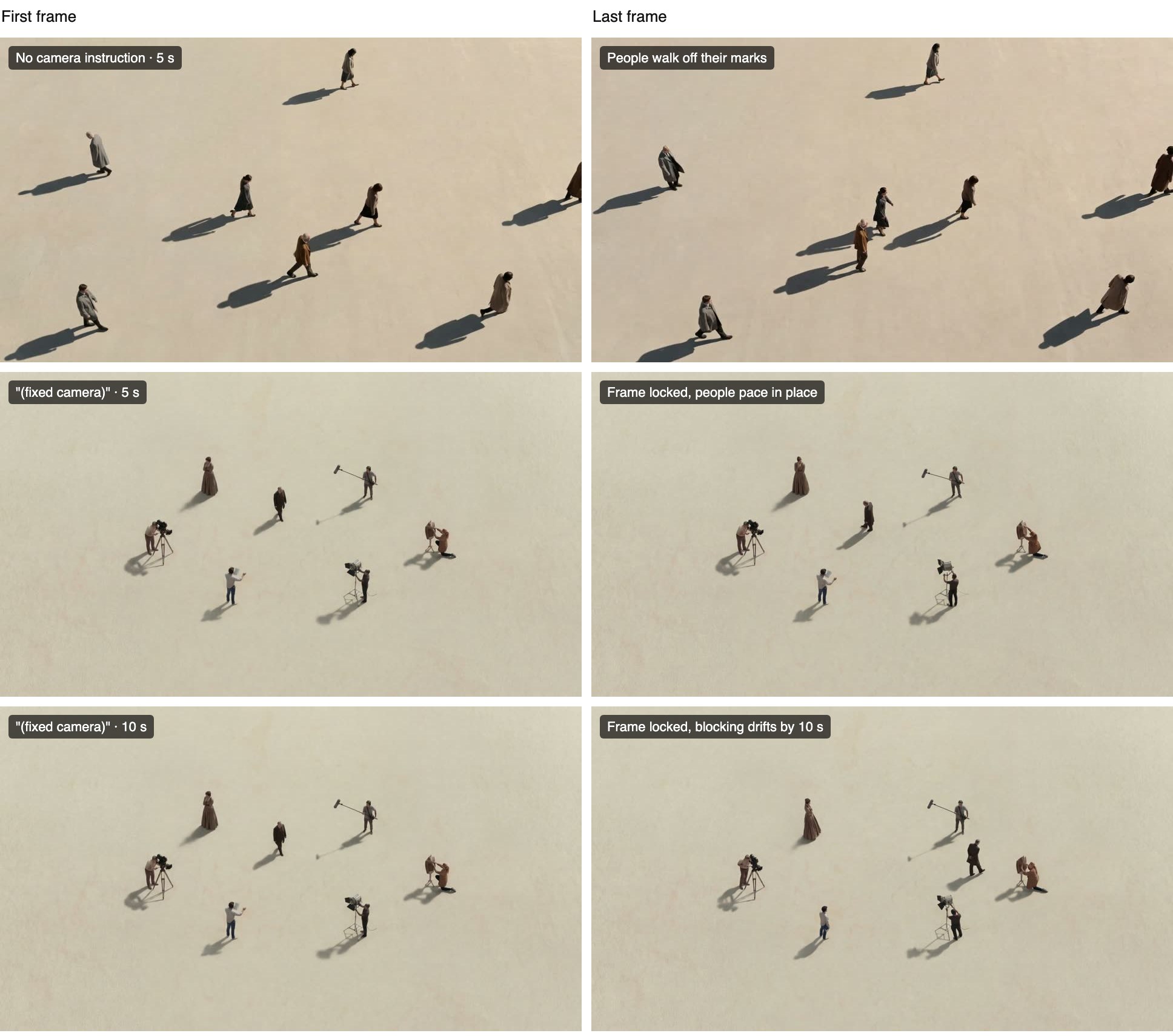
The bottom row is the same prompt at 10 seconds. The camera held, but by the last frame the director and one crew member had wandered several body lengths. Longer clips give the model more frames to drift in, so the 5 second take was the one that went in the cut. The top row used an earlier start frame, so read it for the motion, not the composition.
What the workflow cost
Credits at today's Flick list prices, with audio on, as every one of these clips carries a sound track. Times are the picker's estimates.
| Step | Model | Runs | Credits | Estimated time |
|---|---|---|---|---|
| Start frame, 5 revisions | Nano Banana Pro, 4K | 5 | 300 | about 45 s each |
| Takes with no camera instruction | Kling O3 Pro, 5 s | 2 | 280 | about 3 min each |
| Fixed camera, 5 s | Kling O3 Pro | 1 | 140 | about 3 min |
| Fixed camera, 10 s | Kling O3 Pro | 1 | 280 | about 3 min |
| Total | 9 | 1,000 |
Two cheaper routes were available. Running the two exploratory takes on Kling O3 Standard instead of Pro would have cost 224 instead of 280, at 720p, which is enough to see that people walk off their marks. Turning audio off on all four clips would have saved another 140. The image revisions were the best-spent 300 credits in the run: a still that already reads as the final shot is what made a single clean video take possible.
Kling O3 pricing on Flick
Prices scale with duration, and native audio is a multiplier on top. Credits at list price:
| Model | 5 s | 10 s | 15 s |
|---|---|---|---|
| Kling O3, audio off | 84 | 168 | 252 |
| Kling O3, audio on | 112 | 223 | 335 |
| Kling O3 Pro, audio off | 112 | 224 | 336 |
| Kling O3 Pro, audio on | 140 | 280 | 420 |
Omni Reference and Multishot use the same rates and add 3 and 8 second options. Kling O3 Pro in Edit Video is billed per second of the source clip at 67 credits a second. The full list lives on model credit costs, and how credits work explains that a failed generation is refunded automatically.
Prompting Kling O3
Because the look comes from the start frame, a Kling O3 prompt is mostly direction. A structure that worked across these takes:
[Who] [does one thing], [how]. ([camera instruction])Examples that follow it:
They are pacing in place, deep in thought. (fixed camera)
The woman in costume turns to the camera and stops. (slow push-in)
The boom operator lowers the mic as the crew walks out of frame. (static wide shot)
For Omni Reference, name each reference with its tag so the model knows which element plays which part, for example "@Element1 hands the script to @Element2". Kling's own examples write multi-shot prompts with a label and a duration per shot, such as "Shot 1 (3s): wide shot...", and put dialogue in quotation marks (Kling VIDEO 3.0 Omni user guide). On Flick you set shots in the Multishot editor instead: Auto lets the model split your prompt into shots, Manual lets you write each one.
If the result moves the wrong thing, motion not what I asked lists the usual causes.
Omni Reference and Multishot
Omni Reference is where Kling O3 earns its name. Instead of one start frame, you can connect:
- A start frame and an end frame.
- Up to 4 elements, each made of up to 4 images of one character or object from different angles, or one video of up to 8 seconds.
Elements are the way to keep a character's face and outfit steady across shots. Build them from a clean character reference sheet rather than from cropped frames, and keep the number of characters in one shot small: the fewer elements competing for attention, the steadier each one stays.
Multishot turns one generation into a short sequence: up to 5 shots, 15 seconds in total, each with its own prompt and duration. Use it for coverage of one moment (wide, then close, then reaction). For a seamless move from one exact frame to another, use a single shot with a start and end frame instead.
One limit to plan around: Kling's guide notes that native audio is not supported yet when the input includes a video. If a shot needs sound, use image references, or add audio afterwards with text to voice or character dialogue.
When to use Kling O3, and when to pick something else
| You want | Use | Why |
|---|---|---|
| To animate a still you already like | Kling O3 Pro | Keeps the frame's look and lets the prompt spend its words on motion |
| To test motion cheaply | Kling O3 (Standard) | Same model family at 720p and three quarters of the price |
| The same characters across many shots | Kling O3 Pro in Omni Reference | Elements carry identity from shot to shot |
| A scene written from a paragraph, no reference | Kling 3.0 | Kling positions it for prompt-led creation |
| Clips longer than 15 seconds in one pass | Seedance 2.5 | Runs up to 30 seconds on Flick |
The column "Why" is our assessment from using these models on Flick, not a benchmark. One honest concession: if your shot has no reference at all and three or more characters, Kling's own guidance points to Kling 3.0, which it describes as built for multi-character scenes.
Best practices for Kling O3
- Finish the still before you animate it. Revisions are cheaper on the image than on the video.
- Leave space around your subjects. Small figures with room to move hold their marks better.
- Give the camera an instruction every time, even if it is "fixed camera".
- Use one action per shot. Two verbs usually means one of them gets ignored.
- Draft on Kling O3 at 720p, render the keeper on Kling O3 Pro at 1080p.
- Start at 5 seconds; extend to 10 or 15 only when the blocking holds.
- Turn audio off for shots that will be scored or cut silent.
- Keep takes next to their inputs in a section so you can compare and reuse them.
Errores comunes
- Asking for an action that the frame cannot hold. "Pacing in place" on a frame where people are mid-stride reads as walking. Match the still to the motion.
- Leaving the camera unspecified. Without an instruction the model picks a move for you, and the subject usually follows it out of position.
- Going straight to 15 seconds. Drift grows with length. In our test the 10 second take lost its blocking that the 5 second take kept.
- Expecting 1080p from the Standard tier. Kling O3 renders 720p; pick Kling O3 Pro for 1080p.
- Adding a video reference to a shot that needs sound. Native audio is not supported with video input yet.
- Rewriting the look in the prompt. If the still is wrong, fix the still. Describing different clothes or light in the video prompt fights the reference.
Sources
- Kling VIDEO 3.0 Omni model user guide, Kling AI, checked October 20, 2026
- Kling VIDEO 3.0 vs Kling VIDEO 3.0 Omni, Kling AI, July 3, 2026
- Output resolutions measured from Flick generations, October 20, 2026; credit prices from Flick's model configuration on the same date
Guías relacionadas
- Generate a video
- Omni Reference
- Choosing a model
- Model credit costs
- Direct one clear action
- Character reference
- How to use Kling 3.0 for character consistency
- How to use Seedance 2.5
Preguntas frecuentes
What is Kling O3?
Kling O3 is Kling VIDEO 3.0 Omni, the reference-driven video model in Kling's 3.0 family. It animates start frames and keeps characters, objects and clips you give it consistent, with native audio and clips up to 15 seconds.
What is the difference between Kling O3 and Kling 3.0?
Kling 3.0 is built for prompt-led creation, where you describe the scene. Kling O3 is built for reference-led work, where you supply a frame, characters or a clip and want them kept.
What is the difference between Kling O3 and Kling O3 Pro?
On Flick, Kling O3 renders 720p and costs 84 credits for 5 seconds without audio. Kling O3 Pro renders 1080p and costs 112. Both take the same inputs and settings.
How long can a Kling O3 video be?
Up to 15 seconds. From a start frame you can pick 5, 10 or 15; in Omni Reference and Multishot you can also pick 3 or 8.
Does Kling O3 generate audio?
Yes, as a setting. Native audio adds to the price, and Kling notes it is not supported yet when the input includes a video.
How many references can Kling O3 use?
On Flick, a start frame, an end frame, and up to 4 elements, each with up to 4 images or one video of up to 8 seconds.
Is Kling O3 free on Flick?
No. Premium video models, including the Kling O3 family, are available on Standard and above.
Why does my Kling O3 video ignore my prompt?
Usually because the prompt asks for two things at once or leaves the camera open. Give one action and one camera instruction, and check that the start frame can physically hold that action.