AI Scene Generator
WHY GENERATE WITH FLICK?
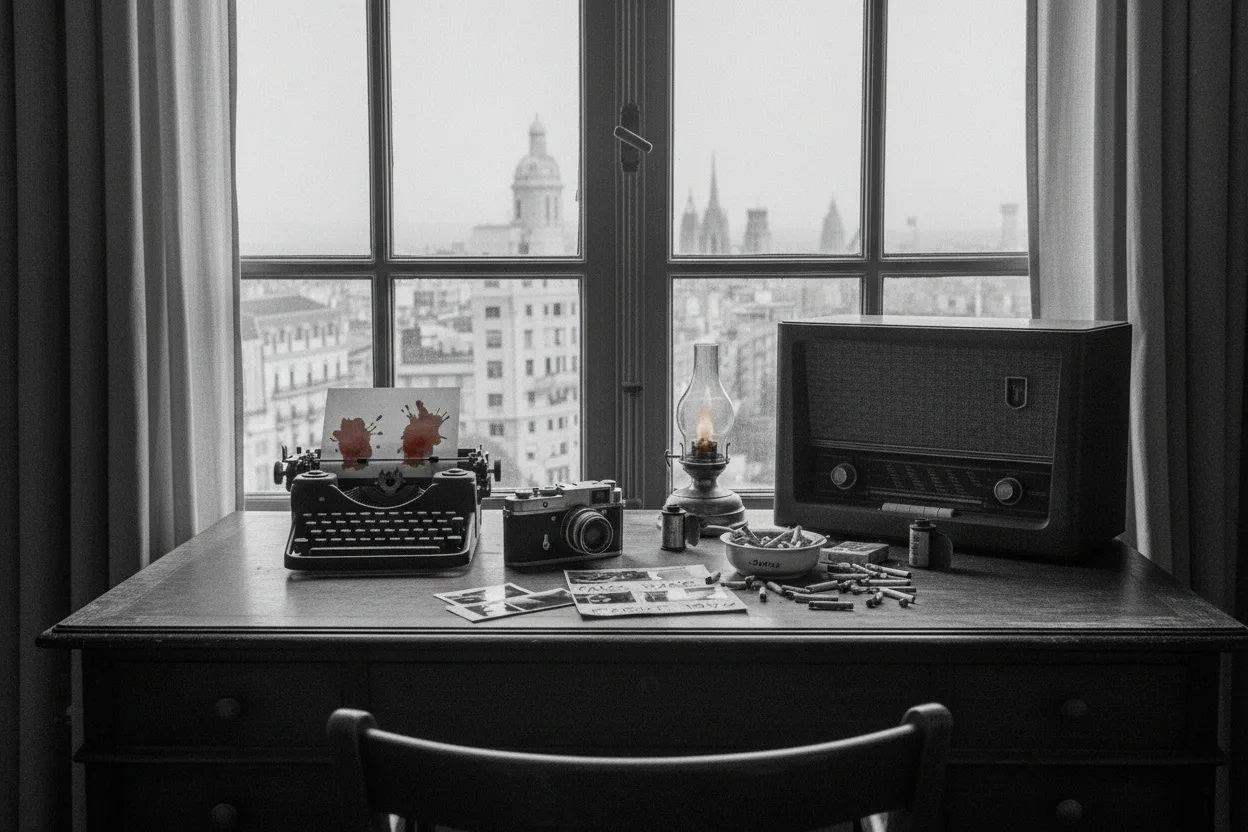
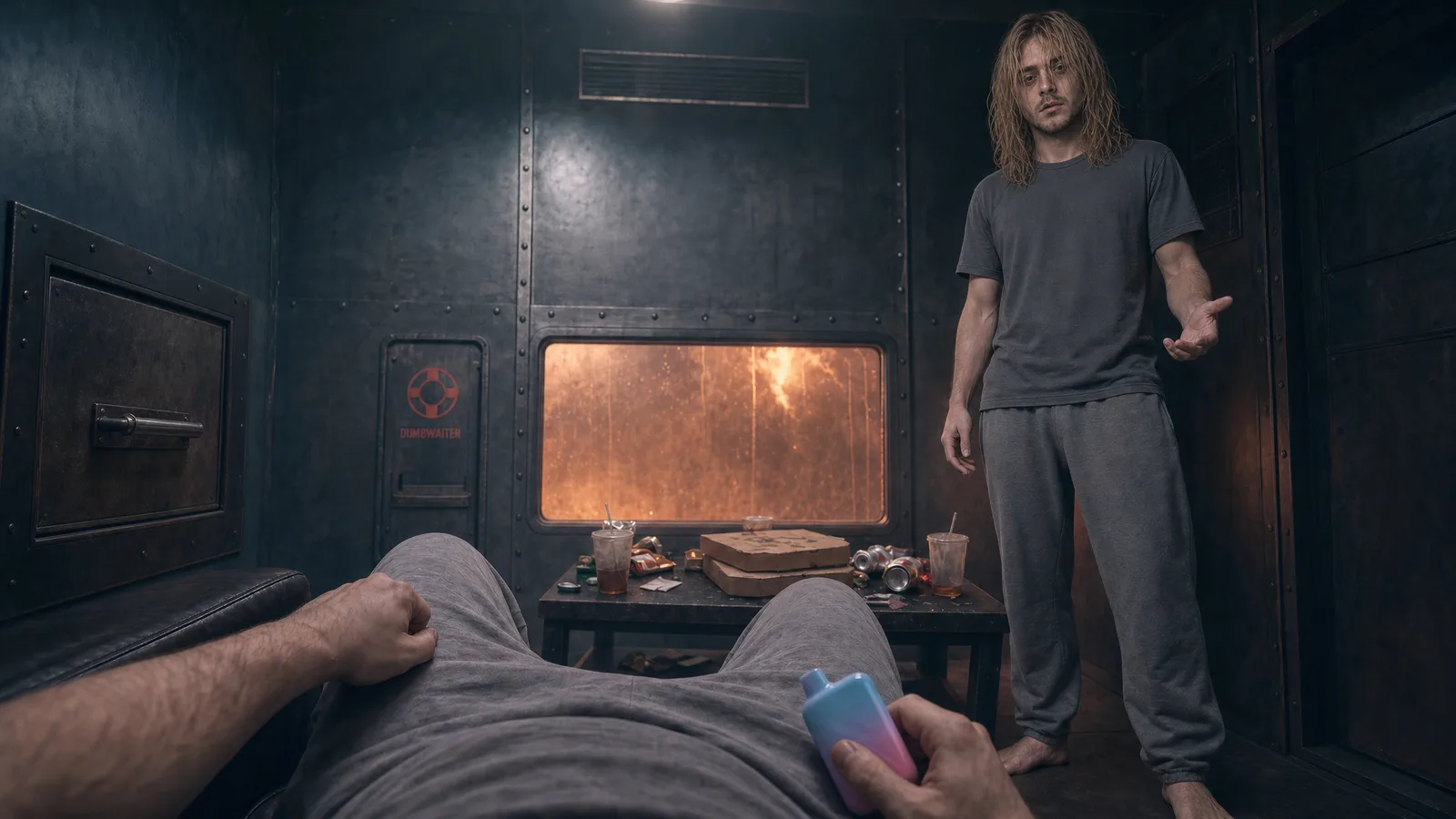
Describe a setting, or start from a photo. Flick builds the scene.
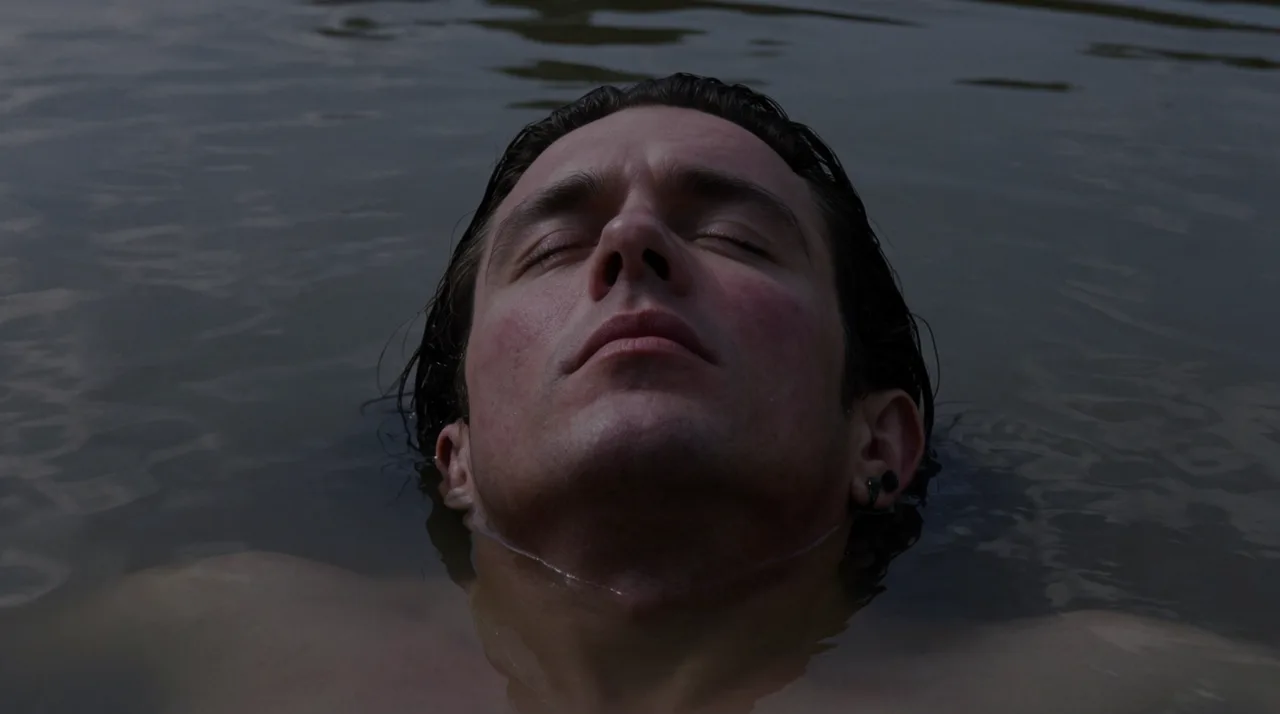
AI SCENE GENERATOR EXAMPLES
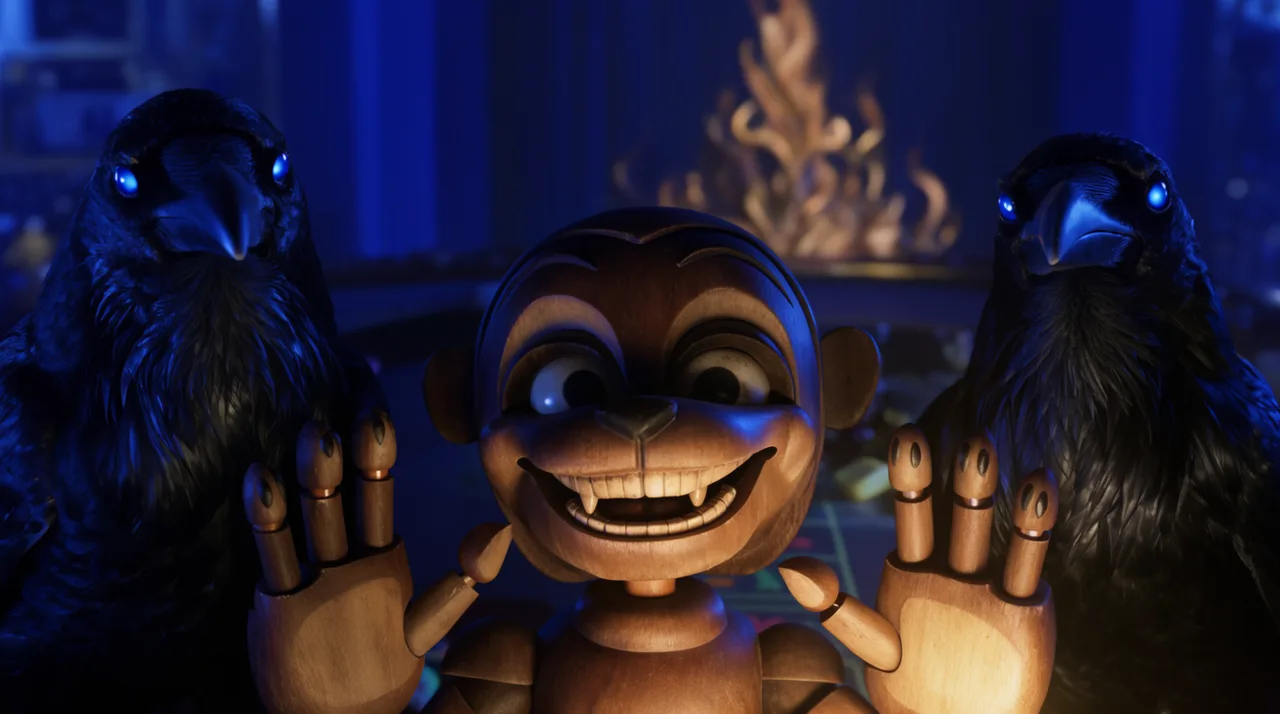
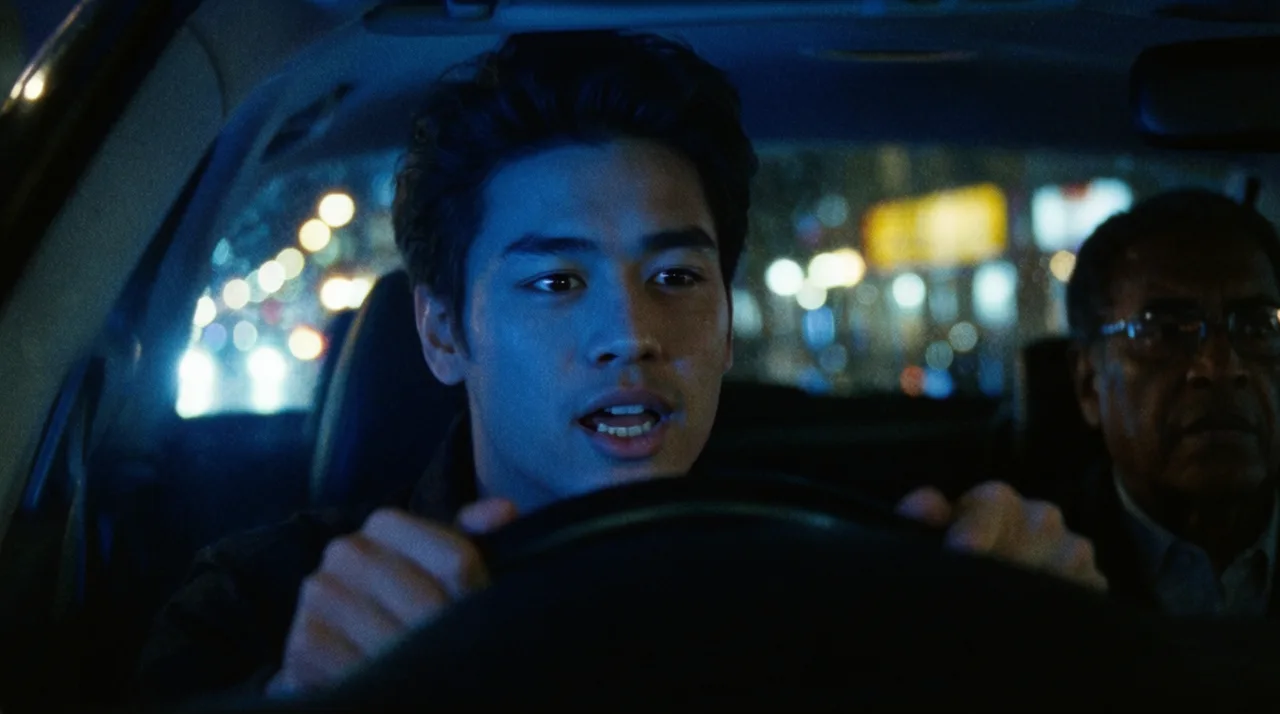
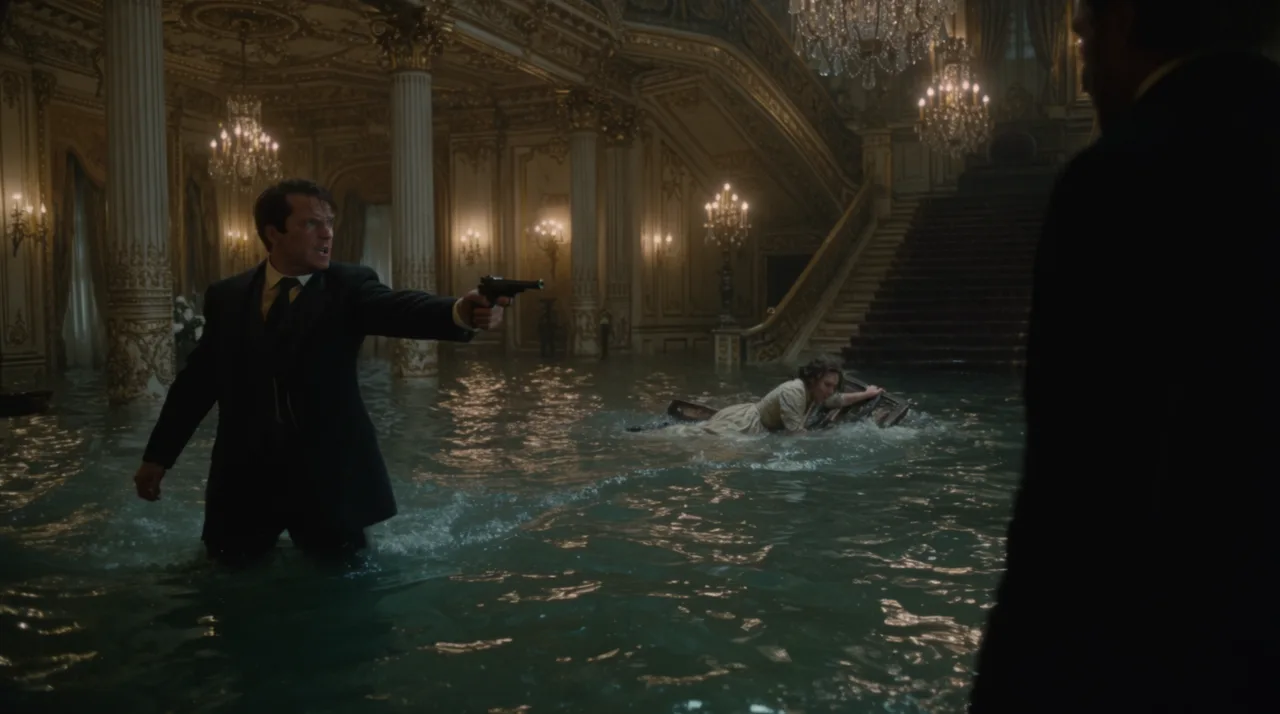
HOW IT WORKS
STEP 1
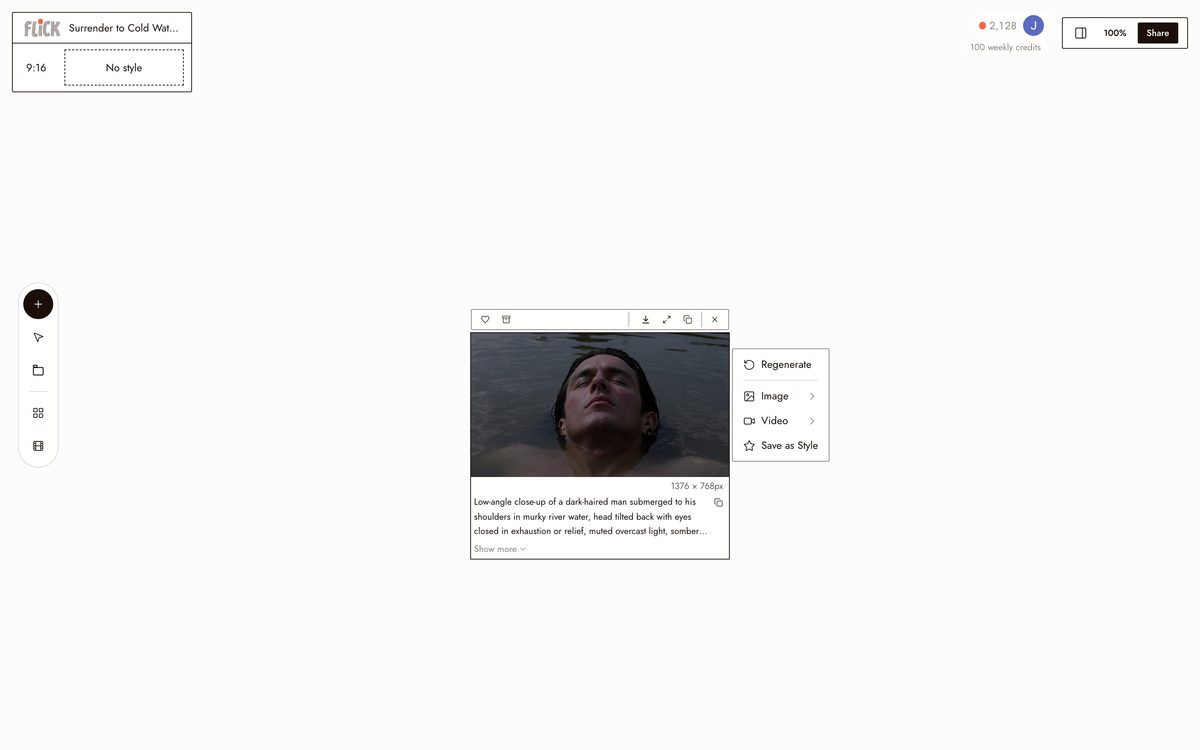
DESCRIBE OR SKETCH YOUR SETTING
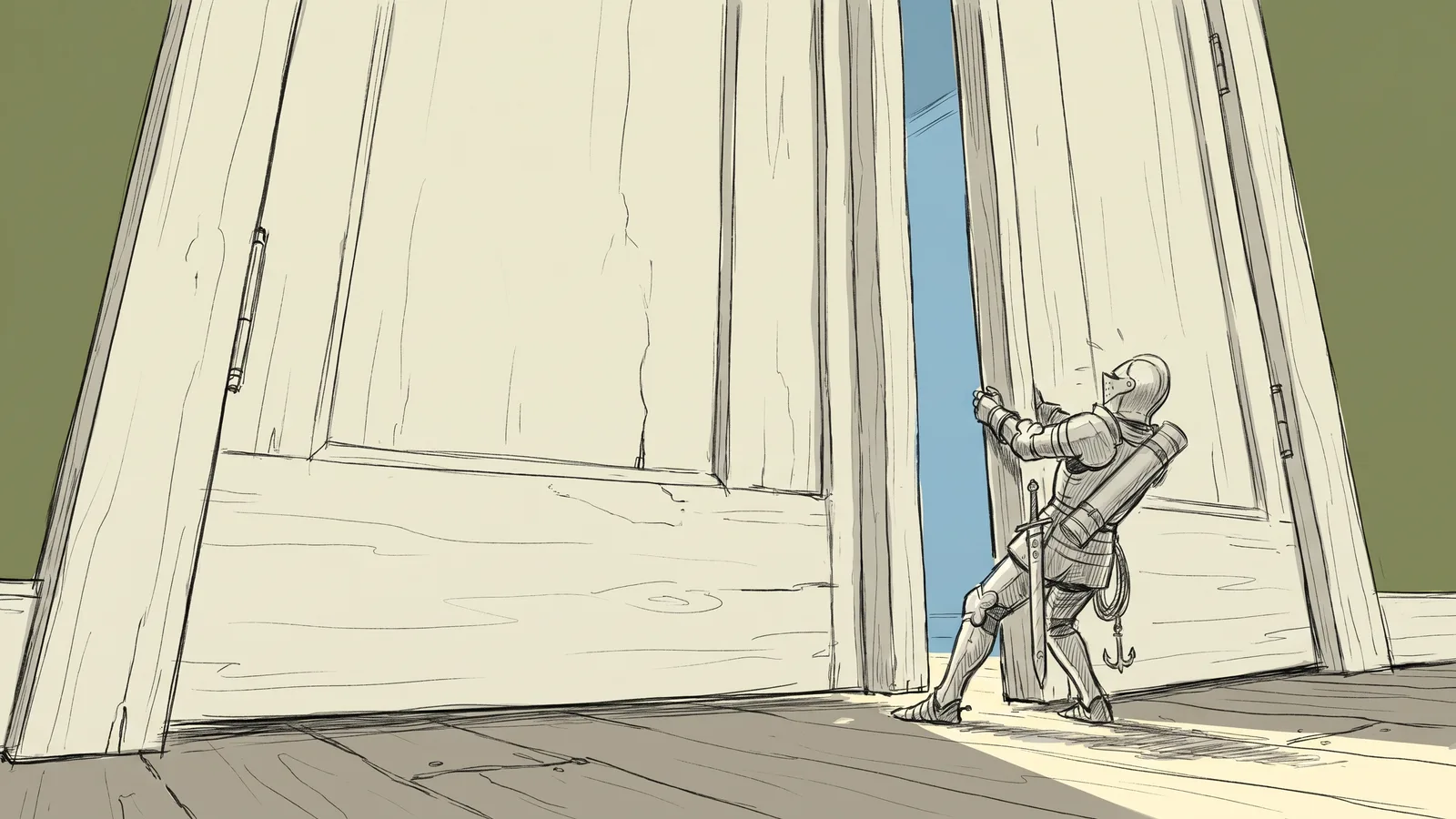
Type a detailed prompt describing the environment, lighting, mood, and characters. For precise composition control, draw a rough sketch in any tool and upload it as a reference. The model follows your layout while adding photorealistic detail.
Made in Flick STEP 2
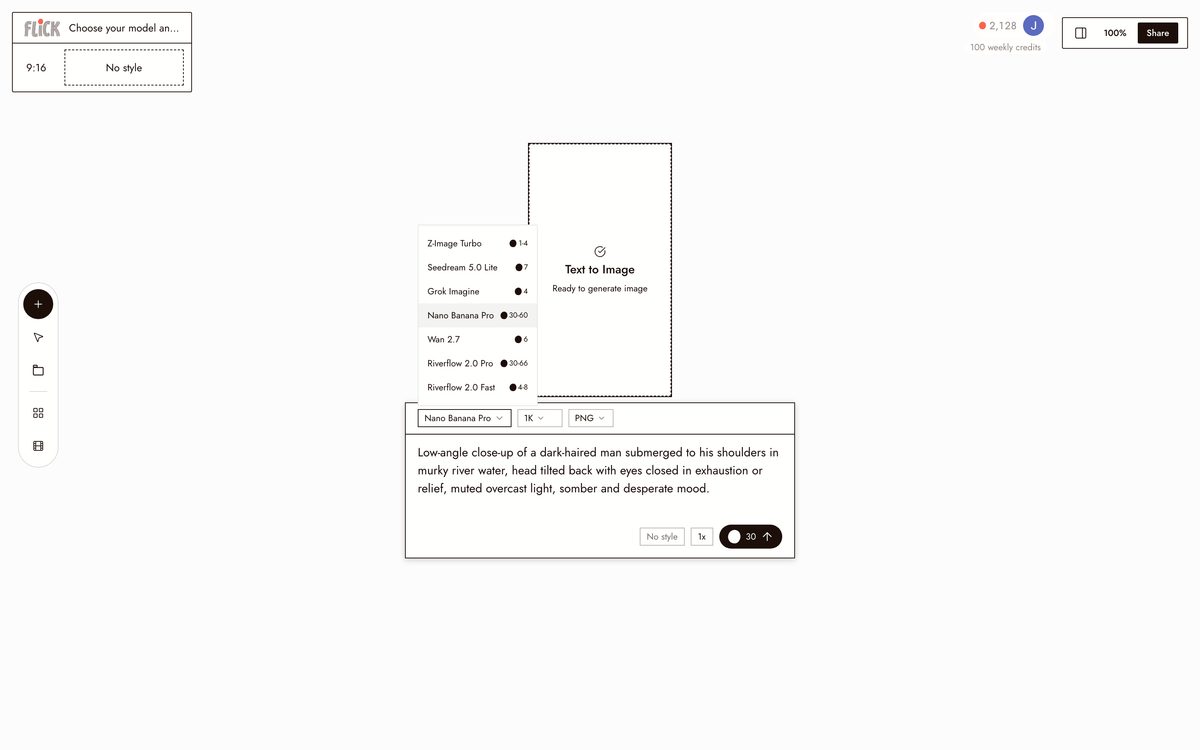
CHOOSE YOUR MODEL AND STYLE
For photorealistic stills, use Nano Banana Pro or GPT Image 2. For stylized output, apply a style from the 900+ available. For video, use Kling for motion, Seedance for dialogue, or Veo 3.1 for cinematic color grading.
Made in Flick STEP 3
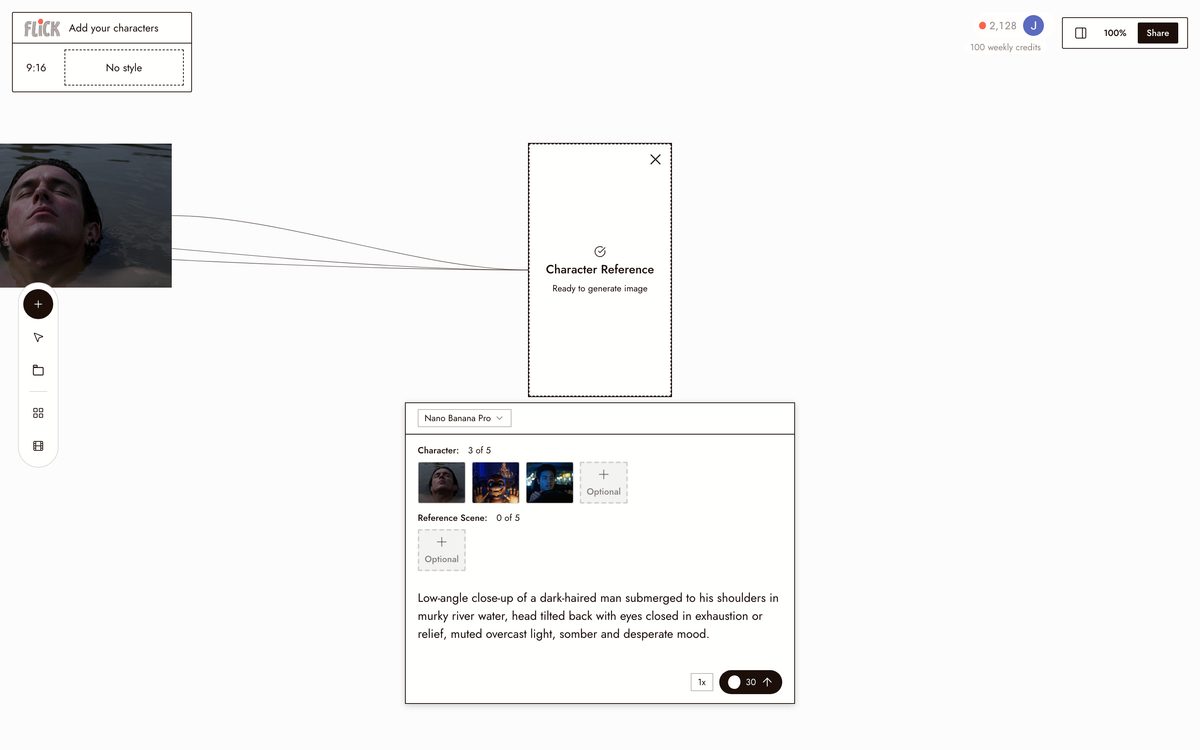
ADD YOUR CHARACTERS
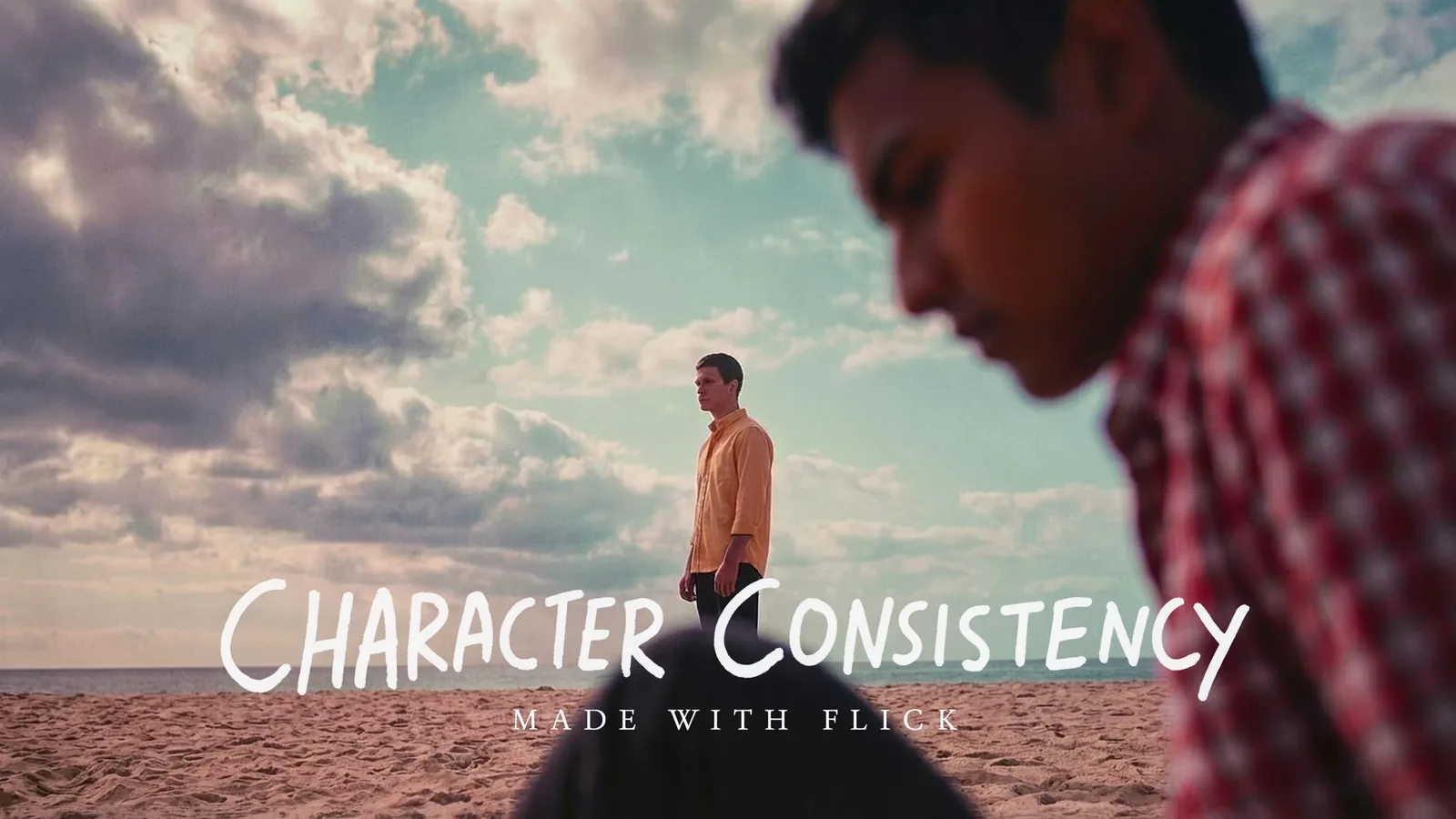
Lock your character with Character Reference. Upload a reference image, click "Character Reference," and the model carries that identity into the scene. For more precision, use the composition sketch method from the consistent characters guide — generate a rough pencil sketch of your desired framing, then pass it as a reference alongside your character images.
Made in Flick STEP 4
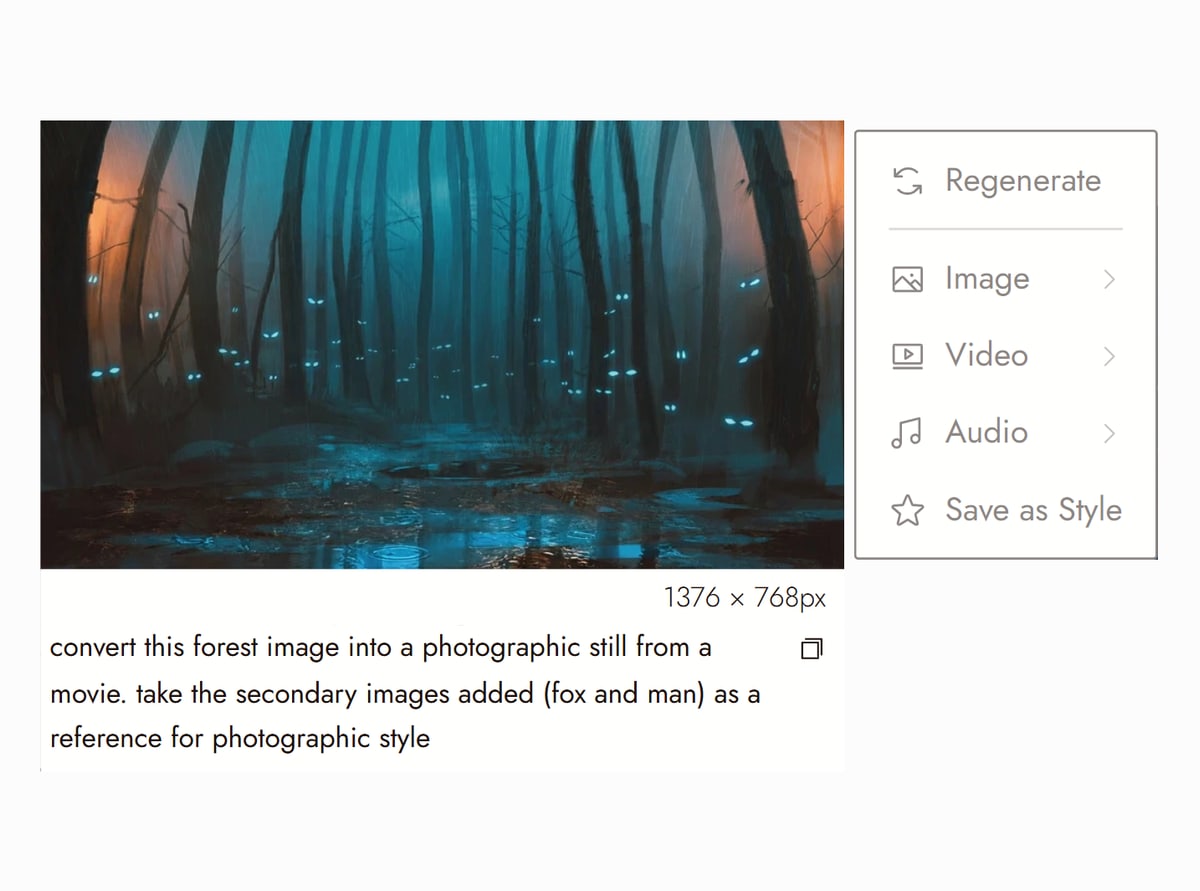
START FROM A PHOTO
Upload a photo of the location, a frame from your own footage, or a still from Image Inspo, the reference library built into Flick, and add it as a reference image, the same way as a sketch. Then describe what should change: the time of day, the weather, who is in the shot. The model keeps the layout of the photo and generates the new scene around it.
Canvas from Tired Eyes on Flick TV


AI SCENE GENERATOR FAQS
WHAT IS AN AI SCENE GENERATOR?
An AI scene generator creates visual environments from a text description or reference image. Describe the lighting, mood, setting, and characters, and the AI produces a still image or video. Flick's scene generator supports 900+ visual styles and character consistency across every scene.
CAN I CONTROL THE EXACT COMPOSITION?
Yes. Beyond text prompts, Flick supports composition sketches. Draw a rough layout in any tool, upload it as a reference alongside your prompt, and the model follows your framing while adding detail. This is the composition sketch method from the consistent characters guide.
CAN I KEEP THE SAME CHARACTER ACROSS DIFFERENT SCENES?
Yes. Use Character Reference to lock a character from a single reference image, then generate that character into any scene. Different settings, lighting, angles — the face, outfit, and proportions stay consistent.
CAN I TURN A SCENE INTO VIDEO?
Yes. Send any generated still directly into an image-to-video model from the same canvas. Use Kling for motion, Seedance for dialogue with lip-sync, or Veo 3.1 for cinematic grading.
WHAT STYLES ARE AVAILABLE?
Over 900, including cinematic, anime, stop-motion, cyberpunk, oil painting, watercolor, pixel art, halftone, noir, and more. Each can be applied to any scene.
IS THIS FREE?
Yes. Flick has a free tier: up to 300 free credits (100 at signup plus 200 for joining our Discord) plus 100 weekly credits, no credit card required. Generate scenes and test models on it. Paid plans start at $5/month, or $4/month billed yearly. Character Reference is on every plan. The full video model list, including Veo 3.1 and Kling 3.0, comes with the Standard plan.
HOW IS THIS DIFFERENT FROM MIDJOURNEY OR DALL-E?
Midjourney and DALL-E generate images but stop there. Flick lets you generate a scene, lock a character into it, animate it with video models, add dialogue, and export a finished clip. It is a filmmaking platform, not just an image generator.
START CREATING WITH FLICK