Put Me in a Movie: Add Yourself to Any Film With AI

To put yourself in a movie with AI, build a character sheet of yourself, make a second sheet in the pose the shot needs, then place that character into a frame of the film with the sheets of its cast.

A rough ink drawing of a person stepping out through a blank cinema screen on a stand

If you searched "put me in a movie", you want to see yourself inside a scene, and a selfie filter or a fixed scene template gives you little say over the shot. One of our team members did it on one canvas, placing themselves in a snow village from the canvas of The Duel, a film by our teammate Jaime Yao. This guide follows that canvas in five steps, from a character sheet to a final frame and on to making it move.

An old man in a straw hat walks through a snowy village, then armed figures appear on the rooftops above him00:28
The shot our team member chose to join: a snow village from Jaime Yao's canvas, with the fighters on the roof they placed themselves under at about 13 seconds.Jaime Yao, director of The duel · Seedance 2.5 · Reference to video

What does it look like when you add yourself to a film?

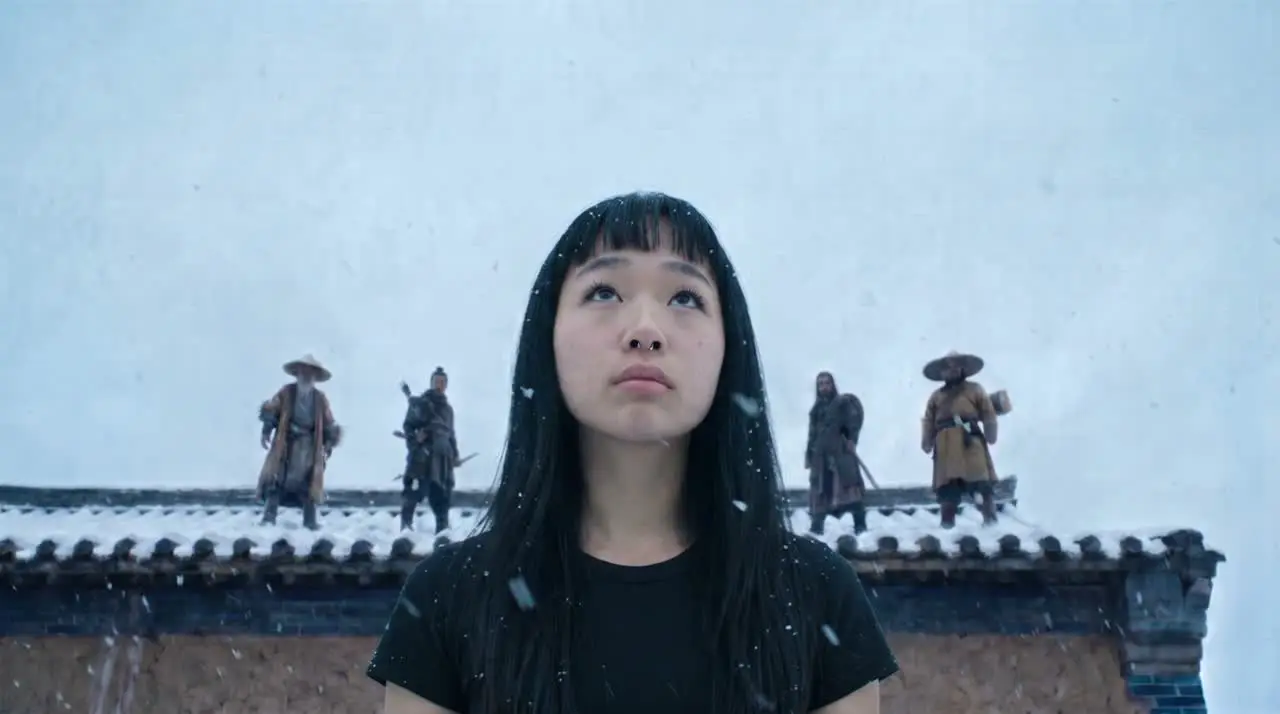
You appear in the shot as if you had been filmed there, as our team member does here, looking up in falling snow with armed figures on the roof behind them.
A team member looks up in falling snow, then the camera rises past them to four armed figures standing on the village roof00:08
The final video: one of our team members in the snow village, with the camera rising to the fighters on the roof.Seedance 2.5

Which films and faces can you use?

Use a film you made or have the rights to, plus your own face or one you have permission to use, and leave real studio films out of it.

Our example uses a film made on Flick by a teammate, and the face is the team member's own. "Any film" in our title means any film you are allowed to use.

How do you put yourself in a movie, step by step?

In five steps: build a character sheet from a few of your own photos, match the pose, line up the film's cast and a frame, place your character, then make it move.
  1. Step 1

    Build your sheet

    Give an image model a few of your own photos and ask for a character sheet, because one clean image with several angles is easier to reuse than a pile of snapshots.
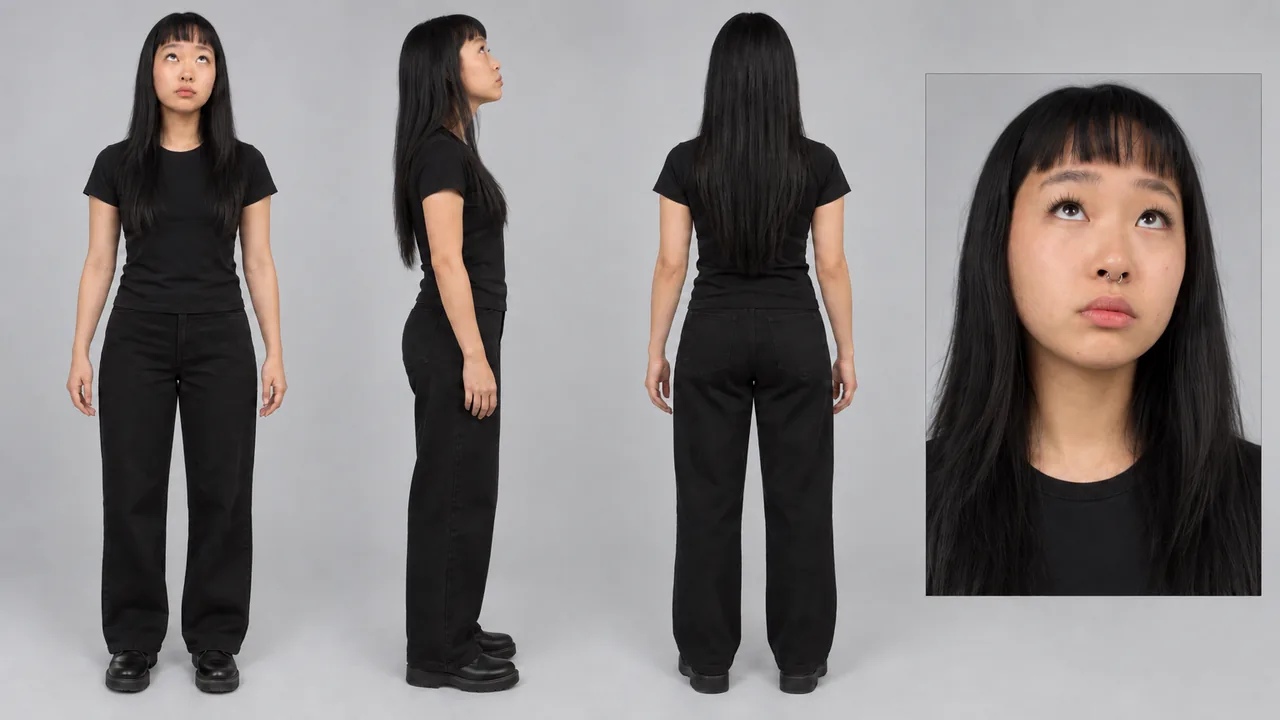
    • Our team member's sheet shows them from the front, side and back, plus a close-up of their face, on a plain grey ground.
    • It was made with GPT Image 2.5, which takes up to 10 reference images.
    • For the full method, read how to make a character reference sheet.
    Character sheet of a team member in a black shirt and trousers from the front, side and back, with a close-up of their face
    GPT Image 2.5
  2. Step 2

    Match the pose

    Make a new version of the sheet in the pose your shot needs, because a character who already looks the right way leaves the model less to change when it joins the scene.

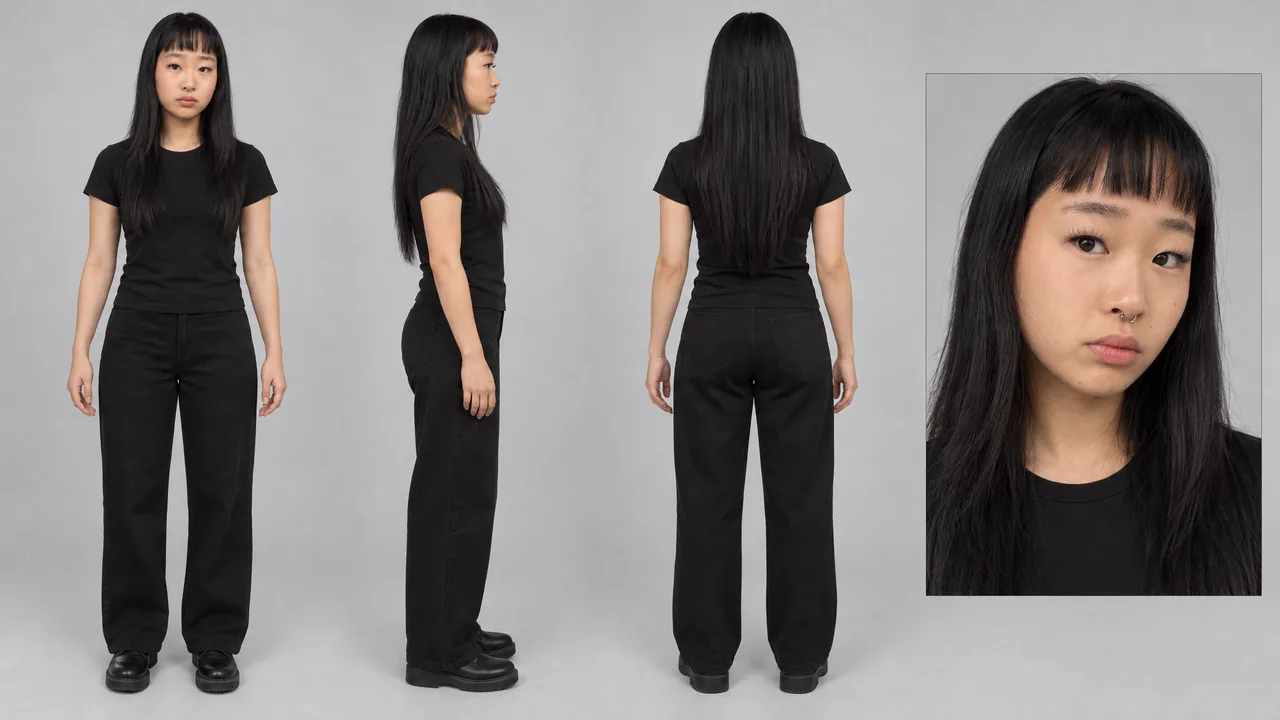
    • The prompt was simply create a shot of me looking up, and the head and eyes changed while the clothes and layout stayed; it is the first card in the next step.
    • The shot needs them looking up because the figures they are watching stand on a roof above them.
  3. Step 3

    Line up the cast

    Give the model your sheet, the sheets of the people already in the shot and a frame of the film, so that you join the scene and everyone in it stays themselves.

    • The four film sheets below are Jaime Yao's, made for The Duel, each showing one character from the front, side and back.
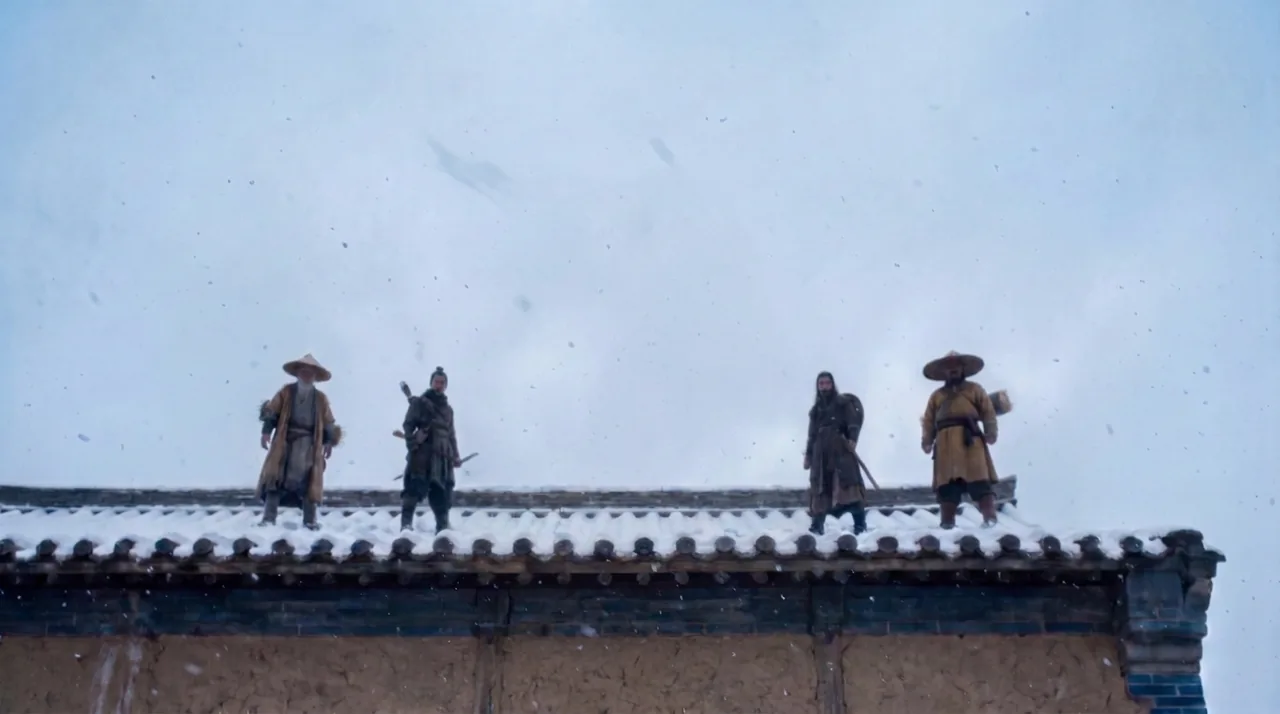
    • The frame is the rooftop scene: it had a character in it, and the prompt remove her took that character out to clear a place.
    Character sheet of a team member with their head tilted up in every view and their eyes looking up in the close-up

    Your sheet, in the pose

    GPT Image 2.5

    Character sheet of a white-bearded old man in a straw hat and torn yellow robe with a rolled mat on his back

    The old man

    Jaime Yao, director of The duel

    Character sheet of a long-haired man in dark robes with a curved blade and a round woven shield on his back

    Bandit one

    Jaime Yao, director of The duel

    Character sheet of a man with a topknot in a layered brown tunic with a long blade and a woven shield on his back

    Bandit two

    Jaime Yao, director of The duel

    Character sheet of a man in dark armor with a bow, a quiver and a round spiked shield on his back

    Bandit three

    Jaime Yao, director of The duel

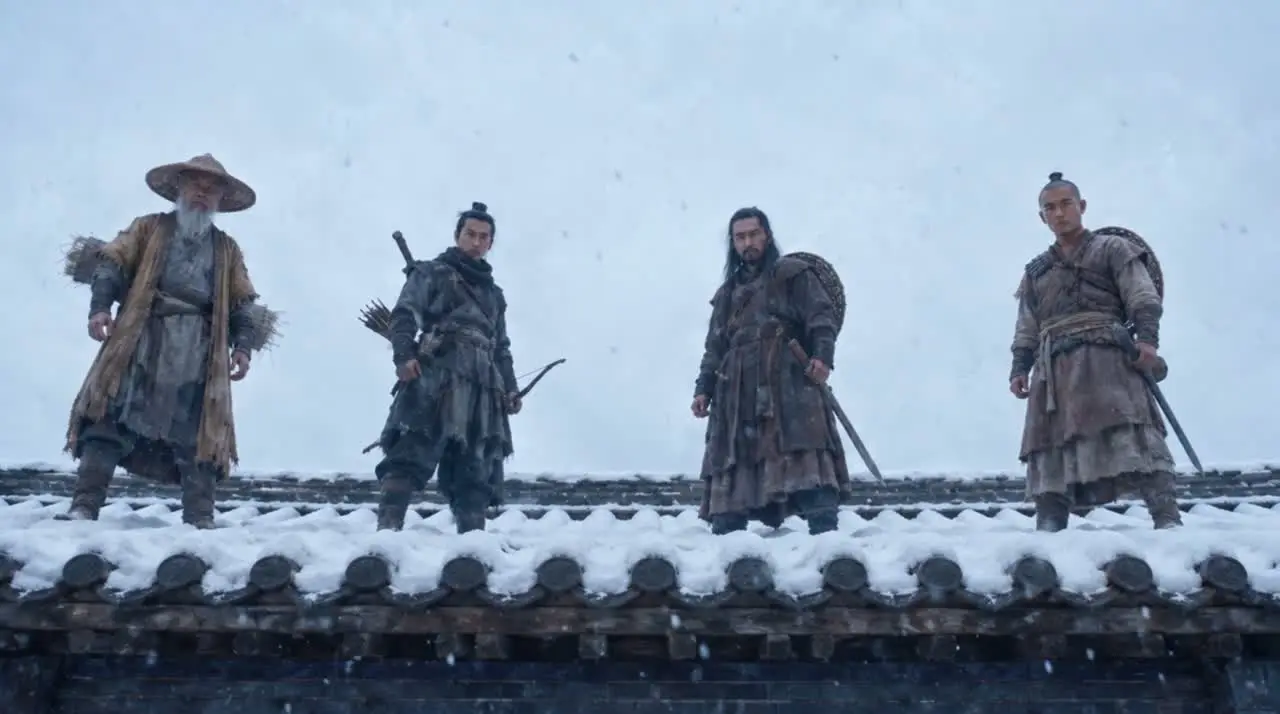
    Four armed figures stand along a snow-covered roof against a pale sky, with nobody in the foreground

    The frame, cleared

    Nano Banana Pro

  4. Step 4

    Place your character

    Ask for your character by name in the scene and say which sheet to copy, so the model takes your face and pose from the sheet instead of inventing a new person.
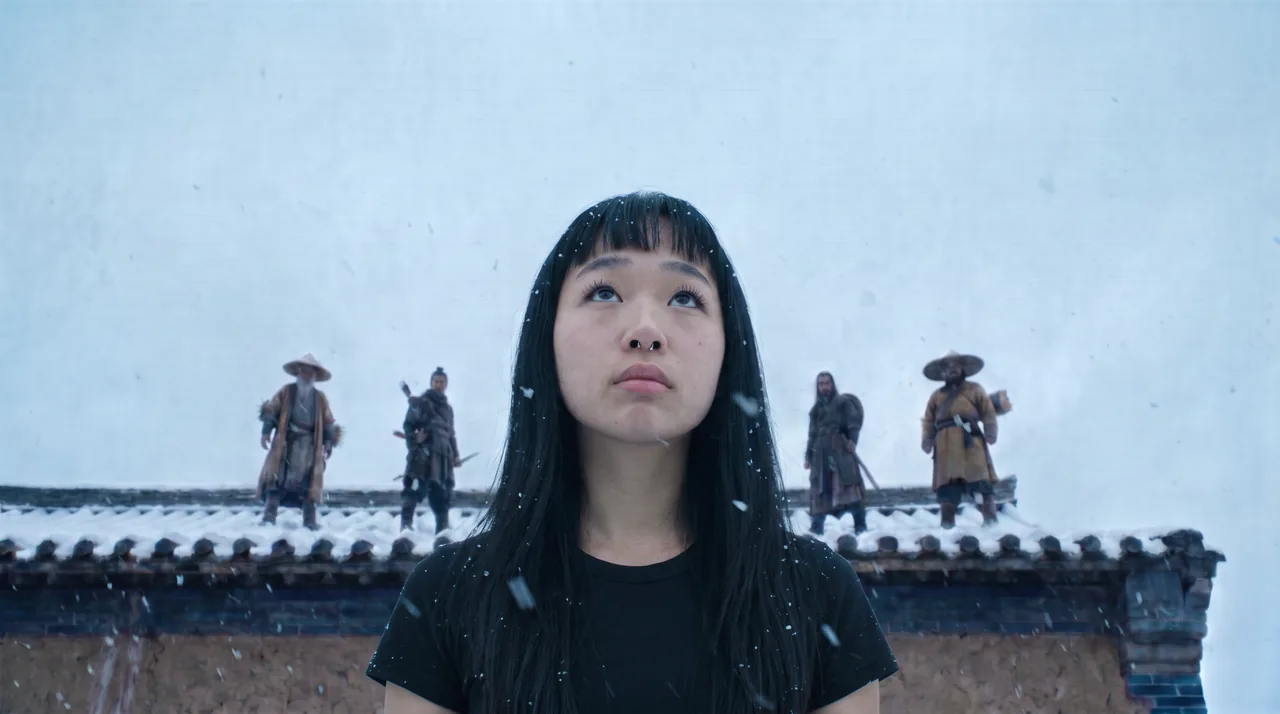
    • The first try asked to "replace the character here with an exact copy of my character looking up," pointing to the looking-up sheet, in Nano Banana Pro.
    • This final image took more work: it combines the film's references with the looking-up sheet, so the person fills more of the frame, the figures recede, and clear snowflakes cross in front.
    A team member in a black shirt with long dark hair looks up in falling snow below four armed figures on a village roof
  5. Step 5

    Make it move

    Use your placed frame as the start of a video and describe one clear move, so the clip begins on the picture you approved and has less room to change your face.

    • The video at the top of this page starts on the final image above and comes to rest on this frame. Its prompt opens with One uninterrupted 8 second take, holds the camera on the person at first, then lets it rise to the fighters on the roof.
    • Give each move its own stretch of seconds, so the model knows when the camera stays and when it travels.
    • Run a few takes and compare your face with your sheet, because the likeness is what a video model is most likely to lose.
    • Video models such as Seedance 2.5 need the Standard plan or higher.
    Four armed figures stand along a snow-covered roof, large in the frame, where the camera comes to rest
    Seedance 2.5

What makes you look like part of the film?

A pose that fits the shot and a scene that reaches you, as the snow does in our final image.
  1. 1. Pose for the shot

    Decide where your character is looking before you place them, as an upward gaze gives our team member a reason to be standing under that roof.
  2. 2. Keep your sheet plain

    Use a plain ground and simple clothes on the sheet, as a grey backdrop and a black outfit leave the model nothing to confuse with the scene.
  3. 3. Let the weather in

    Let the weather of the scene reach your character, as the snowflakes crossing in front of our team member tie them to the village behind.
  4. 4. Judge the first try

    Treat the first placement as a draft, since size and framing are easier to judge once your character is in the frame.

Questions about putting yourself in a movie

Can AI put me in a movie?

Yes. Build a character sheet from a few of your own photos, make a version in the pose the shot needs, and ask an image model to place that character into a frame of the film. Use a film you made or have the rights to.

Can I put myself in a real Hollywood movie?

Leave studio films out, because you do not hold the rights to them, and a likeness placed in one can cause trouble for you. Use a film you made, a film whose makers gave you permission, or a scene you generate yourself.

How do I make an AI version of myself?

Give an image model a few clear photos of yourself and ask for a character sheet with front, side and back views and a close-up of your face. That sheet is your AI version of yourself, and you can reference it in every later prompt.

How do you put your face in a video?

Start with a still: place your character in a frame of the video first and check that it looks right. An image to video model can then animate that frame, or a video model can take your character sheet as a reference.

How do you make AI videos of yourself?

Make a character sheet of yourself, generate or edit a frame with your character in the scene, then use that frame as the start of a clip in a video model. Video models in Flick vary by plan, so check the plan shown on the model.

Can I use someone else's face?

Yes, with that person's permission, and it is best to have that in writing. This covers friends and family as much as public figures, since the result can look as if they really took part.

Can I do this for free?

You can start in Flick for free, with no credit card, and make character sheets and frames with image models such as Nano Banana Pro on free credits.

More on characters and films in Flick

Films in this guide

The snow village frame and the film's character sheets come from Jaime Yao's canvas for The Duel. The images of our team member come from their own canvas, used with their permission.

Put yourself in a film

Build your character sheet, match the pose and place yourself in a frame, all on one canvas.

Put yourself in a film in Flick

Try for free, no credit card required.

Ask AI about this page:ChatGPTPerplexityClaude